15
LUVION Premium Baby products
4.4.4 Add the Camera to your account
• Log in your Hubble for partners Account by entering “User Name” and “Password”
• Tap Add Your Device on the screen of your device to add new Camera
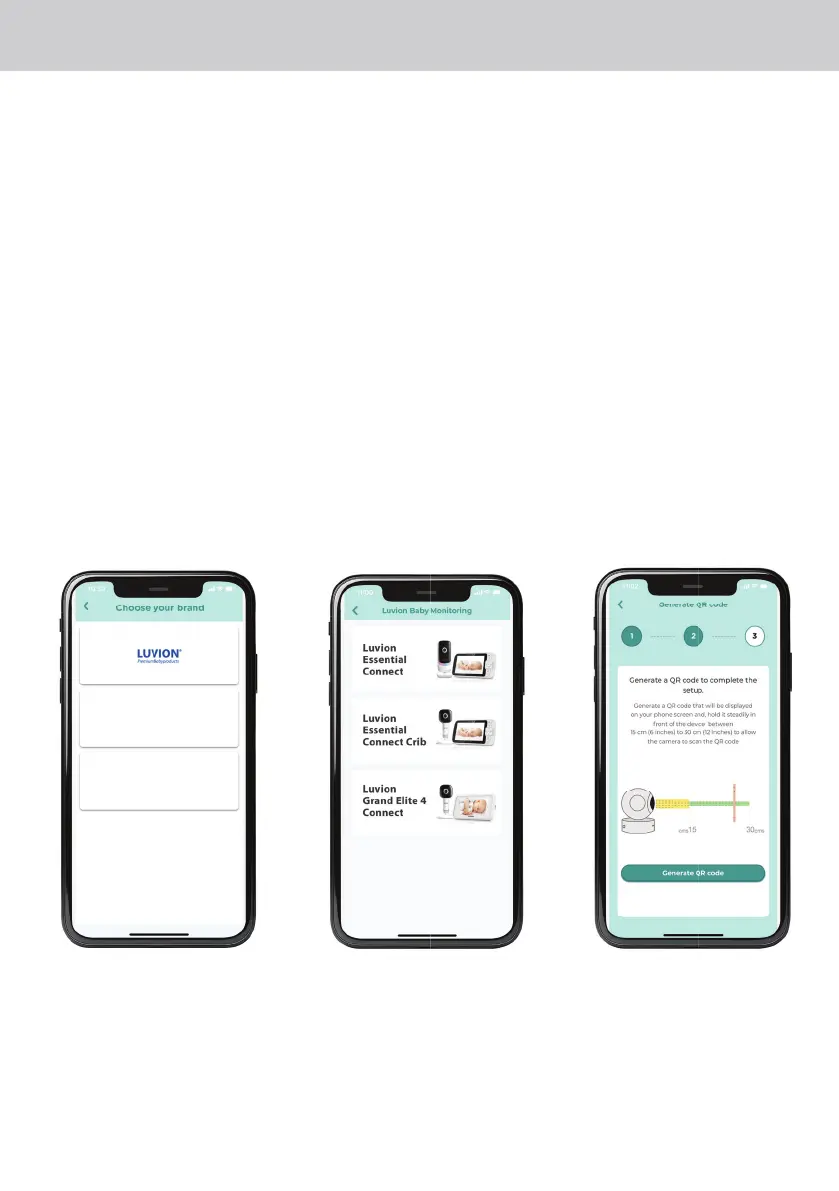
• Select LUVION® (fig 4)
• Select Luvion Essential Connect (fig 5)
• Enter the Wi-Fi® pasword of your own Wi-Fi® network
• Make sure the Parent unit (monitor) is switched off for the next step.
• Power on the camera
• Press and hold the pair button on your camera until you hear “Ready for Pairing”
• Generate the QR code to complete the setup.
• Hold the screen of your phone with the QR code steadily in front of the camera, between
15cm and 30cm and wait for the confirmation message (fig 6)
• You can give a name to your camera when your camera has been succesfuly connected.
Please contact the Luvion customer service or refer to the online instruction videos if you still
experience problems setting up your Luvion Essential Connect camera.
Fig 4 Fig 5 Fig 6





 To Next Page