17
SECTION 4 - PRINTING OBJECTS
4.1 Downloading and Importing Models
STL models can be downloaded and imported into the M3D software from online databases such as
Thingiverse.com or Yeggi.com. The M3D software can also use models exported from 3D modeling
software.
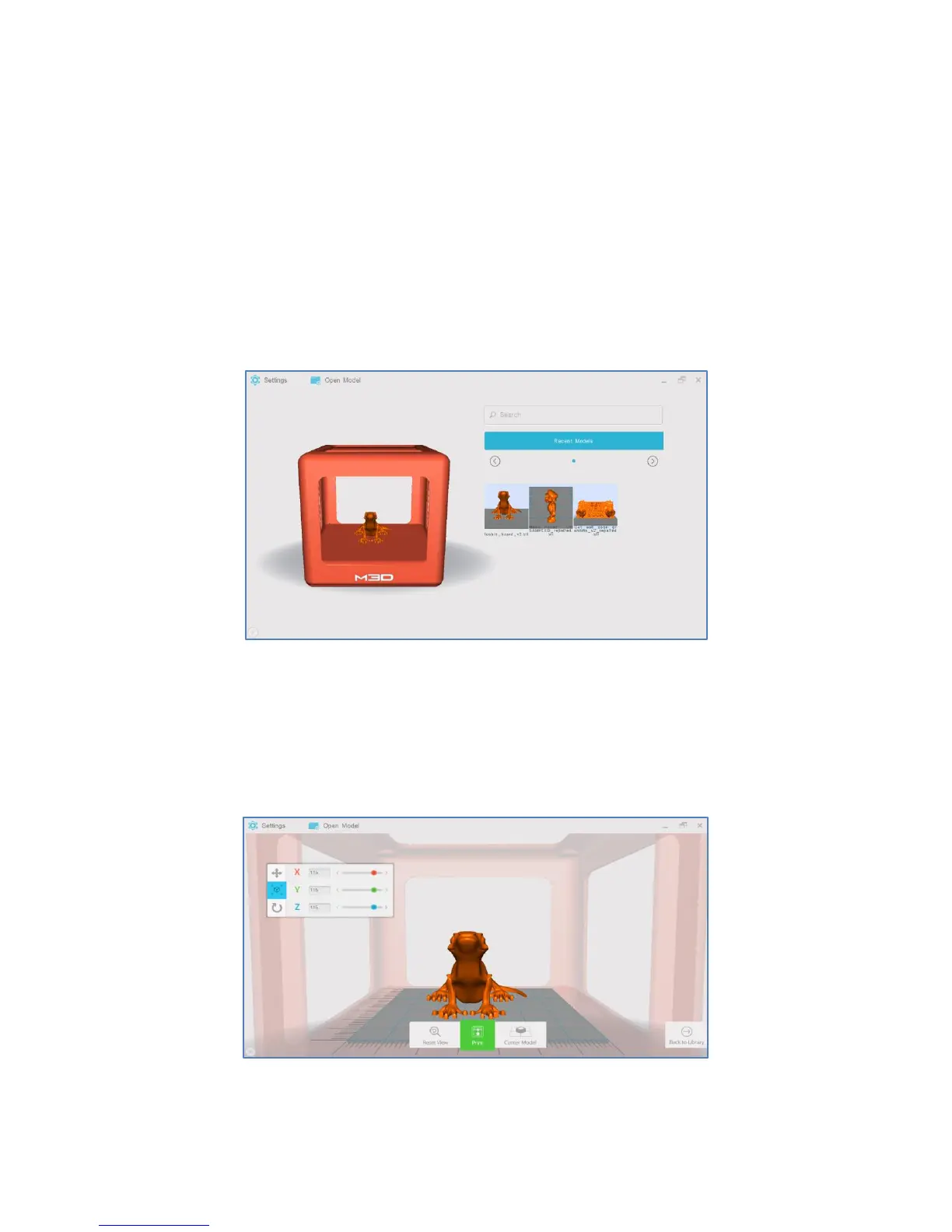
1. To load a model, select “Open Model” from the M3D software’s main interface and select your model.
You can also use the search bar or select from “Recent Models” from the M3D software’s main interface.
Your model will load into The Micro GUI.
4.2 Adjusting Models
2. Click on The Micro GUI to enter adjustment mode. From here, models can be scaled, rotated, or
moved by adjusting the options on the left. Models can be scaled by all 3 dimensions simultaneously by
using the right-mouse button, individually adjusted using the scale bar, or manually entered into the
number box.


 To Next Page