70 Chapter 3: Working with Vector Objects
Moving points and point handles
You can change an object’s shape by dragging its points and point handles with the
Subselection tool.
To move a point:
• Drag it with the Subselection tool.
Fireworks redraws the path to reflect the point’s new position.
To change the shape of a path segment:
• Drag a point handle with the Subselection tool. Alt-drag (Windows) or Option-drag
(Macintosh) to drag one handle at a time.
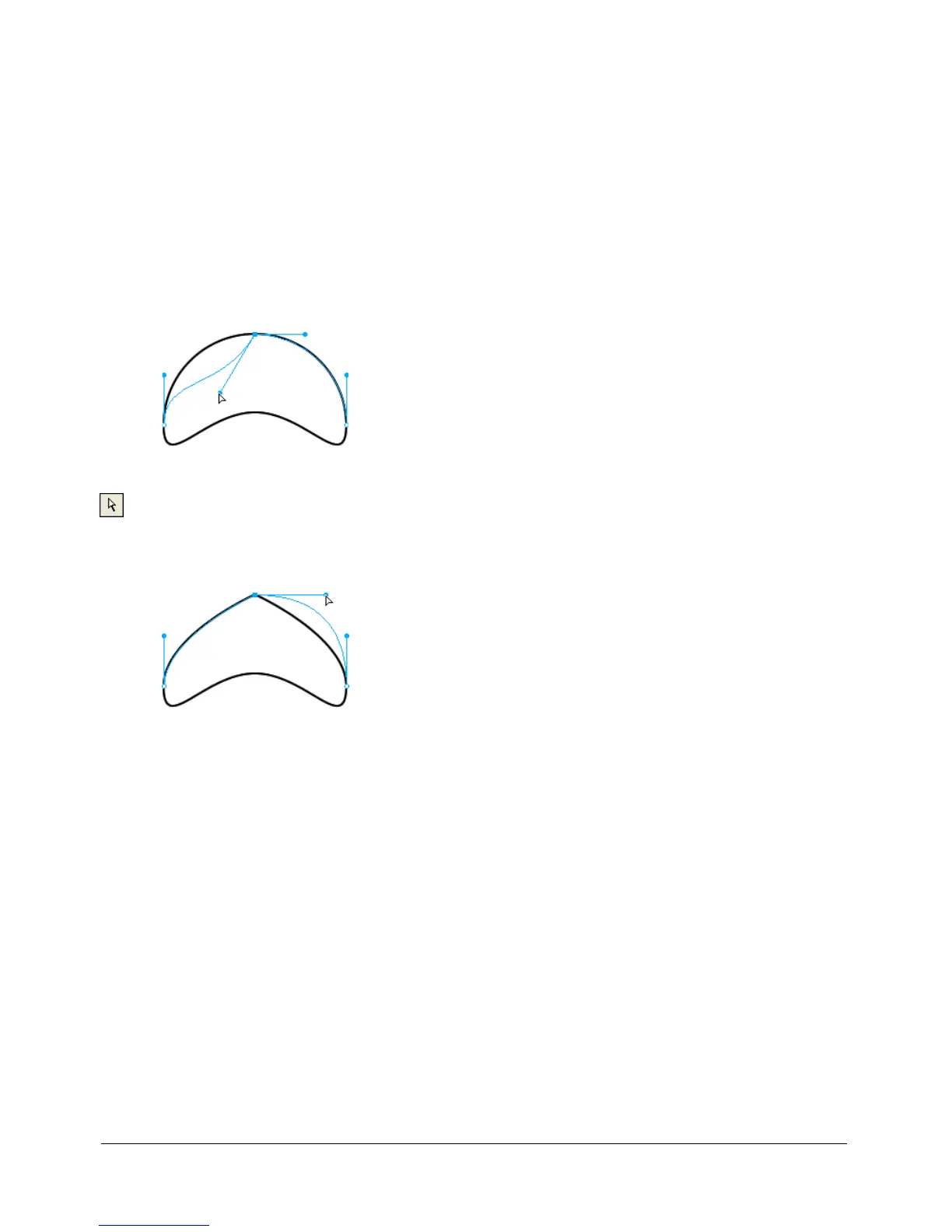
To adjust the handle of a corner point:
1 Choose the Subselection tool.
2 Select a corner point.
3 Alt-drag (Windows) or Option-drag (Macintosh) the point to display its handle and bend the
adjacent segment.
Dragging a corner point handle with the Subselection tool to edit the adjacent path segment
Inserting and deleting points on a path
You can add points to a path and delete points from a path. Adding points to a path gives you
control over a specific segment within the path. Deleting points from the path reshapes it or
simplifies editing.
To insert a point on a selected path:
• Using the Pen tool, click anywhere on the path where there is not a point.
To delete a point from a selected path segment, do one of the following:
• Click a corner point on a selected object with the Pen tool.
• Double-click a curve point on a selected object with the Pen tool.
• Select a point with the Subselection tool and press Delete or Backspace.



 To Next Page