Create the border 117
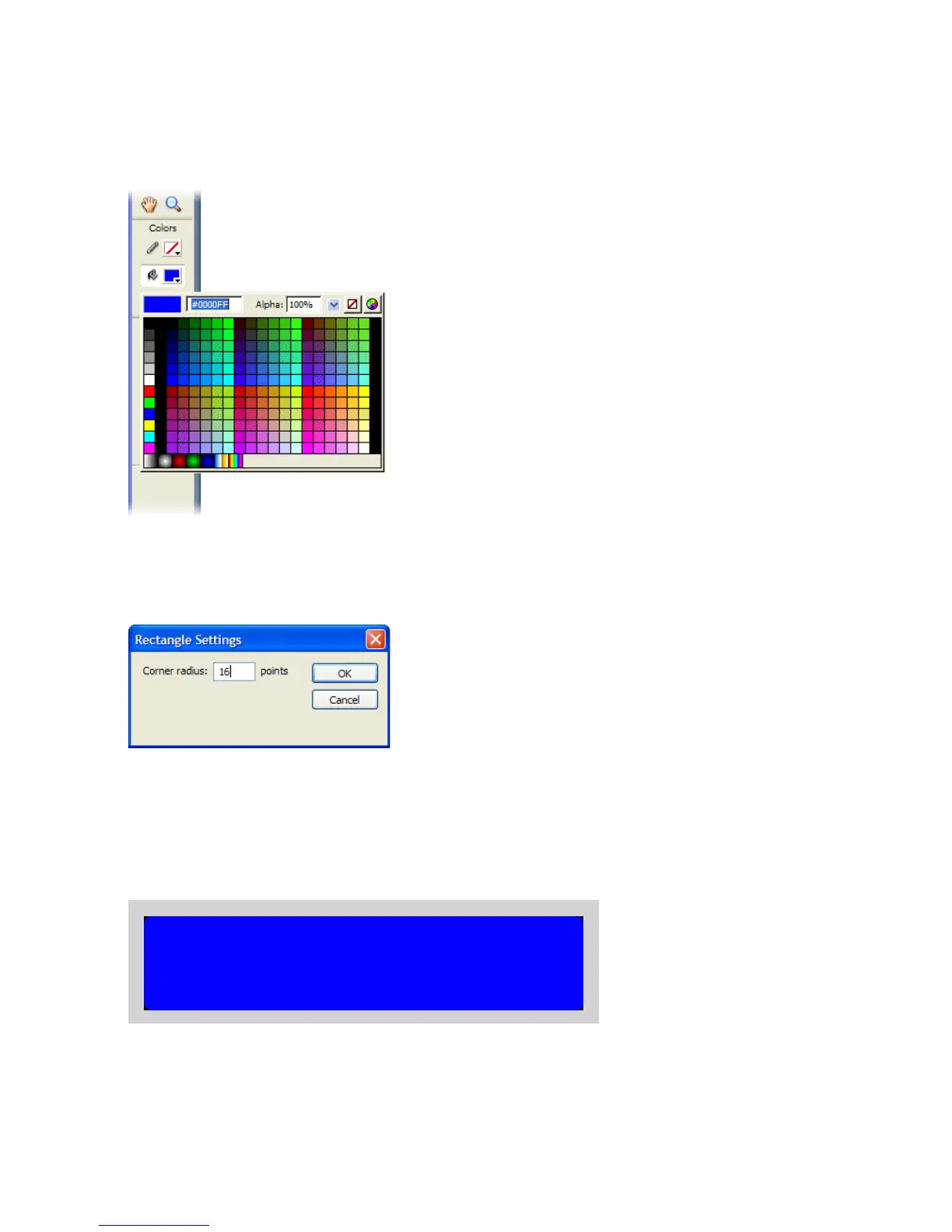
16. Still in the Tools panel, select the color blue with the hexadecimal value
#0000FF from the Fill Color Picker.
17. In the Tools panel, double-click the Rectangle tool.
18. In the Rectangle Settings dialog box, enter 16 in the Corner Radius text
box and click OK.
19. Select View > Snapping > Snap to Pixels to turn on pixel snapping.
This causes the edges of shapes that you draw to snap to the nearest
pixel as you draw.
20.With the Rectangle tool still selected in the Tools panel, draw a
rectangle on the Stage as close to the same size as the Stage as possible.
The blue rounded-corner rectangle on the Stage
000_Getting_Started.book Page 117 Friday, September 2, 2005 12:22 PM



 To Next Page