46 Writing and Editing ActionScript 2.0
To specify a delay for code hints:
1. In the Actions panel or Script window, select Edit > Preferences (Windows) or Flash >
Preferences (Macintosh) from the main menu.
2. Click ActionScript in the Category list.
3. Use the slider to select an amount of delay.
The amount of delay is in seconds.
To work with tooltip-style code hints:
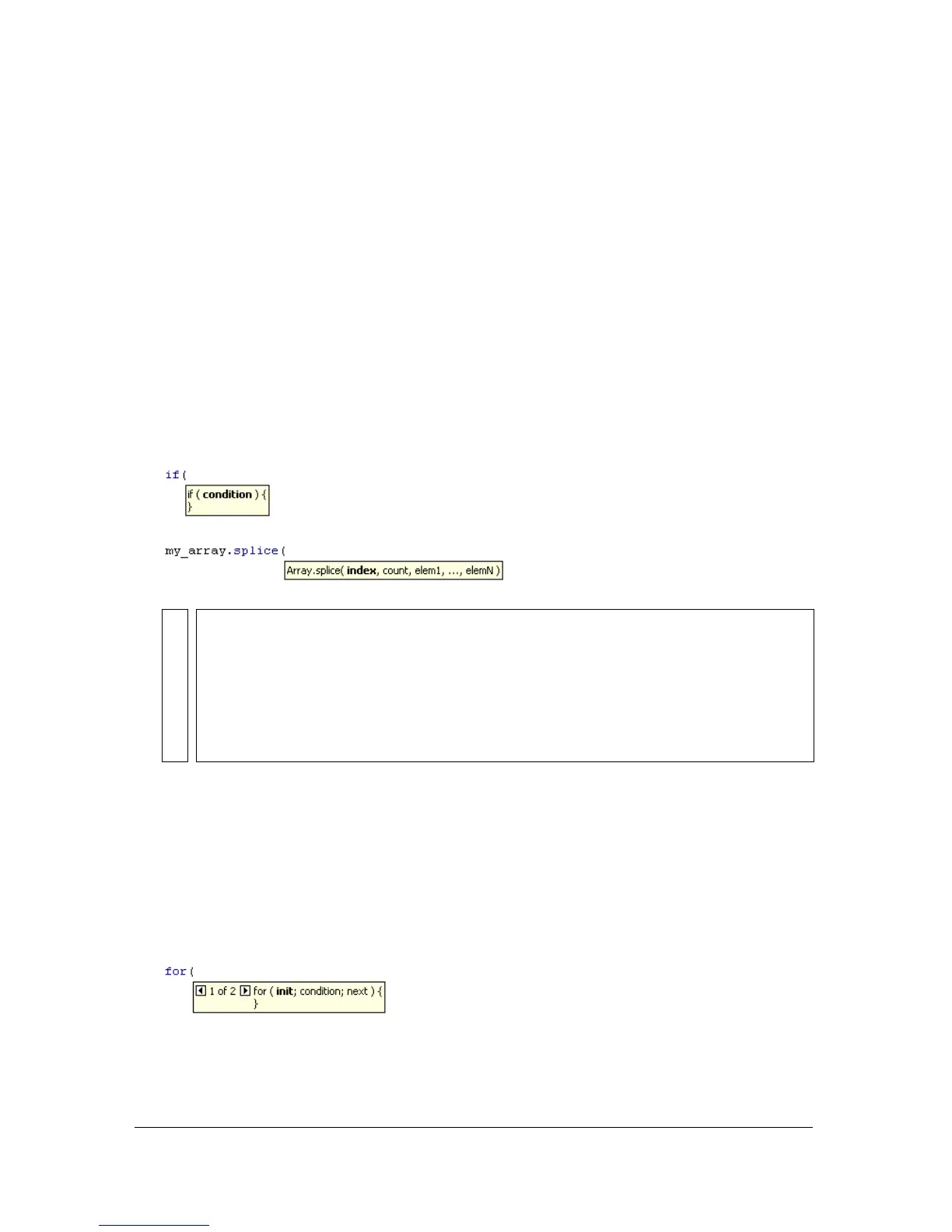
1. Display the code hint by typing an opening parenthesis [(] after an element that requires
parentheses (for example, after a method name, a command such as
if or do..while, and
so on).
The code hint appears.
2. Enter a value for the parameter.
If more than one parameter is present, separate the values with commas. For functions or
statements, such as the
for loop, separate the parameters with semicolons.
Overloaded commands (functions or methods that can be invoked with different sets of
parameters) such as
gotoAndPlay() or for display an indicator that lets you select the
parameter you want to set. Click the small arrow buttons or press Control+Left Arrow and
Control+Right Arrow to select the parameter.
NOTE
If a code hint doesn’t appear, make sure you didn’t disable Code Hints in the
ActionScript preferences (Edit > Preferences (Windows) or Flash > Preferences
(Macintosh) and then click ActionScript in the Category list). To display code hints
for a variable or object you created, make sure that you named your variable or object
correctly (see “About using suffixes to trigger code hints” on page 48) or that you
use strict typing for your variable or object (see “About typing objects to trigger code
hints” on page 48).



 To Next Page