556 Animation, Filters, and Drawings
Understanding scaling and slice guides
You can use 9-slice scaling (Scale-9) to specify component-style scaling for movie clips. 9-slice
scaling lets you create movie clip symbols that scale appropriately for use as user interface
components, as opposed to the type of scaling typically applied to graphics and design
elements.
Understanding how 9-slice scaling works
The easiest way to explain how 9-slice scaling works is to look at an example of how 9-slice
scaling works in Flash.
To understand scaling in Flash:
1. Create a new Flash document and save it as dynmask.fla.
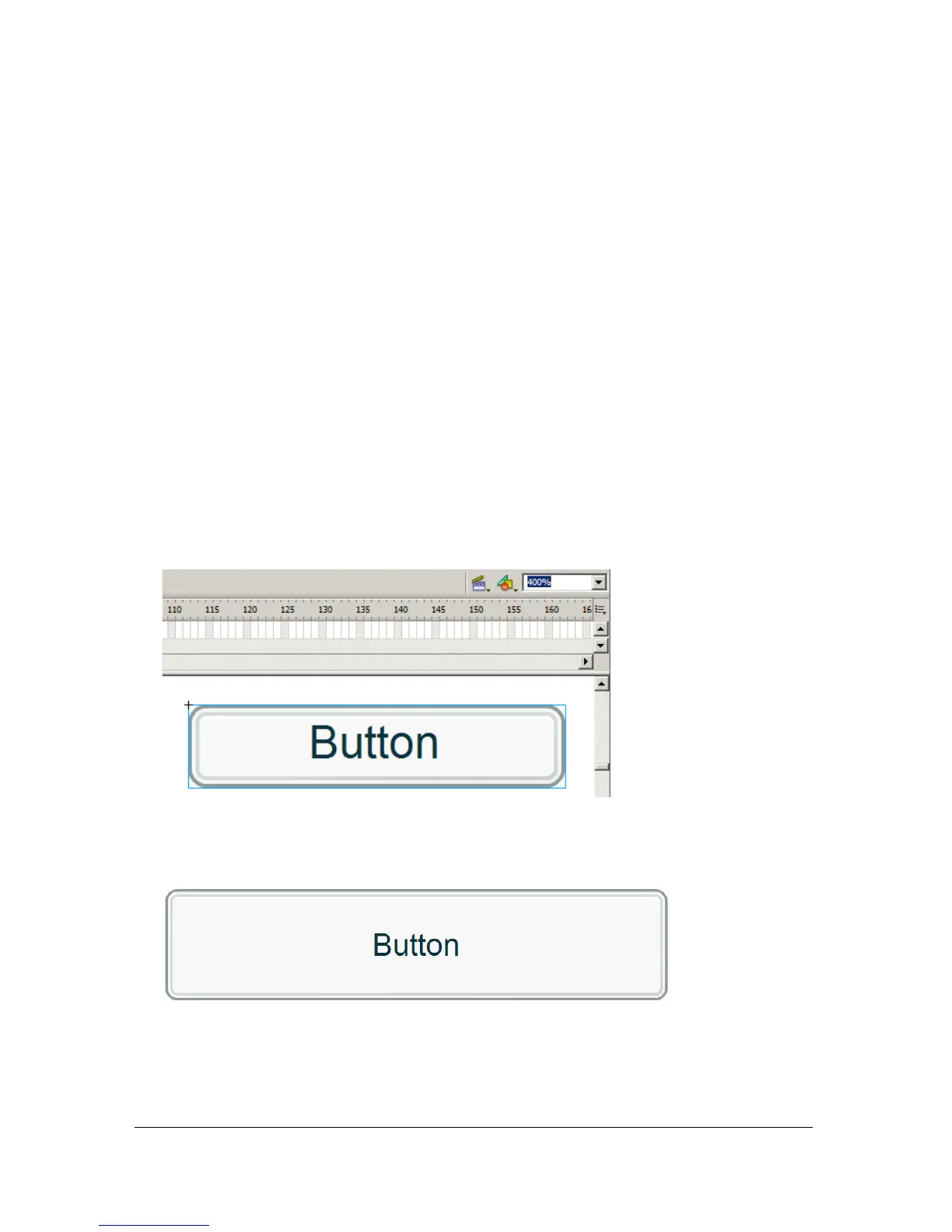
2. Drag a copy of the Button component to the Stage from the Components panel (Window
> Components).
3. Increase the Stage’s zoom level to 400% by using the Zoom tool.
By default, the Button component instance is 100 pixels wide by 22 pixels high.
4. Resize the Button component instance to 200 pixels width by 44 pixels high by using the
Property inspector.



 To Next Page