About ActionScript publish settings 63
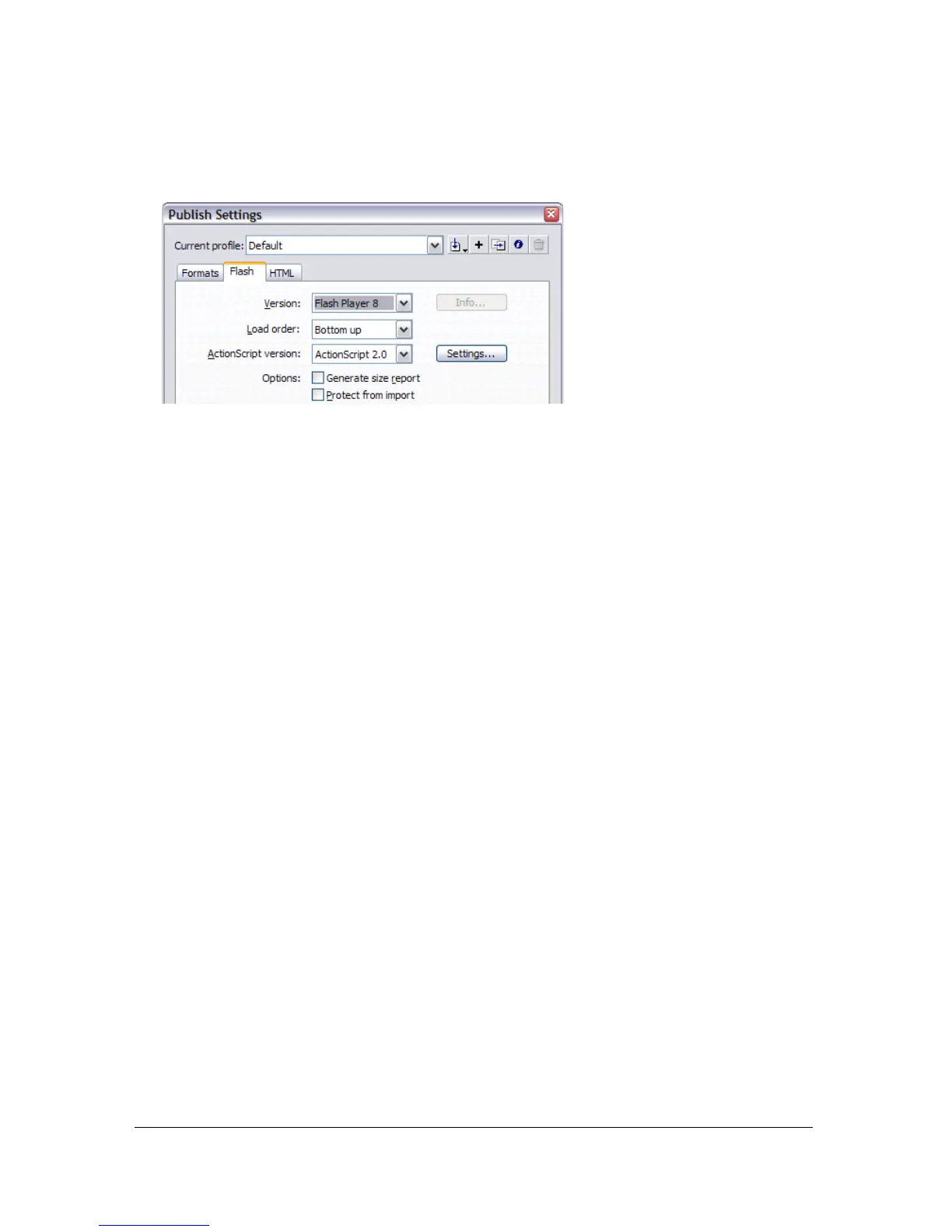
To change the ActionScript version:
1. Select File > Publish Settings and then select the Flash tab.
2. Select the ActionScript version from the pop-up menu.
ActionScript 2.0 is selected by default. If you write your scripts in ActionScript 1.0 instead
of 2.0, change this setting before you publish your Flash document.
The ActionScript 2.0 compiler compiles all ActionScript 1.0 code, with the following
exception: the slash (/) syntax used to indicate movie clip paths (for example,
parentClip/
testMC:varName= "hello world"
) generates compilation errors if you select ActionScript
2.0 as the ActionScript version. To resolve this problem, either rewrite your code using dot (.)
notation in place of slashes, or select the ActionScript 1.0 compiler.
You use the Settings button (next to the ActionScript version pop-up menu) to modify the
document-level classpath. For more information, see “Modifying the classpath” on page 63.
Modifying the classpath
When you use ActionScript 2.0, you can also set a document-level classpath. This is useful
when you create your own classes and you want to override the global ActionScript classpath
that is set in the ActionScript preferences.
Changing the classpath in the publish settings only applies to the current Flash file.
You can use the Preferences dialog box to modify the global classpath. To modify the
document-level classpath setting, you use the Publish Settings dialog box for the FLA file. In
both cases, you can add absolute directory paths (for example, C:/my_classes) and relative
directory paths (for example, ../my_classes or ".").
To modify the global classpath:
1. Select Edit > Preferences (Windows) or Flash > Preferences (Macintosh) to open the
Preferences dialog box.
2. Click ActionScript in the Category list, and then click ActionScript 2.0 Settings.



 To Next Page