Debugging your scripts 723
When you click the button, the breakpoint is reached and Flash Player pauses. You can now
bring the Debugger to the first line of
myFunction() wherever it is defined in the document.
You can also continue through or exit out of the function.
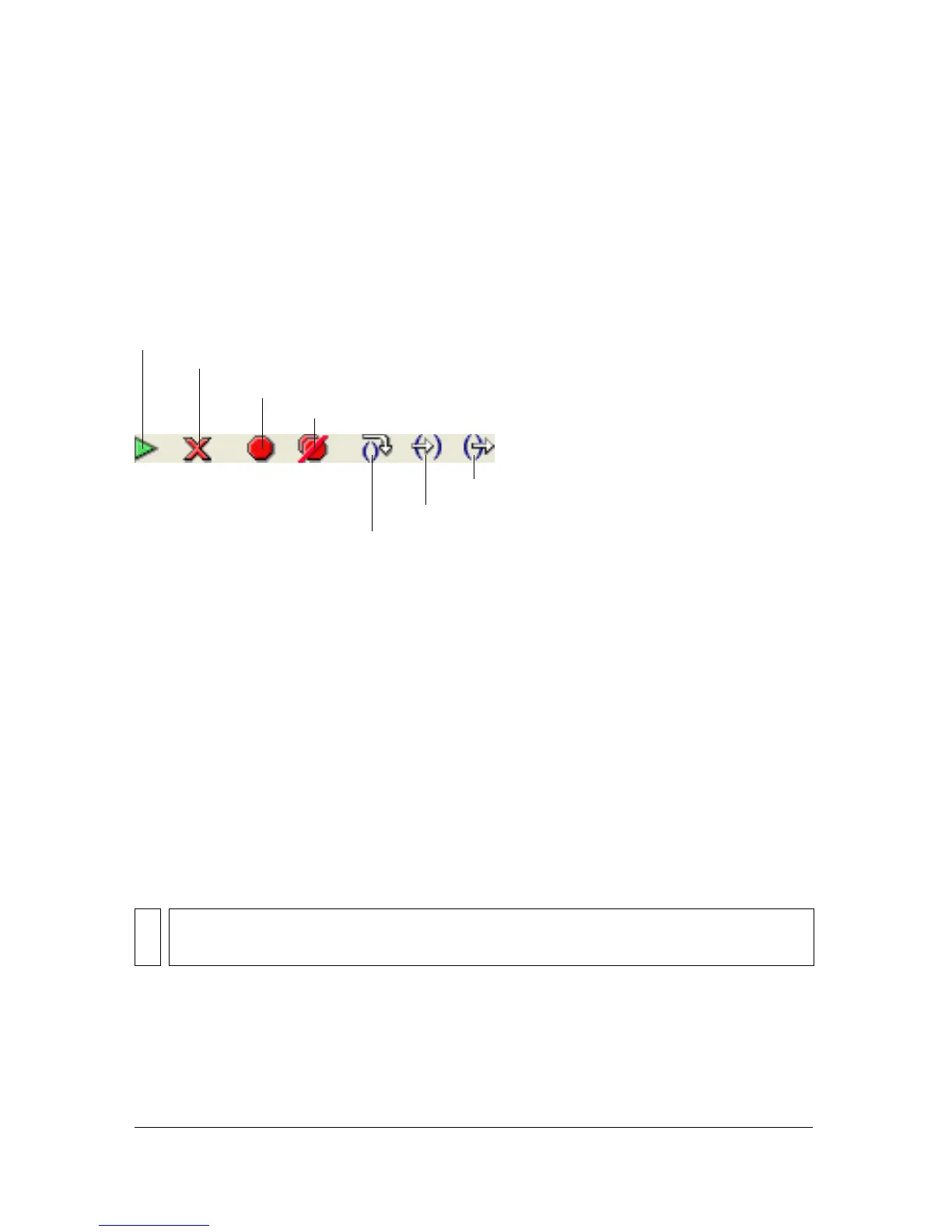
As you step through lines of code, the values of variables and properties change in the Watch
list and in the Variables, Locals, and Properties tabs. A yellow arrow on the left side of the
Debugger’s code view indicates the line at which the Debugger stopped. Use the following
buttons along the top of the code view:
Step In advances the Debugger (indicated by the yellow arrow) into a function. Step In works
only for user-defined functions.
In the following example, if you place a breakpoint at line 7 and click Step In, the Debugger
advances to line 2, and another click of Step In advances you to line 3. Clicking Step In for
lines that do not have user-defined functions in them advances the Debugger over a line of
code. For example, if you stop at line 2 and select Step In, the Debugger advances to line 3, as
shown in the following example:
1 function myFunction() {
2 x = 0;
3 y = 0;
4 }
5
6 mover = 1;
7 myFunction();
8 mover = 0;
NOTE
The numbers in this code snippet denote line numbers. They are not part of the code.
Stop Debugging
Toggle Breakpoint
Remove All Breakpoints
ontinue
Step Over
Step In
Step Out



 To Next Page