13
MiniMad LIGHT FEATURES
RECORD
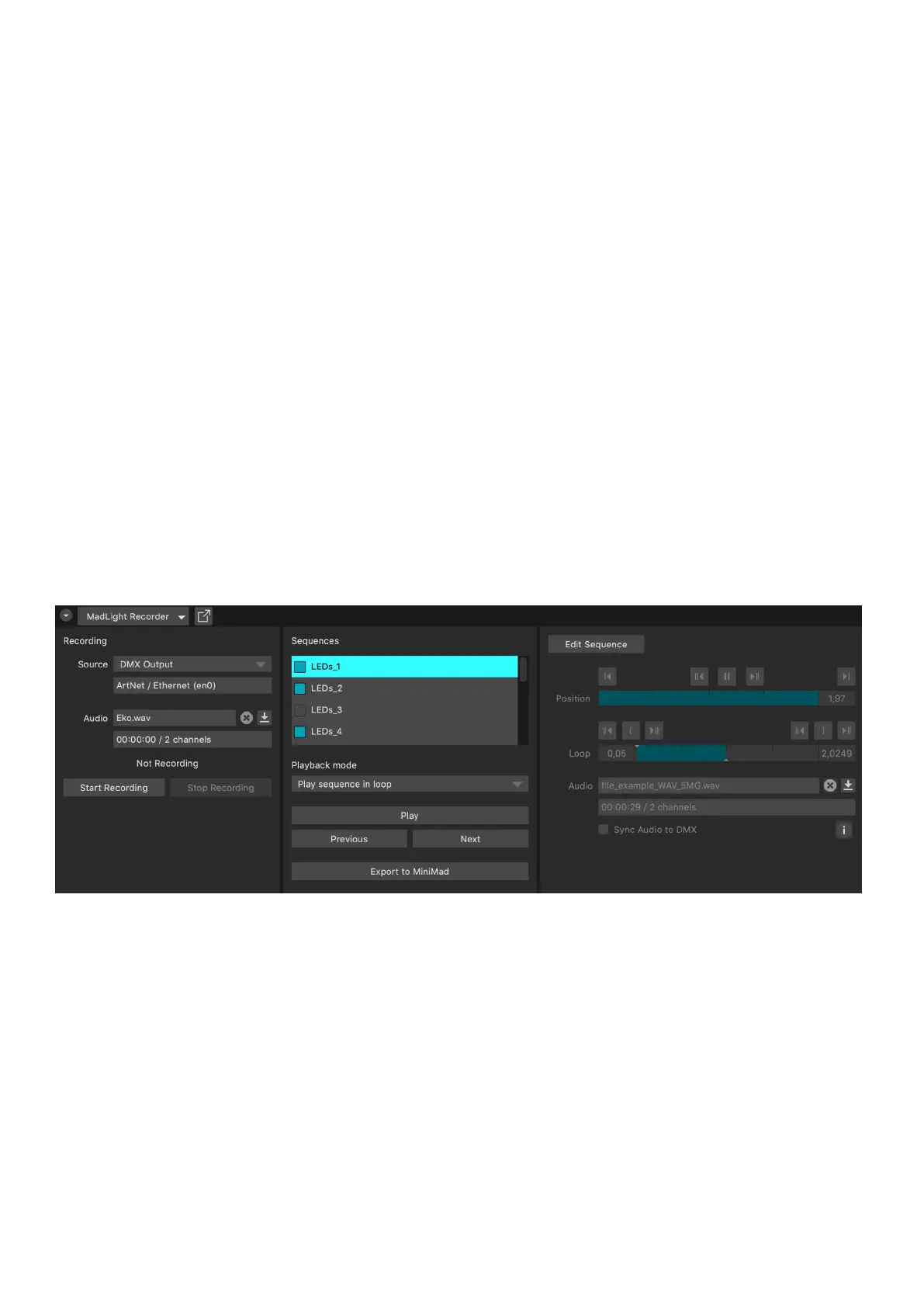
In MadMapper, once your xtures are setup, open Tools --> MadLight Recorder.
Click “Start Recording” to start recording the DMX output.
Click “Stop Recording” to stop the recording.
Optionally, you can select an audio track to be played back while recording.
The newly recorded DMX sequence will be added in the sequences list.
Click Edit Sequence to make adjustments to your sequence - adjust the in & out frames by using the
dedicated Loop controls (keyboard shortcuts are available for quicker operation), add an audio track and
select the way it synchronises with DMX playback.
Click Edit Sequence again to stop editing.
Then, check and reorder the sequences you want to export to the MiniMad, select the Playback mode,
press Play and use the Previous and Next buttons to get a preview within MadMapper.
EXPORT
In the MadLight Recorder dialog, check the sequences you want to export then click Export to MiniMad
to open the export dialog.
By default, MiniMad will use the same DMX interface as MadMapper, but you can select a dierent one
using MiniMad DMX Output.
For ArtNet, SACN or OSC control, you can either select automatic network conguration (using DHCP) or
manual network conguration and input the IP-address and mask the MiniMad will use on the network.


 To Next Page