21
TURNING OFF THE MINIMAD
Depending on the chosen export settings, you can safely disconnect the MiniMad from power, or be
required to shutting it down properly to avoid data-corruption on the SD-card.
Basically, data-corruptions happens when cutting the power of the MiniMad while it’s writing on the SD-
card, which can happen:
- when changing media, when the “start last played media” export setting is checked
- when changing master luminosity
- when changing audio volume
- when changing playback mode
- when editing using the mapping or image control modes in MiniMad Video
By consequence, we strongly advice against turning o the MiniMad by cutting the power if you use any
of the following features.
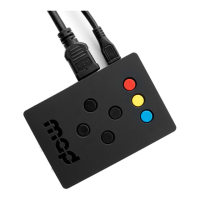
Instead, you should perform a proper shutdown using either the MiniMad buttons, a USB keyboard,
MiniMad Controller or using OSC.
Please refer to the CONTROLS sections of the selected application for more details.
UPDATE YOUR MINIMAD SD-CARD
You need rst to download the latest image of the MiniMad system (8 and 16GB versions are available)
as well as the Etcher ashing tool.
Note that you don’t need to decompress the downloaded zipped images.
All those les are available to download in MadMapper Downloads.
1. Insert your MiniMad SD-card in your computer’s card-reader.
2. Launch Etcher application.
3. Select the downloaded .zip disk-image le as source.
4. Select the SD-card drive as target.
5. Click “Flash!” to start the operation.
The ashing operation can take up to 20-30 minutes.
ACTIVATE YOUR MINIMAD SD-CARD
After you ashed your MiniMad SD-card with the latest system image, you will need to activate it in order
to export your mapping project.
The procedure is quick though:
1. Insert the SD-card in the MiniMad
2. Connect the MiniMad to a HDMI display
3. Plug the power cord to turn the MiniMad on
4. Follow the on-screen procedure
Note that the MiniMad red LED is blinking when the activation process is required.
SD-CARD GOOD PRACTICE


 To Next Page