8
CONTROLS
KEYBOARD
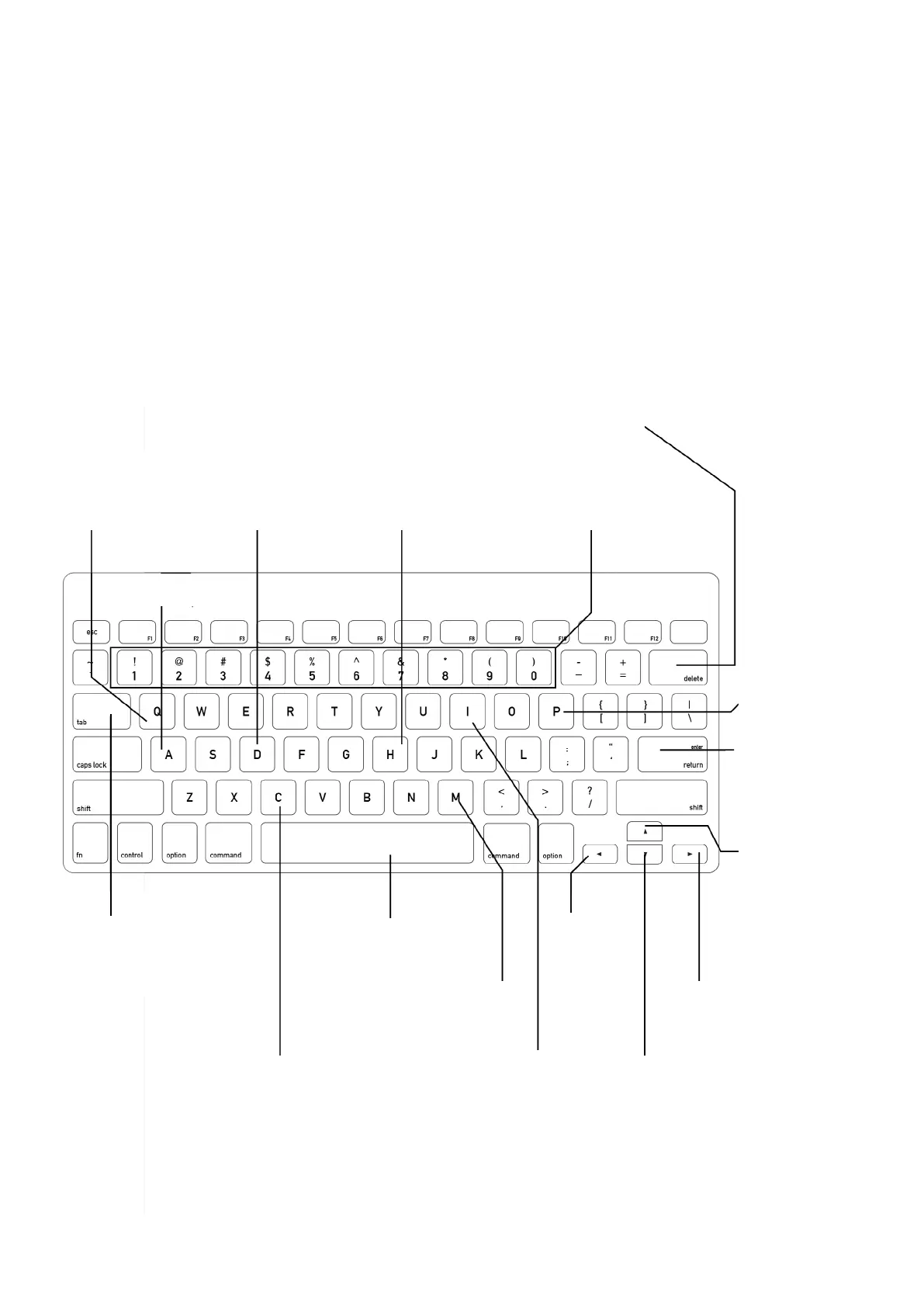
As an alternative to the MiniMad’s buttons, you can use any USB keyboard as a remote.
Using a wireless USB keyboard may be particularly interesting when the device is not easily accessible.
Attach the keyboard to one of the four USB ports prior to powering it on and follow the following
keyboard map to control all functions:
Backspace
restart media / start media over in “Play once…” modes
Numbers
direct access to the
10 rst media
H
display help
D
display info
Q
shutdown
A
change audio output
P
change playback mode
Enter
next surface
Up
control image
display time
Right
next media
Down
control image
display time
C
activate cropping control
I
activate
image control
M
activate
mapping
control
Left
previous
media
Space
pause media playback / start
media over in “Play once…”
modes
Tab
next control point
MiniMad VIDEO


 To Next Page