14
MiniMad LIGHT FEATURES
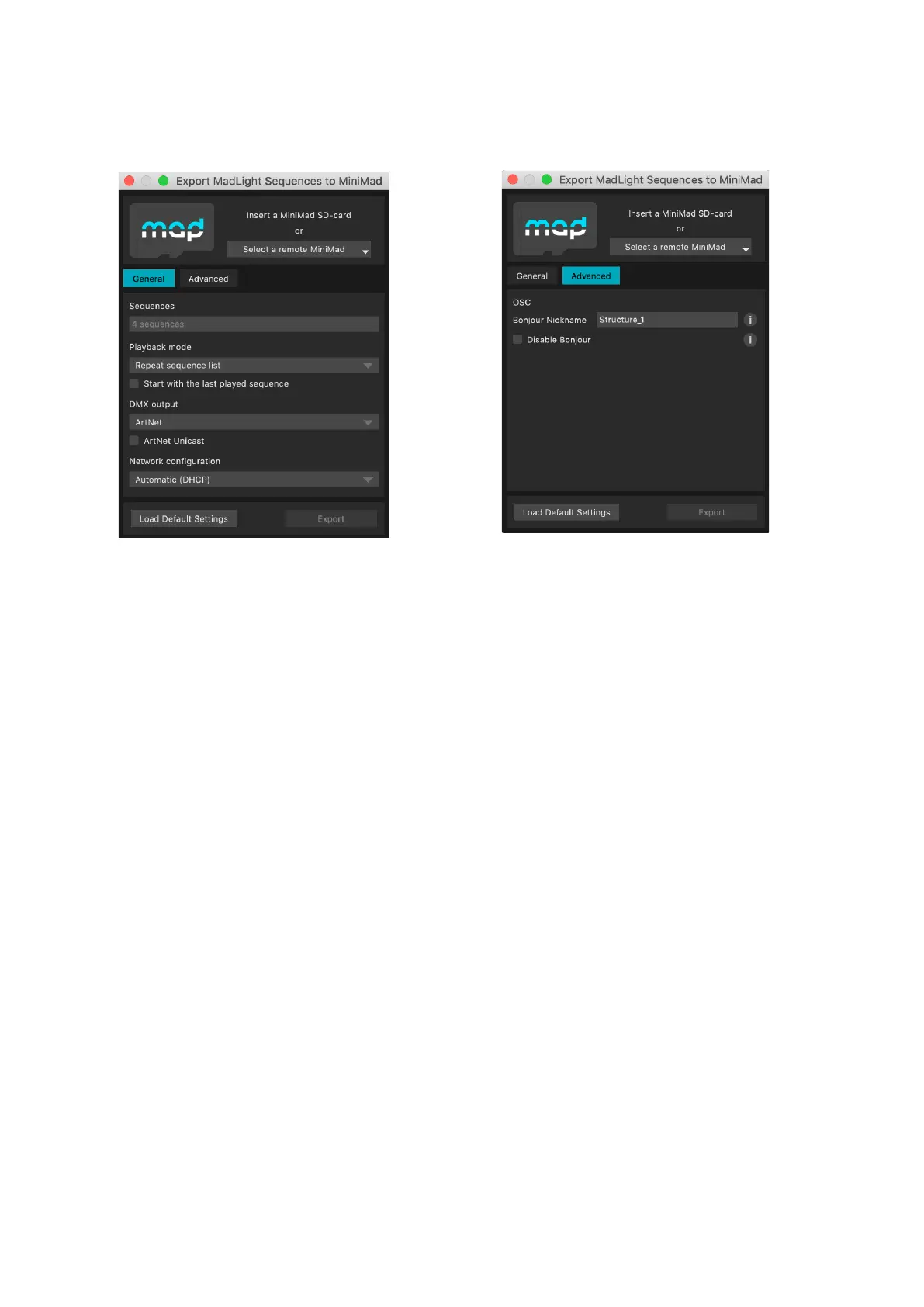
In Advanced tab, you can also specify a nickname for the the Bonjour OSC Discovery, or disable it
completely to prevent the MiniMad from appearing in applications supporting Bonjour.
(cf CONTROLS / OSC section for more details)
You can reset all of the export settings to default by clicking “Load Default Settings”.
You can either insert the MiniMad SD-card in your computer, or select a remote MiniMad connected on
the local network via ethernet (make sure both the MiniMad and the computer are on the same network).
If required, you may need to update your MiniMad SD-card, please refer to the dedicated UPDATE YOUR
MINIMAD SD-CARD section.
If necessary, update MiniMad as advised before exporting.
Once the SD-card is ready, click Export to export selected sequences to the SD-card.
Once exported, the SD-card should be automatically ejected so you can directly stick it in your MiniMad.
AUDIO
MiniMad can either play audio through its audio mini-jack connector, or through an external USB
system-compliant audio device, enabling the MiniMad to play audio le with as many channels as your
device provides, in addition to an enhanced audio quality.
Make sure to plug the audio USB device prior to powering the miniMAD on.
Note also that the MiniMad might not be able to provide enough USB-power to your device depending
on its power consumption.
In this case please use an externally-powered USB hub in between the MiniMad and your device.


 To Next Page