5
EXPORT
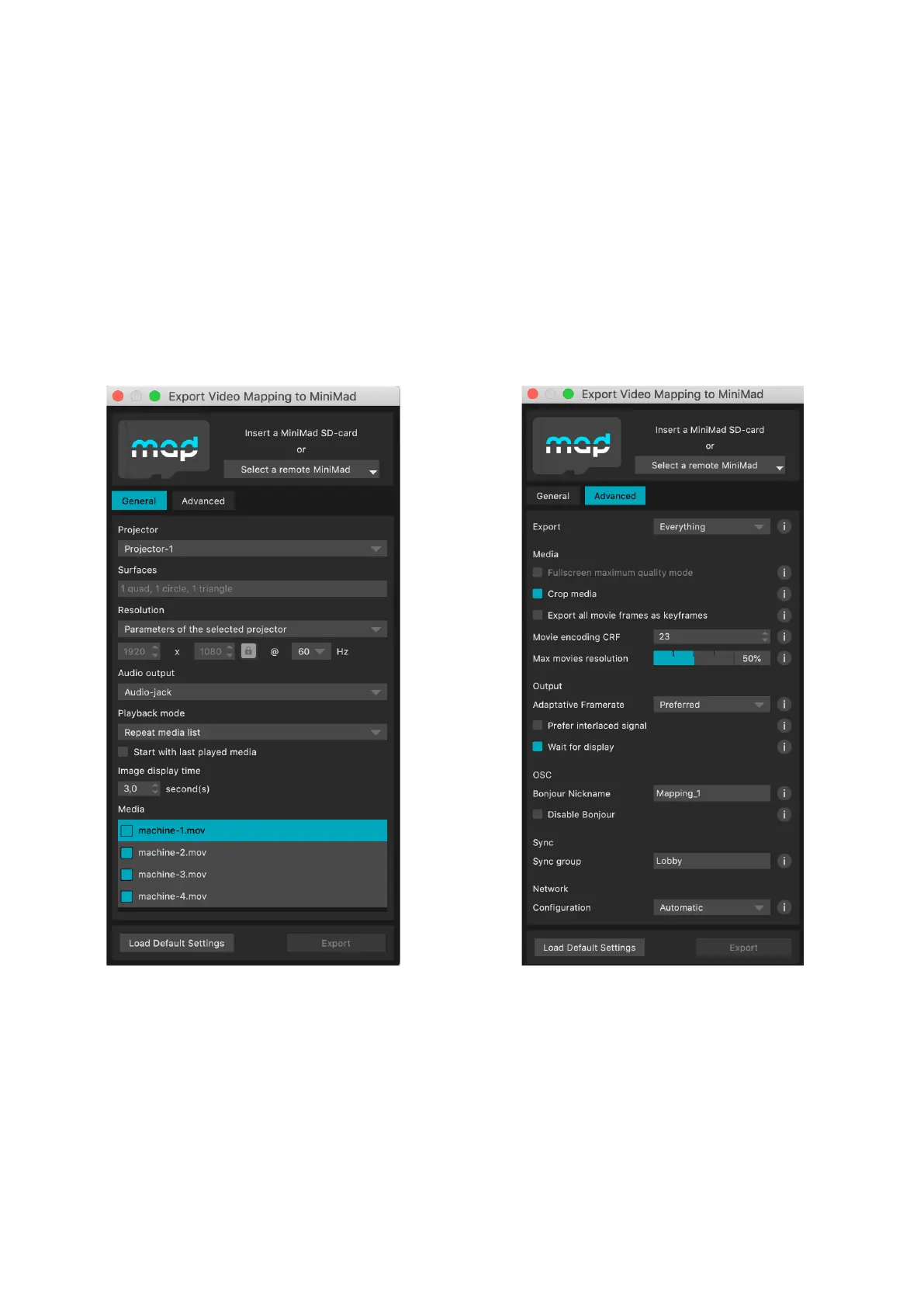
In MadMapper, click File > Export Video Mapping to MiniMad.
FFmpeg Tools is required to export MadMapper project to MiniMad, so please download FFmpeg Tools
Installer using the provided link.
You can either insert the MiniMad SD-card in your computer, or select a remote MiniMad connected on
the local network via ethernet (make sure both the MiniMad and the computer are on the same network).
If required, you may need to update your MiniMad SD-card, please refer to the dedicated UPDATE YOUR
MINIMAD SD-CARD section.
If necessary, update MiniMad as advised before exporting.
Then, select the projector you want to export to MiniMad, adjust the output resolution, the audio output,
the playback options, optionally unselect and reorder your medias.
In the case your mapping consists in a single fullscreen-quad with no color correction applied - typically
when displaying on a TV-screen, a video-wall, a straight video-projection or perspective-corrected by
the projector itself - MadMapper will propose you to switch the Fullscreen maximum quality mode on, so
your media will be exported using the best possible resolution (up to 1080p30).
Note that when this mode is on, mapping and color correction controls are disabled on the MiniMad.
You can also specify a nickname for the the Bonjour OSC Discovery, or disable it completely to prevent
the MiniMad from appearing in applications supporting Bonjour.
(cf CONTROLS / OSC section for more details).
FEATURESMiniMad VIDEO


 To Next Page