Functions & Settings
- Chapter.04
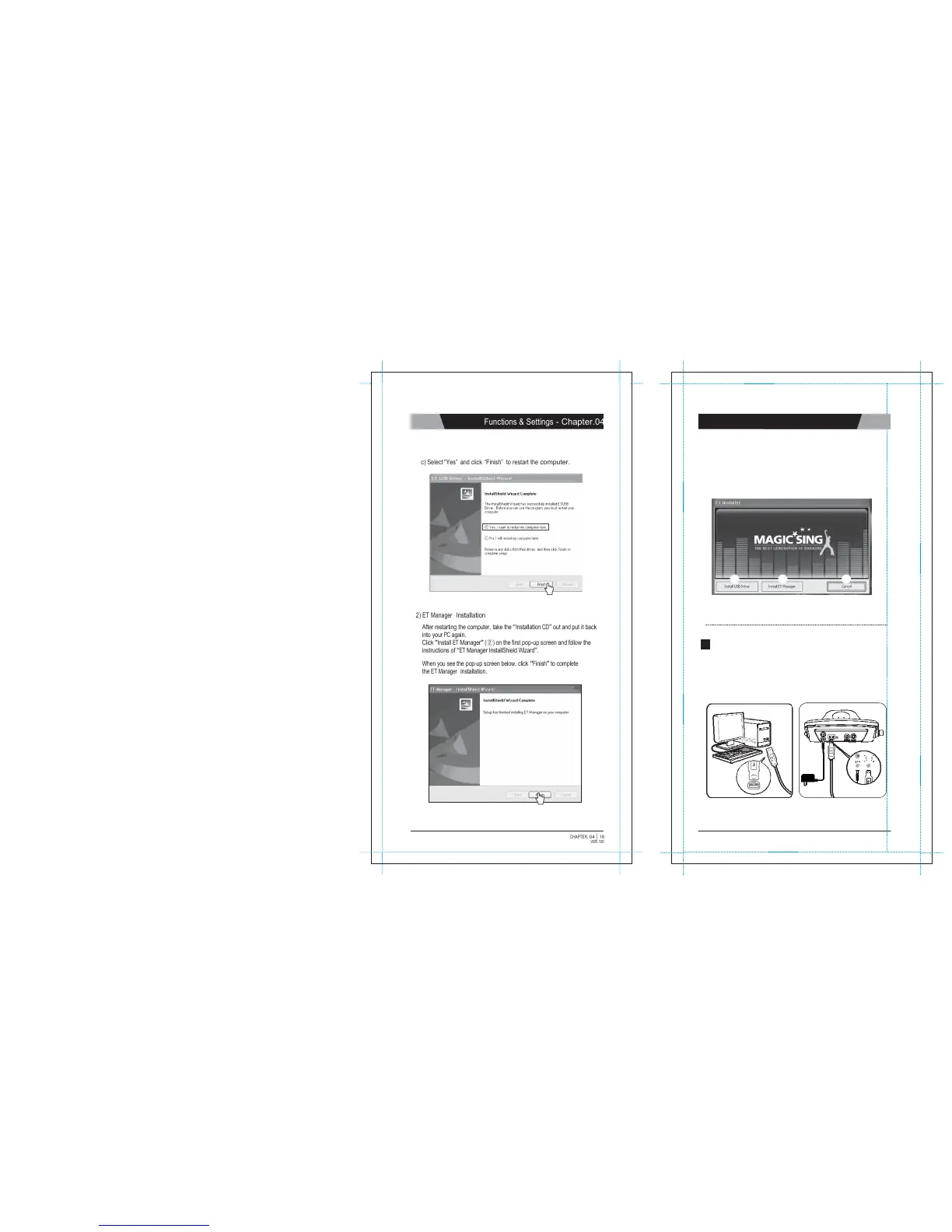
c) Select “Yes” and click “Finish” to restart the
computer.
2) ET Manager
I
ns
t
a
ll
a
ti
o
n
After restarting the computer, take the
“
I
n
s
t
a
ll
a
t
i
o
n
C
D
”
out and put it
b
a
c
k
into your
PC
a
g
a
i
n
.
Click
"
I
n
s
t
a
ll
ET
M
a
n
a
g
e
r
"
(
②
)
on the
first pop-up
screen and follow
t
h
e
instructions of
“
E
T
Manager InstallShield
W
i
z
a
r
d
”
.
When you see
the pop-up
screen below, click
"
F
i
n
i
s
h
"
to
c
o
m
p
l
e
t
e
the
ET Manager
i
n
s
t
a
ll
a
t
i
o
n
.
CHAPTER.
04
|
18
VER.100
Chapter.04
-
Functions &
Settings
3)
E
X
I
T
After completing the two previous installations, you will see the
s
c
r
ee
n
below
a
g
a
i
n
.
In order to exit, click
"
C
a
n
c
e
l
"
(
③
)
.
1
2
3
And follow the below steps to execute the
ET Manager
p
r
o
p
e
r
l
y
.
2
HOW TO CONNECT MAGICSING TO A PC WITH A USB C
AB
L
E
1. Turn on the power of main s
t
a
t
i
o
n
.
2. Plug the
USB
cable in the
P
C
’
s
USB
port as shown in the picture
b
e
l
o
w
.
3. Plug the USB
cable in the MagicSing's
USB
port as shown in the
picture
below.
DC IN
8V
“
USB
CONNECTED” will appear on TV SCREEN.
19
|
CHAPTER.
04
VER.100


 To Next Page