2 - Installation
tDynamo| Three-way Secure Card Reader Authenticator | Installation and Operation Manual
Page 15 of 39 (D998200257-20)
2.2 Connecting to a Host
2.2.1 About Connecting tDynamo to a Host
tDynamo can connect to a host via a variety of connections. Solution designs generally choose one
connection type and do not switch between them, though the device does provide features that allow the
host to actively manage its active connections and connection behaviors (see section 5 Developing
Custom Software). The following sections provide steps for connecting tDynamo to a host via each
connection type.
2.2.2 How to Connect tDynamo to a Host Computer via USB
tDynamo can connect to a USB host or charger either via its USB-C Connector or the optional docking
stand. If the device is using USB as a power source but not as a host connection, also see the sections
below about connecting the device using Bluetooth LE. If the device is connected to two USB
connections at the same time, the docking stand connection takes precedence as a power source, and the
device’s configuration determines which connection it uses to send card swipe data.
To connect tDynamo to a host computer using the optional docking stand, see section 2.3 Mounting
tDynamo. To connect tDynamo to a host computer using the USB-C Connector, follow these steps:
1) Make sure tDynamo is configured to use the USB-C connector as its primary connection. If it is
configured to use another connection, use that connection first to change the configuration.
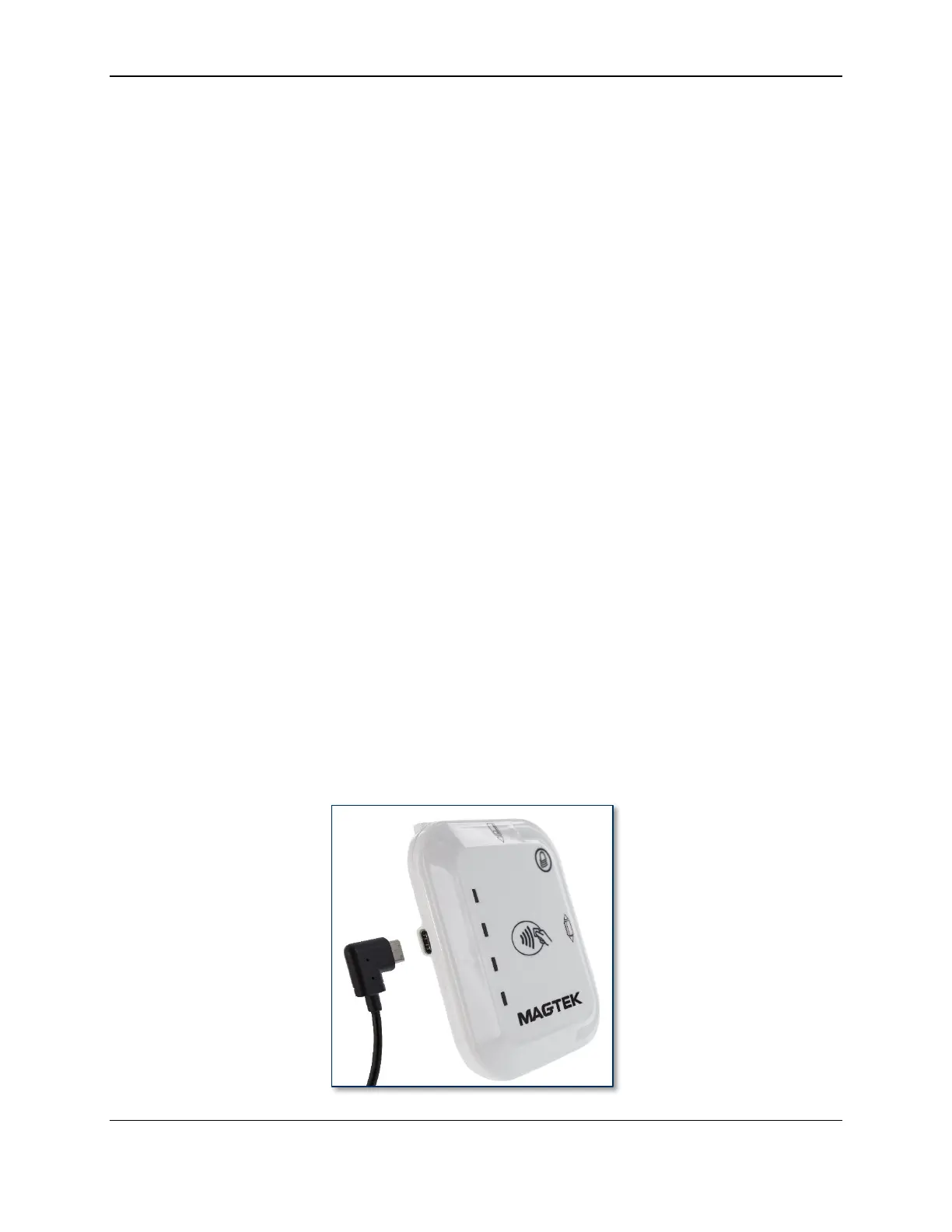
2) Connect the small end of the USB cable to tDynamo’s USB-C connector as shown in Figure 2-1.
3) Connect the large end of the USB cable to the host computer’s USB port.
4) Power on the host computer.
5) On the host, install and configure the host software you intend to use with tDynamo (if you do not yet
have that software, you can use MTNETDemo.exe included in SOFTWARE, SDK, DYNAMAG /
DYNAMAX / EDYNAMO / UDYNAMO / ADYNAMO / MDYNAMO / TDYNAMO /
DYNAWAVE (WINDOWS .NET), available from MagTek.com, to perform simple tests):
a) Make sure the host software is configured to look for the device on the proper connection type.
b) Make sure the host software knows which device(s) it should interface with.
c) Make sure the host software is configured to properly interpret incoming data from the device.
For direct USB connections, tDynamo transmits data as a vendor-defined HID device.
6) Use the host software to test swiping, inserting, and tapping a card (see section 3.5 Card Reading).
Figure 2-1 - Connecting tDynamo to a Host Computer via USB


 To Next Page