3 - Operation
tDynamo| Three-way Secure Card Reader Authenticator | Installation and Operation Manual
Page 34 of 39 (D998200257-20)
3.5.4 How to Tap Contactless Cards / Devices
To tap a contactless card or electronic payment device, cardholders should do the following:
1) If the cardholder is using an electronic payment device, such as a smart phone, make sure the
payment device has NFC turned On and has a payment app configured to process transactions. For
details, see the documentation provided by the smart phone manufacturer and payment app publisher.
2) Wait until the device’s General Status LED lights solid green, indicating it is ready for a tap.
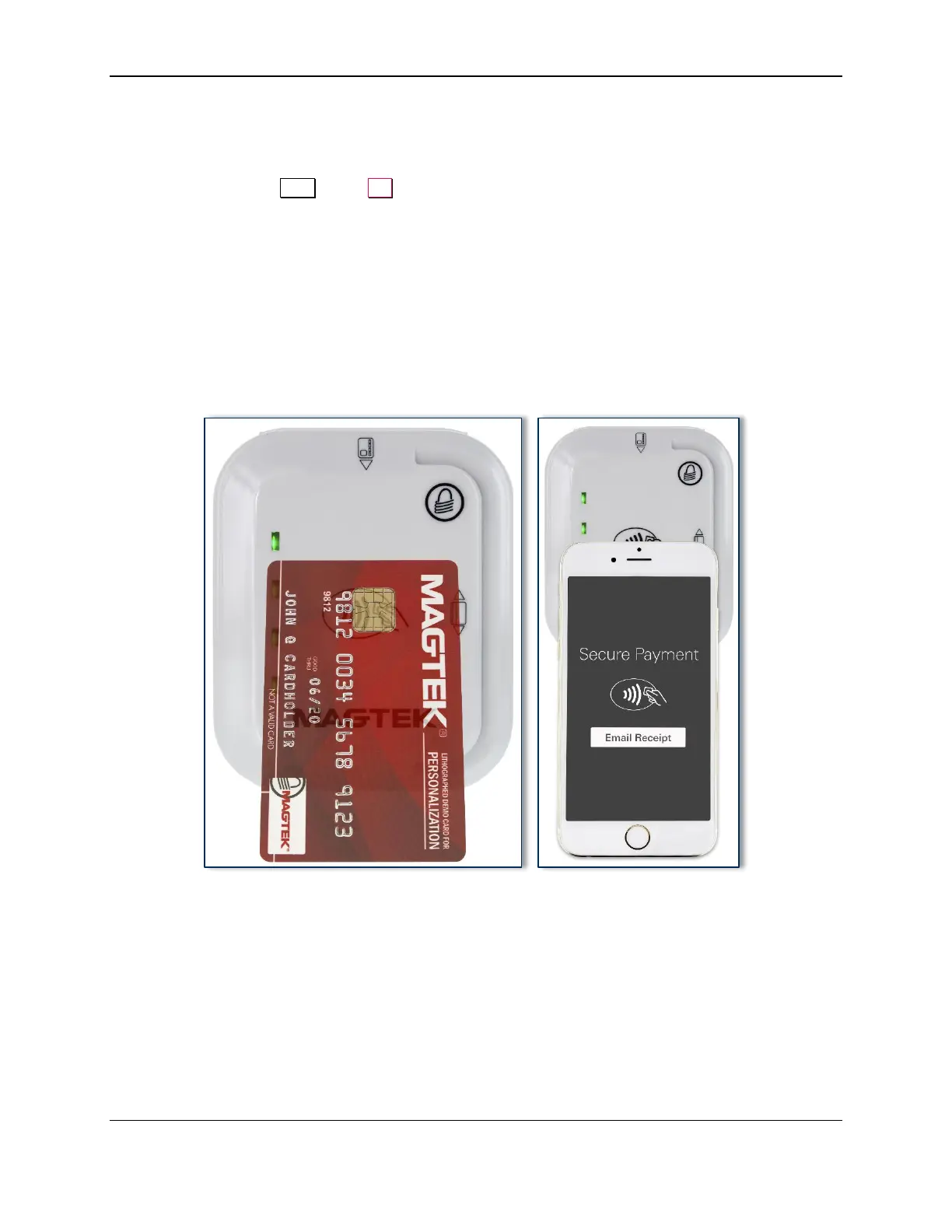
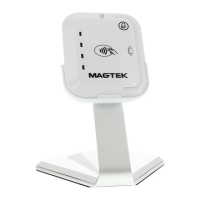
3) Tap the card or electronic payment device on the contactless landing zone, indicated by the EMVCo
Contactless Indicator symbol on the device’s face (see Figure 3-4).
4) Wait for the four Status LEDs to light green and for the device to beep. Because each smart phone
model may have its NFC antenna placed differently, the ideal tap position may vary by make and
model. For example, Samsung users may need to center the phone on the contactless landing zone,
while Apple users may need to tap the top of the phone on the contactless landing zone.
5) Remove the card or electronic payment device from the contactless landing zone.
Figure 3-4 - Tapping a Contactless Card or Smart Phone On tDynamo


 To Next Page