2 - Installation
tDynamo| Three-way Secure Card Reader Authenticator | Installation and Operation Manual
Page 16 of 39 (D998200257-20)
2.2.3 How to Connect tDynamo to an iOS Host via Bluetooth LE
To connect tDynamo to an iOS host that supports Bluetooth LE, follow these steps:
1) Make sure tDynamo is configured to use Bluetooth LE as its primary connection. If it is configured
to use another connection, use that connection first to change the configuration.
2) If any other Bluetooth LE host has an active data connection to the device, close the connection.
3) On the host, install and configure the host software you intend to use with tDynamo. If you do not
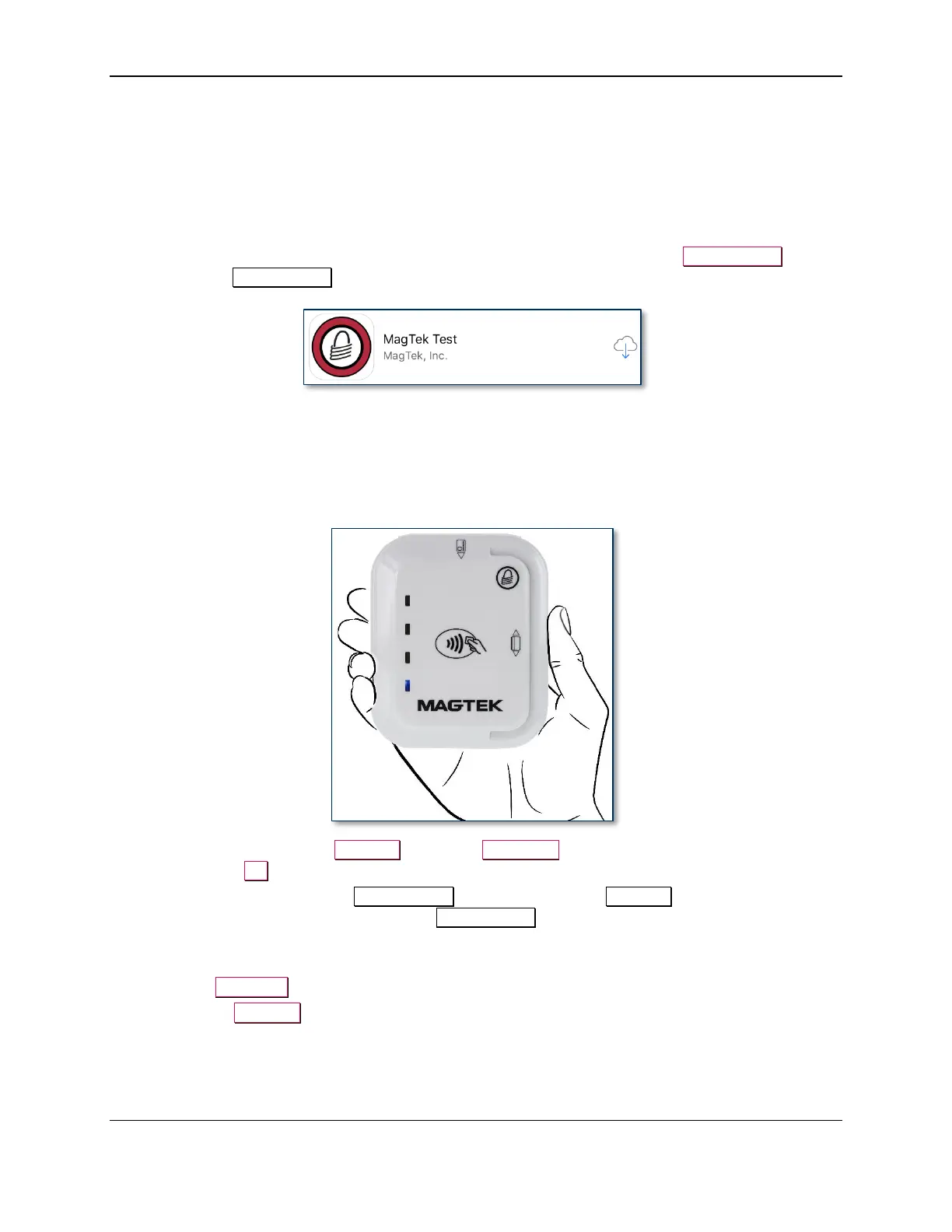
yet have that software, you can download a test tool from the App Store called MagTek Test,
published by MagTek, Inc..
4) Make sure tDynamo is powered on, is not in sleep mode, and that its battery is adequately charged
(see section 3.4.1 About Power for instructions).
5) Press the pushbutton for 2 seconds until the General Status LED flashes three times, then release the
pushbutton to enter Pairing Mode. The General Status LED flashes blue up to 2 minutes or until a
host pairs or connects.
6) On the iOS host, launch the Settings app, select Bluetooth, and make sure the host’s Bluetooth
radio is turned On.
7) Use the host application or the MagTek Test app (not the device’s Settings app) to pair with and
connect to the device. If you are using the MagTek Test app, the steps are as follows. Other host
software may be similar:
a) Launch the host software app.
b) Select BLE EMV as the device type.
c) Press the Connect button.


 To Next Page