Set Printer Settings
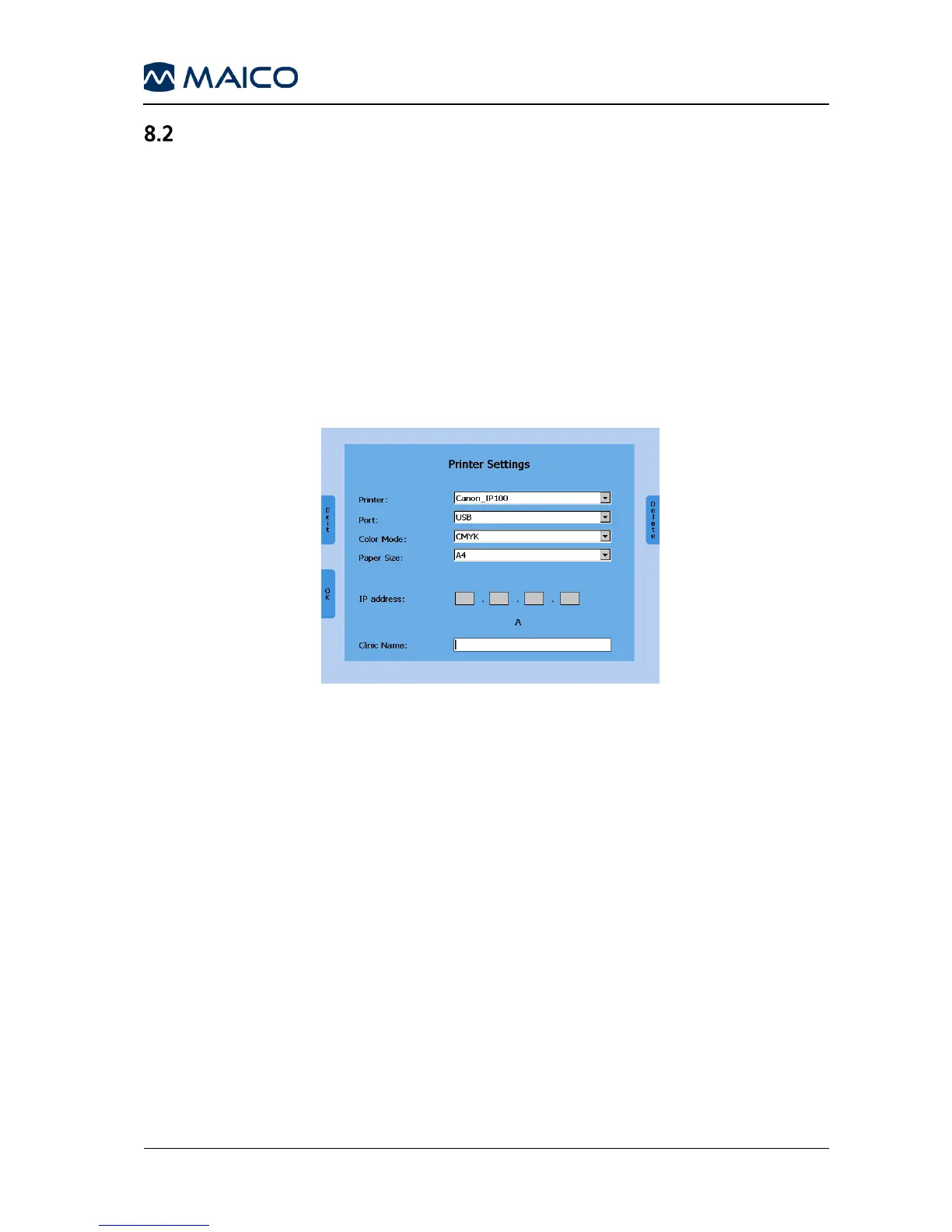
Select the printer by turning the left or right level control (1) down. The color
mode is automatically adjusted. Only if the color mode is wrong, adjust the
color mode as well. Jump to the field Paper size by pressing the stimulus
presenter bar (2) several times and select A4 or Letter format by using the
Store button (3). If the printer is connected to your Ethernet network select
Ethernet as port.
Additionally, the IP address of the printer needs to be entered in the field “IP
address.” Select the number of the IP address by rotating the level controls
and press the Store button (3) to enter the selected number.
Save the settings and return to the User Menu by pressing the functional
button Ok (7). Test your printer settings by a sample print before starting the
audiological assessment. Wrong settings may require a restart of the device.
Enter the field clinic name by using the Stim button (2). Select letters by
rotating the level control (1) and enter the selected letter by pressing the Store
button (3). Save the settings and return to the User Menu by pressing the
functional button Ok (7).



 To Next Page