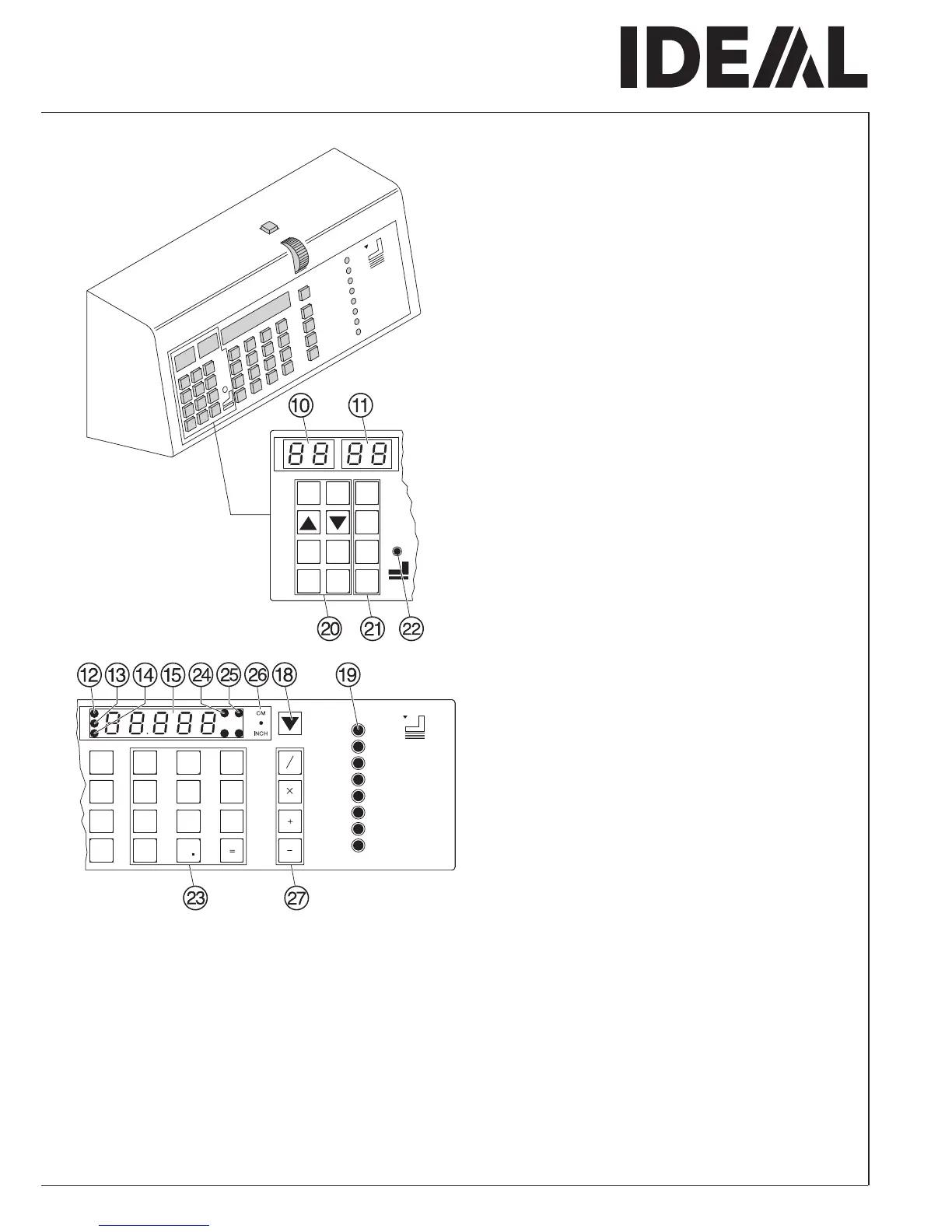
Multiple cut program
•
Press
Q
until the multiple cut size is reached
(
E, F usw. max. 9 mal).
•
Enter multiple cut size.
•
gg
gg
g
Store the dimension.
Example of a program with multiple cut
•
p
0 9
program 09
•
c c
delete previous program
• 5 0 g step 1 on 50 cm
•
Q first multiple cut size
E
• Q second multiple cut size
F
• 2 g
e.g. multiple size 2 cm
•
p s
escape the program mode
How the example works
• p
0 9
start program 09
•
S
proceeds to position 50 cm
•
Insert paper
•
Release cut 1
•
Release cut 2 cuts multiple size 2 cm
•
Release cut 3 cuts multiple size 2 cm
•
Backgauge proceeds to position 50 cm
•
p s
escape the program mode
Changing select program
The
R
button is used to select a program step
quickly and change a dimension.
•
Press
p
P appears on the display.
•
Enter desired program number
0 1
...
9 9
.
•
Press
R
.
•
Enter program step to be changed
0 1
...
9 9
•
Change dimension.
• g
Store the dimension.
A program step can also be selected using the
b
or
j
button.
•
Overwrite dimension.
•
g
Store the dimension.
Insert a step
The inserted program step will appear before
the step shown in the display.
•
Choose a step number with button
b
or
j
•
Press button
a
.
•
Enter dimension.
•
g
Store the dimension.
•
Operation
•


 To Next Page