Using the system
46
Each individual aliquot is automatically assigned a unique identifier based on the Tray pos-
ition and aliquot number. The playlist can be reviewed and edited if required.
Missing vial action
l
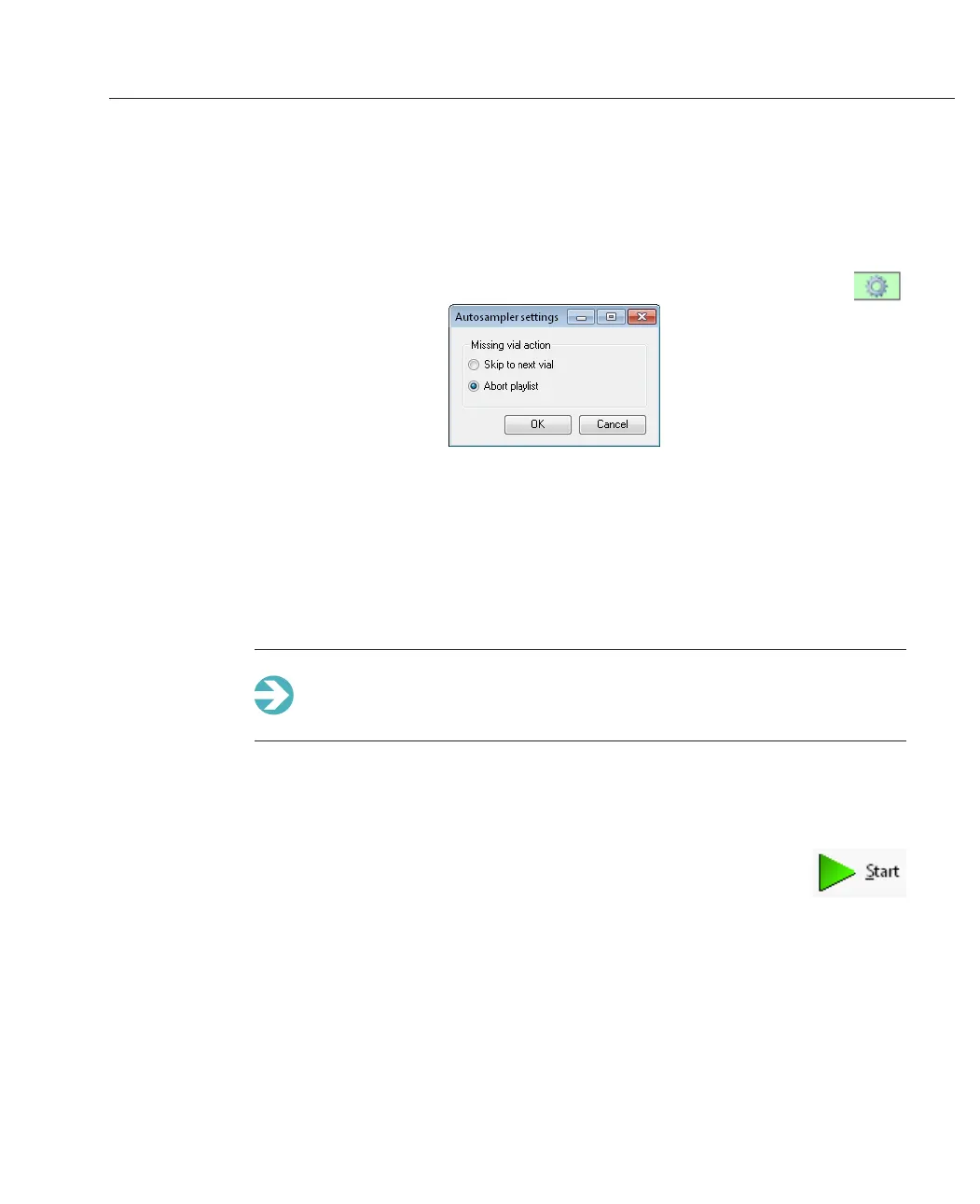
Click the cog icon on the Autosampler Actions bar to display the Autosampler
settings window:
The system can be set so that any wells that do not contain a vial are dealt with in a con-
sistent way. This default setting is then used on all new playlists that are created.
l
Skip to next load step - the system passes the well and tries the next available
well in the playlist.
l
Abort playlist - the playlist is stopped. Any data already recorded is retained in
the measurement file.
Note: You can override this on a per-vial basis by clicking the Load Sample
action for the vial you need to amend and then modifying the Missing vial
action in the Properties tab.
Starting the SOP Playlist
1.
Click the green Start button on the SOP Player.
2. Choose a location to save the SOP Playlist, which can be saved for
subsequent repeat runs. We recommended that you save the Playlist
in the same folder as the SOPs.
3.
After clicking Save the sequence will begin.
4. Each measurement is now added to the measurement file and incrementally
numbered in the order the samples were taken. If the option to add the vial loc-
ation to the sample name was selected, the name will be labeled appropriately.


 To Next Page