90
Maptek Scanner Operator Manual - XR3
Acquire - Preview procedures
Once the scan job is specified in Setup, previewing and scanning can
commence in Acquire.
1. Press the acquire button at the top of the screen to open the
Acquire screen.
2. For a photographic image, select the desired exposure setting.
3. To perform a preview, select a region using the pen to draw a
rectangle of interest on the hatched background and press the Add
Preview button at the top-left of the screen.
4. The scanner will produce a photograph image of the selected region.
It can be canceled at any time by pressing the scan cancel button.
Preview stage
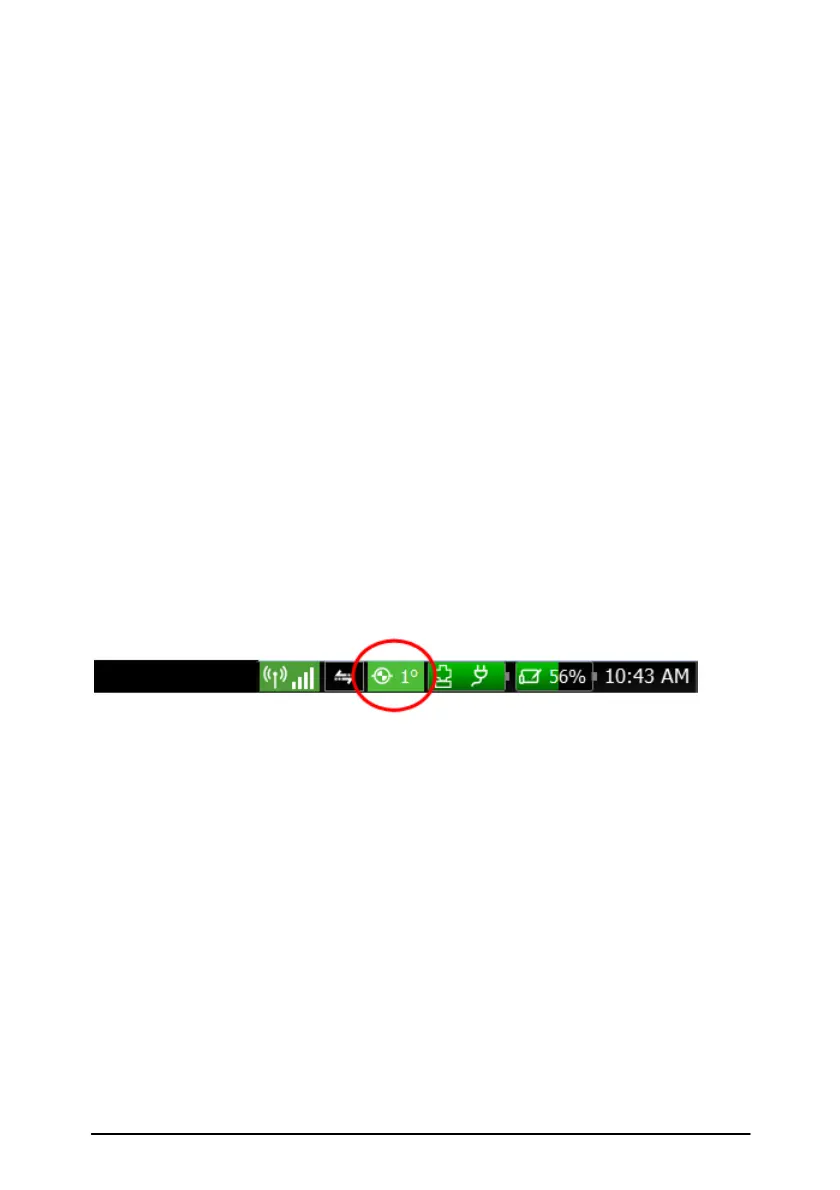
During the preview the inclinometer in the scanner will determine the level
condition of the scanner. The inclinometer has a fine measurement range
and records the level very precisely. If the preview shows the scan within
tolerance, the level indicator will be green. Beyond this range, the level
indicator will turn red, resulting in coarser precision. The precision of the
levelling is important later when registering scans in software.



 To Next Page