8
更新作業の実施
1.
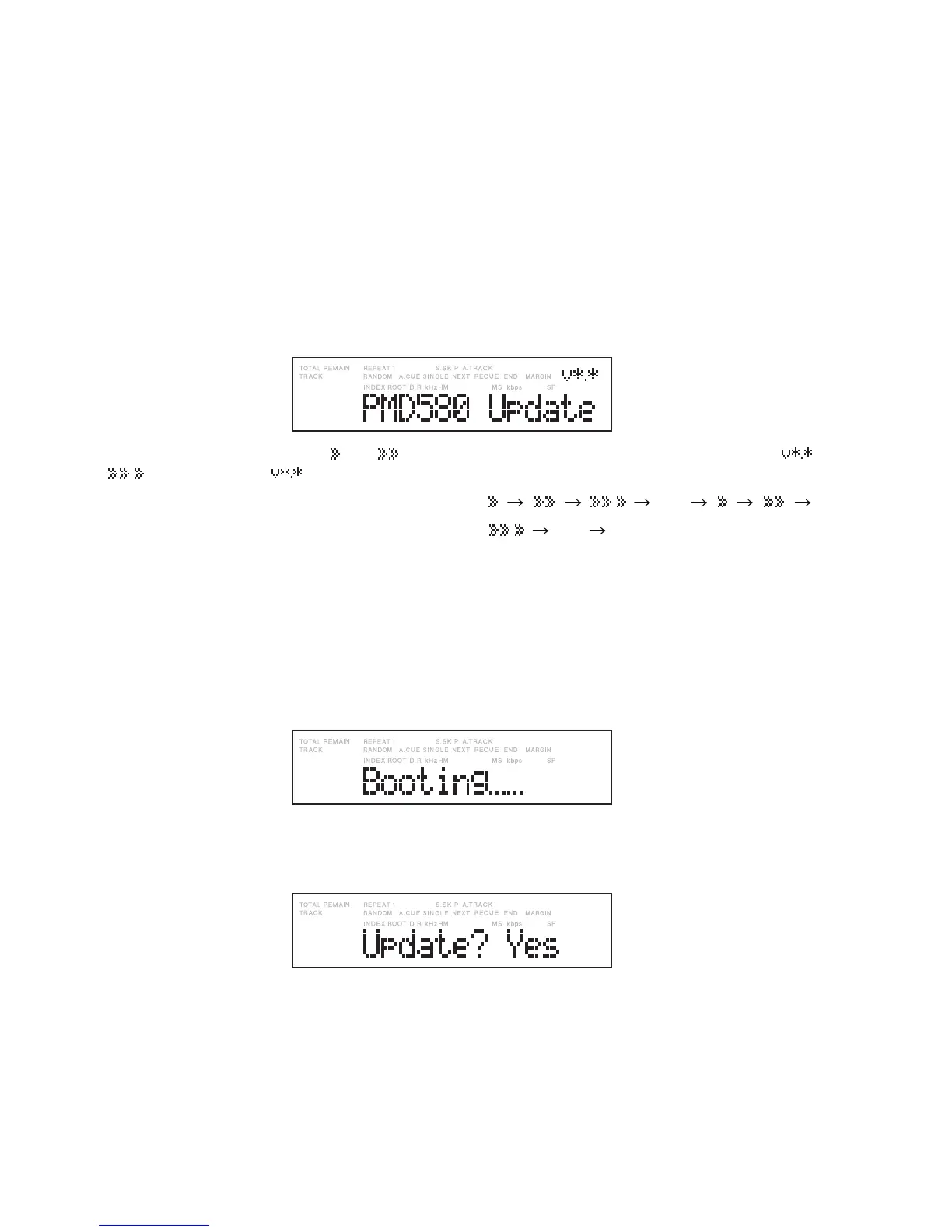
ファ ームウェアを更 新するときは、ディスプレイに
“
Update? Yes
”
が表示されている状態で、ジョグダイヤル
を押してください。
このとき、以下の確認表示が表示されます。
•
ファームウェア更新用ファイルが現在本機のファーム
ウェアバージョンより古いとき、
“
Old Ver?
”
が表示され
ます。
•
ファームウェア更新用ファイルが現在本機のファーム
ウェアバージョンと同じとき、
“
Same Ver?
”
が表示され
ます。
上記内容確認後に、再度ジョグダイヤルを押します。
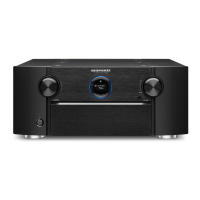
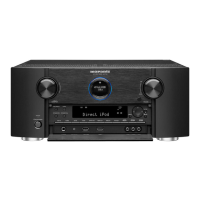
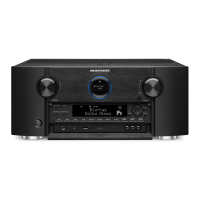
ファームウェア更新が開始され、更新中は上図の
の部分が
を繰り返し表示します。
更新の時間はCFカードのスピードおよびファームウェア
の容量によって異なりますが、目安として約 4〜5分です。
2.
更新が終了すると、ディスプレイに
“
Finish
”
が一瞬表示
され、同時にメインボードの Reboot回路が自動的に働
き、電源OFFから ONに切り替わります。以降の動作は
電源を入れたときと同じ動作です。
電源インジケーター(青)が点滅し、数秒後にディスプレイ
が
“
Booting
”
と表示します。
さらに数秒後、ディスプレイは
“
Initial
”
→
“
Loading
”
と
表示し、最後に
“
Update? Yes
”
と表示します。これで
ファームウェアの更新が完了となります。
この状態から何度でも同じプログラムを書き込むことは
可能です。ファームウェア更新を完全に終了するために
は以下の手順にて通常モードに移行してください。
Updating procedures
1. To update the firmware, first press the Jog wheel with
“Update? Yes” displayed.
The following confirmation display appears.
• If the version of the fi rmware updating fi le is older than
the current one, “Old Ver?” appears.
• If the version of the fi rmware updating fi le is the same
as the current one, “Same Ver?” appears.
Answer the above prompt, and press the Jog wheel
again.
Updating of the firmware begins, and
then then
appear repeatedly at
during updating.
The time required for updating depends on the access
speed of the CF card and the volume of the firmware,
usually 4 to 5 minutes.
2. When updating is finished, “Finish” momentarily appears
on the display, and the Reboot circuit on the main board
is activated automatically, which turns the power OFF
then ON again. The subsequent procedures are the
same as those when turning the power on.
The power indicator (blue) flashes, and after several
seconds “Booting” appears on the display.
Then after several tens of seconds, “Initial” and “Loading”
appear on the display in sequence, and finally “Update?
Yes” appears. A Yes response completes updating of the
firmware.
In this mode, the same program can be written
repeatedly. To terminate updating of the firmware, follow
the procedures below to return to the normal operation
mode.


 To Next Page