ADVANCED CONNECTING
CONNECTING MULTI CHANNEL AUDIO SOURCE
The 7.1CH INPUT jacks are for multichannel audio
source such as a SACD multichannel player, DVD
audio player or external decoder.
If you use these jacks, switch on the 7.1CH INPUT
and set the 7.1CH INPUT level by using the 7.1
channel input level menu. See page 29.
CONNECTING AN EXTERNAL POWER AMPLIFIER
The PREOUT jacks are for connecting external
power amplifiers.
Be sure to connect each speaker to the corresponding
external power amplifier.
POWER
AMPLIFER
DVD AUDIO PLAYER
or
SACD MULTI CHANNEL PLAYER
Center
Front
Left
Front
Right
Surround
Left
Surround
Right
Subwoofer
CONNECTING THE REMOTE CONTROL JACKS
MD DECK
CD RECORDER
q
You can control other Marantz products through
this unit with the remote control by connecting the
REMOTE CONTROL terminals on each unit.
The signal transmitted from the remote control is
received by the remote sensor on this unit. Then the
signal is sent to the connected device through this
terminal. Therefore you only need to aim the remote
at one unit. Also, if a Marantz power amplifier (some
models excluded) is connected to one of these
terminals, the power amplifier’s, power switch is
synchronized with this unit’s power switch.
Set the REMOTE CONTROL SWITCH on the units,
other than the main unit to EXT.(EXTERNAL) for
this feature.
CD PLAYER
OPTION
w
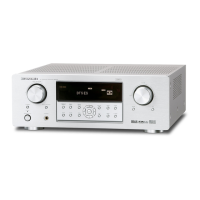
Whenever external infrared sensors or similar
devices are connected to RC-5 IN of the SR4600,
be sure to always disable operation of the infrared
sensor on the main unit by using the following
procedure.
1.
Hold down the 7.1CH INPUT button and
MENU button on the front panel at the same
time for five seconds.
2.
The setting “IR=ENABLE” is shown on the FL
DISPLAY.
3.
Press the or cursor button to change this
to “IR=DISABLE”.
4.
Press the ENTER button. Once this setting is
made, the infrared sensor on the main unit is
disabled.
Note:
Be sure to set to “IR=ENABLE” when external
infrared sensors or similar devices are not
connected. Otherwise, the main unit will be
unable to receive remote control commands.
5.
To restore the original setting, perform steps 1
to 4 to set to “IR=ENABLE”.
Surround
Back Left
Surround
Back Right
SR4600NDFU01ENG12 05.5.20, 6:07 PMPage 14 AdobePageMaker6.5J/PPC


 To Next Page
 Loading...