INDUSTRIAL PRINTER QUICK START GUIDE
12
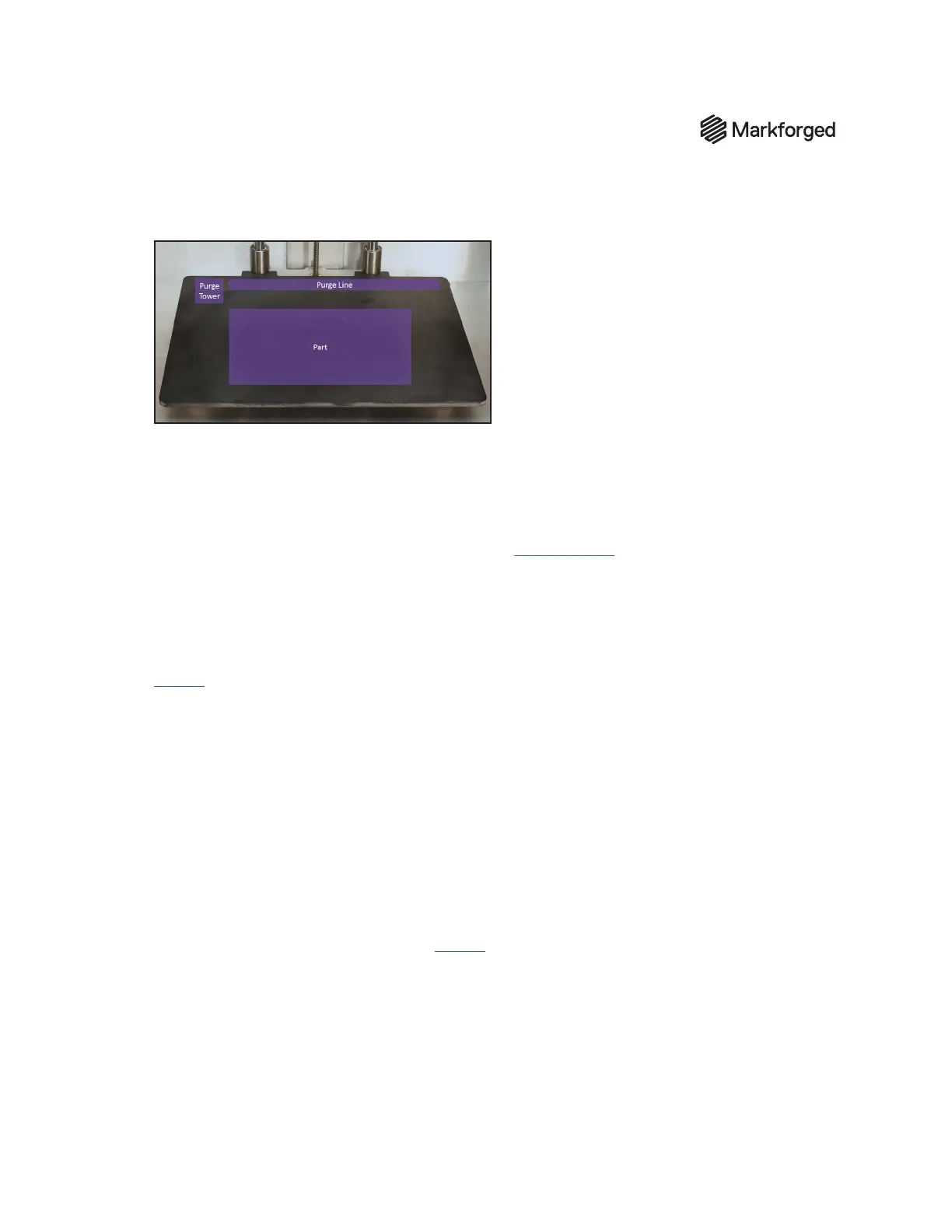
3. Apply glue from the provided glue stick to the print bed, as shown in purple in the image below.
4. Reinstall the print bed on the printer.
PRINT YOUR FIRST PART
Note: We recommend that users use the online version of Eiger and print via Wi-Fi or Ethernet, but if
you are unable to connect your printer to Eiger, see the Oine Printing support article.
Each user has an Eiger account belonging to a single Eiger organization. You can only use printers
registered to your organization; printers can only belong to only a single Eiger organization.
● If you have an Eiger account in the appropriate organization, proceed to step 1.
● If you do not yet have an Eiger account and wish to create a new Eiger organization, navigate to
eiger.io in your Google Chrome browser and create a new Eiger account and organization. Proceed
to step 2.
● If you do not yet have an Eiger account and wish to register your printer to an existing Eiger
organization, request that the organization owner add you to the organization. Once you receive
your Welcome to Eiger email, proceed to step 1.
● In the unusual event that you need to switch organizations before registering your printer, you must
rst delete your Eiger account (Settings > Account Settings > Delete Account), then follow the
appropriate instructions above.
Note: If you are the only user in the organization, log in to Eiger and delete the organization
(Settings > Organization Settings > Delete Organization), then follow the appropriate
instructions above.
1. Log in to your Eiger account: navigate to eiger.io in your Google Chrome browser and enter your
login credentials.
2. In Eiger, select Devices from the sidebar, then click the Register Device button in the top right
corner of the page. Enter your printer’s information in the respective elds. This information can be
found on the sticker on your Getting Started card, as well as by selecting the menu icon from the
dashboard and navigating to Settings > System Info.
Note: You do not need to include any hyphens in the Device ID field.


 To Next Page