NTP100 – Rev 2.2.0 Oct-12
46
© Masterclock
®
, Inc.
Problem: The UTC time (&/or date ) is incorrect
There are several potential failure points:
• invalid, intermittent, or missing time code source,
• date/year overwrite function for non-date encoded time code may be enabled improperly,
• battery may need replacement (see the previous problem item)
• an NTP/SNTP client or Windows local time zone configuration may be misleading you.
Verify that your time code source is generating the UTC referenced time and date that you expect, and that this time code
format is at an acceptable signal level and quality that can be detected at the receiver (input to the NTP100-TC). Please see
the NTP100-TC specifications for details.
When using SMPTE time code, verify that you are not using drop frame time code. Use only NDF (non-drop frame) SMPTE
time code. Please see the NTP100-TC specifications for details.
If you are using “house” time code, verify that the time code source is locked to the GPS satellite system, such as the
Masterclock GPS200A , for UTC/GMT time code. Time code sources such as SMPTE time code that is fed via a broadcast
satellite will have a delay due to the satellite transmission. The NTP100-TC cannot compensate for satellite transmission
delays.
If you have a time code source from an alternate vendor, be sure that your time code actually contains encoded date /year
information to the Leitch/Masterclock [SMPTE] or IEEE1344 [IRIG-B] time code formats. SMPTE-type time codes must
have the date be encoded to the Leitch
TM
specification in the user bits. IRIG-B(0)/B(1) time code format, must have the
year/date encoded to the IEEE 1344 specification in the CF (Control Functions). Verify through your master clock’s
documentation that date encoding is both supported and enabled.
If you are using an acceptable UTC time code source with date encoded time code, ensure that the time/date overwrite
function of the NTP100-TC is not enabled.
If your time code source is providing daylight savings time adjustments (during DST) or time zone offsets these must be
functions must be disabled. The NTP100-TC only accepts and decodes UTC referenced time code.
If you are using an NTP client or the date/time display such as on a Windows system, this may provide misleading
information as these may be configured to display local time zone and daylight saving time information. This is configured
through the Date/Time applet in the Control Panel. Use the WinDiscovery or Telnet interface or a system with the time zone
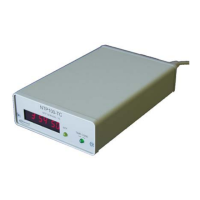
and DST disabled. Confirm the time using the front panel LED display of the NTP100-TC.
A Time Code Reader Card with a Time Code Viewer utility or a time code display are useful diagnostic tools in making these
determinations regarding the source. These items are available for separate purchase from Masterclock, Inc.
Masterclock,Inc also provides, for separate purchase, date encoded time code sources such as time code generators,
oscillators, and converters to industry standard time code formats, which can be used directly with the auto detection
circuitry of the NTP100-TC. Please contact Masterclock, Inc. to inquire about available date-encoded time code sources.
If these troubleshooting tips do not solve your problem, contact technical support at support@masterclock.com or call (636)
724-3666.
If these troubleshooting tips do not solve your problem, consult the support area of the
www.masterclock.com
website or contact technical support at: support@masterclock.com
or call: ….. (636) 724-3666


 To Next Page