76 Appendix C: Matrox Imaging operating system utilities and recovery
To apply an MIOS upgrade on several smart cameras, it might be more efficient
to upgrade from a USB key, connected to the smart camera’s VGA/USB connector,
through a GTR-CBL-VGAUSB cable. To do so, you will need to install the MIOS
upgrade on one smart camera, back it up on a USB key, and then deploy it on the
other smart cameras. See the Making a backup MIOS and deploying it on multiple
units section, later in this appendix.
Restoring the Matrox Imaging operating
system to factory defaults
If required, you can restore the Matrox Imaging operating system to the factory
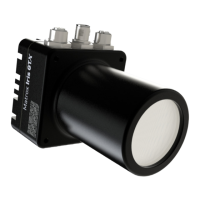
default using the MIOS ISO stored in the recovery partition on your Matrox
Iris GTX, or you can restore it from a USB key with a factory default MIOS ISO.
Restoring the factory default MIOS
The factory default version of the MIOS ISO is stored on the Matrox Iris GTX
recovery partition. To recover the factory default version, perform the following:
1. Connect a monitor, mouse, and keyboard to your Matrox Iris GTX, as described
in Chapter 2: Powering and connecting to your Matrox Iris GTX.
2. Reboot your Matrox Iris GTX.



 To Next Page