39
After the POST routines are completed, the following message
appears:
Press DEL to enter SETUP
To access the Award BIOS Setup Utility, press the delete key to
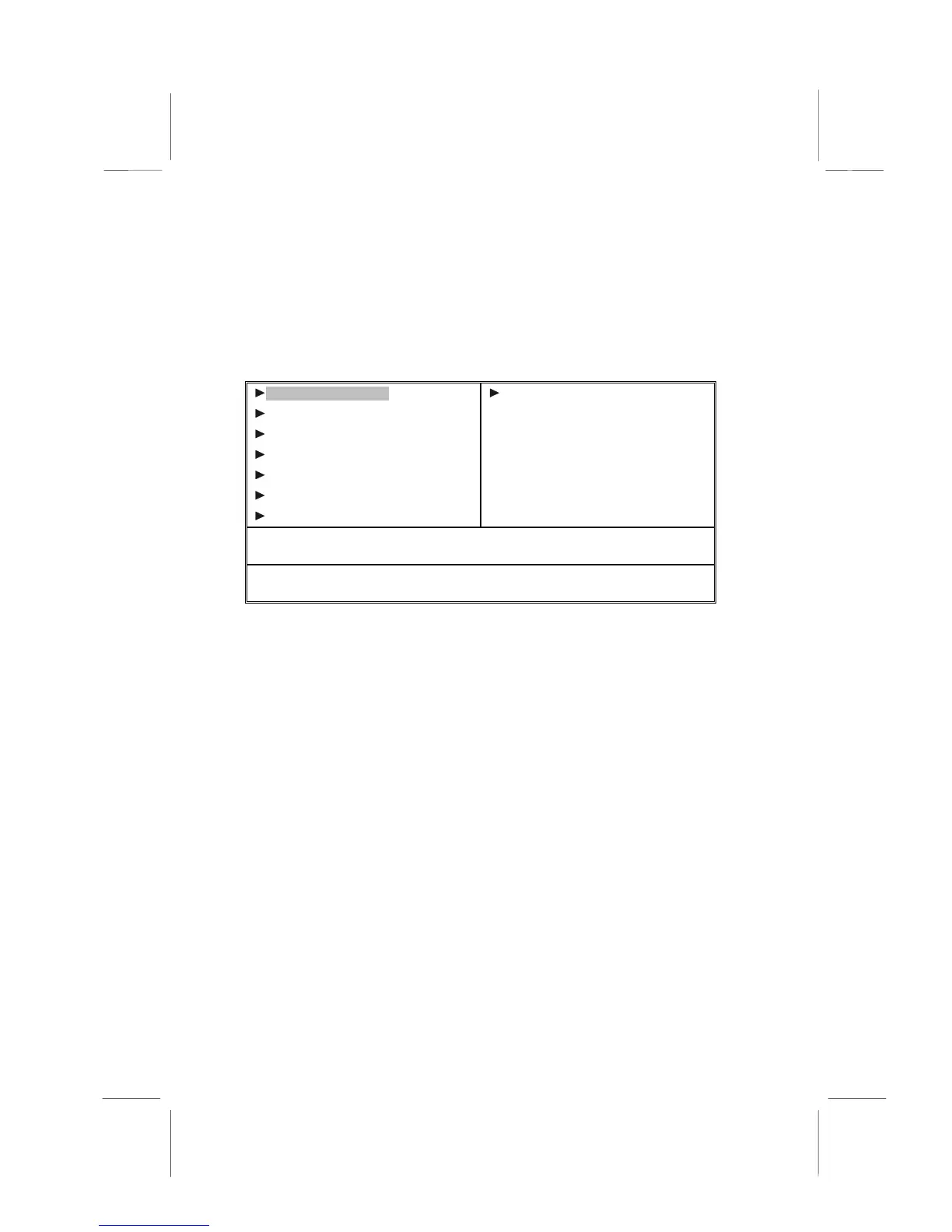
display the “CMOS Setup Utility” screen:
CMOS Setup Utility – Copyright (C) 1984 – 2000 Award Software
Standard CMOS Features
Advanced BIOS Features
Advanced Chipset Features
Integrated Peripherals
Power Management Setup
PnP/PCI Configurations
PC Health Status
Frequency/Voltage Control
Load Fail-Safe Defaults
Load Optimized Defaults
Set Supervisor Password
Set User Password
Save & Exit Setup
Exit Without Saving
Esc : Quit F9: Menu in BIOS
↑
↑↑
↑
↓
↓↓
↓
→
→→
→
←
←←
←
: Select Item
F10 : Save & Exit Setup
Time, Date, Hard Disk Type . . .
This screen provides access to the utility’s various functions.
BIOS Navigation Keys
Listed below are explanations of the keys displayed at the bottom
of the screens:
Key Function
Esc
Escape key:
Exits the current menu
←
←←
←
↓
↓↓
↓
↑
↑↑
↑
→
→→
→
Cursor keys:
Scroll through the items on a menu
+/
−
/PU/PD
Plus, minus, Page Up and Page Down keys:
Modify
the selected field’s values
F10
F10 key:
Saves the current configuration and exits setup
F1
F1 key:
Displays a screen that explains all key functions
F5
F5 key:
Loads previously saved values to CMOS
F6
F6 key:
Loads a minimum configuration for
troubleshooting.
F7
F7 key:
Loads an optimum set of values for peak
performance




 To Next Page