111
MaxiCheck Job Menu. Or select another setting option for the
system setup.
When the Notification Center function is turned on, and new messages are
received by the MaxiCheck device, a notification message displays on the
MaxiCheck Job Menu. Press on the message bar and drag it down, and the
received messages are shown in the list, slide the list up or down to view all
if the message list covers more than one screen.
Tapping a specific message launches the corresponding application. For
example, if you tap on an Update notification message, the Update
application will be launched.
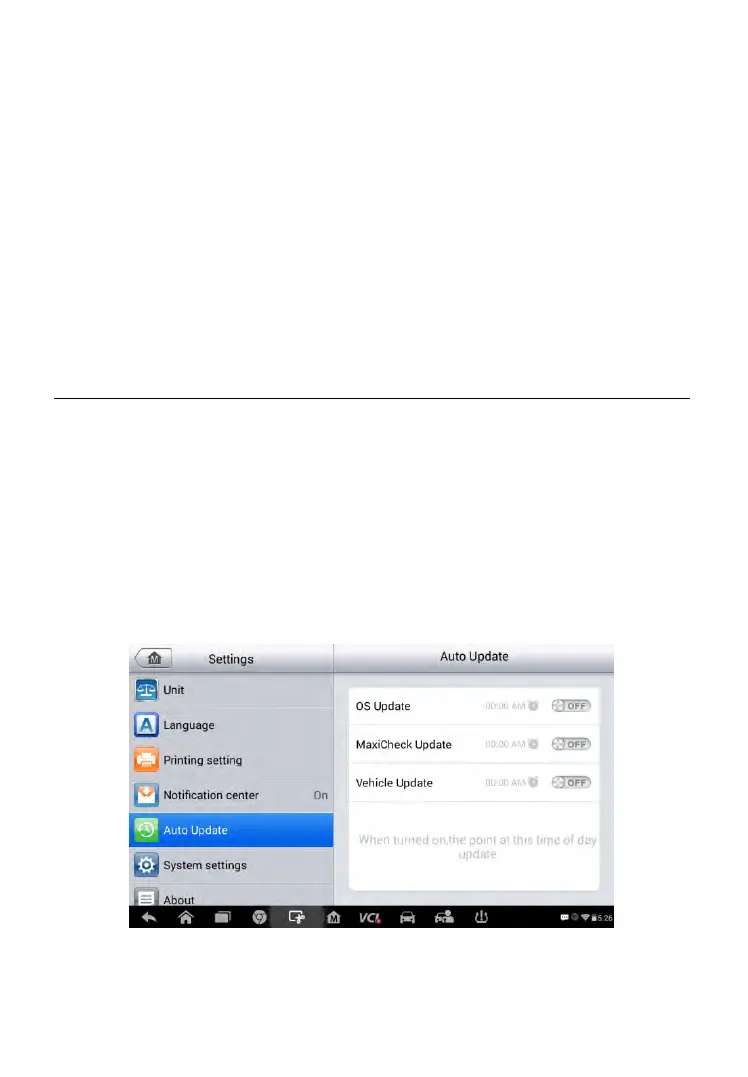
Auto Update
The Auto Update allows the tool to automatically update the OS, the
MaxiCheck system, and the Vehicle. All you need to do is to switch ON by
tapping the button on the right side of each and set the desired automatic
update time.
To set auto system or vehicle update
1. Tap the Settings application on the MaxiCheck Job Menu.
2. Tap the Auto Update option on the left column. The three auto
update items list on the right.
Figure 8-5 Sample Auto Update Screen
3. Switch the ON the button on the right of item that you want to auto
update.


 To Next Page