113
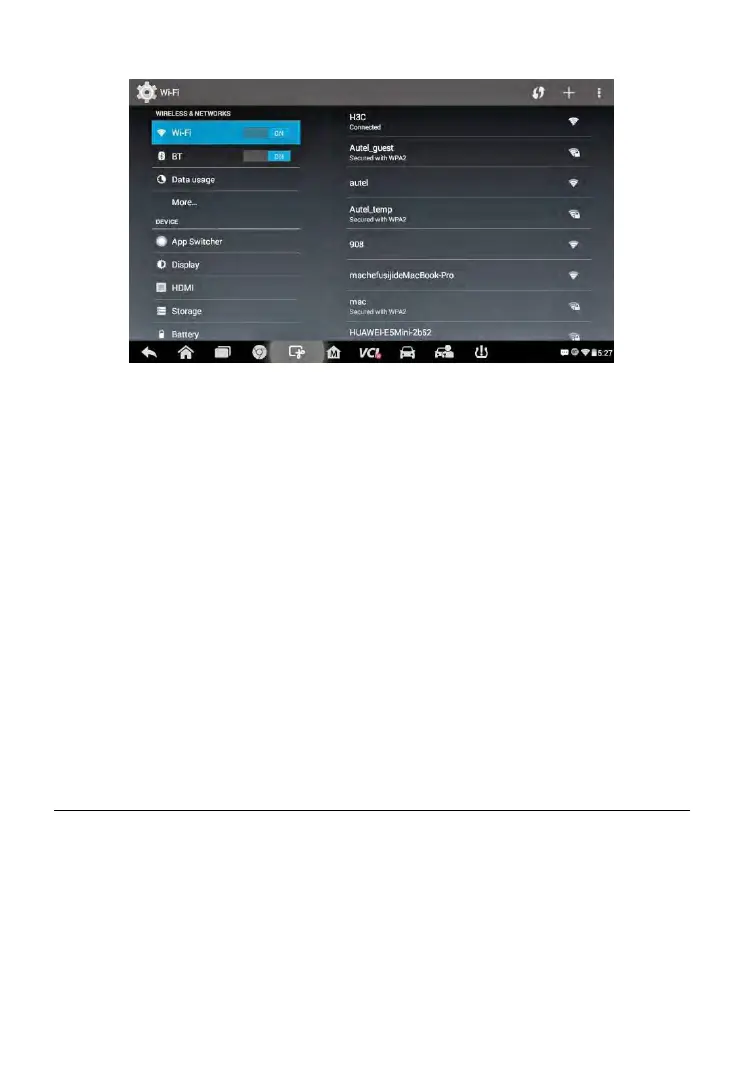
Figure 8-7 Sample System Settings Screen
3. Tap the App Switcher option on the left column.
4. Mark the checkbox beside “Always show the App Switcher” on the
right side of the screen, then the App Switcher icon shows.
Short pressing the App Switcher icon opens a control panel:
Tapping a specific app shortcut button enables you to switch directly to
the selected application screen.
Long pressing a specific app shortcut button displays the app menu,
on which you can select and change the app shortcut.
Pressing and dragging the App Switcher icon around allows you to
change the icon position alongside the edge of the screen.
You may refer to Android documentation for additional information about
Android system settings.
About
The About option provides information of the MaxiCheck diagnostic device
regarding the product name, version, hardware, and serial number, etc.
To check the MaxiCheck product information in About
1. Tap the Settings application on the MaxiCheck Job Menu.
2. Tap the About option on the left column. The product information
screen displays on the right.



 To Next Page