118
MaxiVCI Mini Update
Update via Display Tablet
Before update the VCI software, please make sure the Display Tablet
network connection is stable.
To update the MaxiVCI Mini software
1. Power on the Display Tablet.
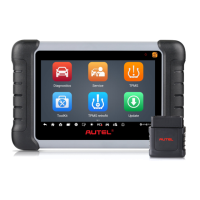
2. Connect the MaxiVCI Mini to Display Tablet via USB.
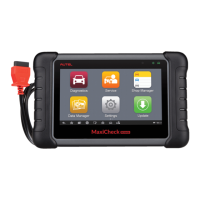
3. Tap the VCI Manager application on the MaxiCheck Job Menu of
the Display Tablet.
4. Select Update from the connection mode list.
5. The current version and the latest version of the VCI software will
be displayed after a few seconds, click Update Now to update the
VCI software if available.
Update via PC
1. Down the Maxi PC Suite from www.autel.com > Support & Updates >
Firmware Downloads > Update Client, and install it onto your PC.
2. Connect the MaxiVCI Mini to a PC using a USB cable.
3. Run the PC Suite on your PC which is installed after the installation of
Maxi PC Suite and click MaxiVCI Mini icon on the Device Selection
window.
4. The driver will automatically detect the updates of the device.
5. Click Update to complete the operation if an update is available.


 To Next Page