EasyManua.ls Logo

Megger TDR2010 - User Manual

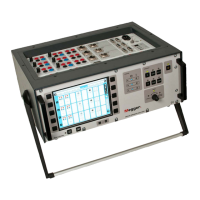
Megger TDR2010
30 pages
Print Icon
To Next Page IconTo Next Page
Loading...
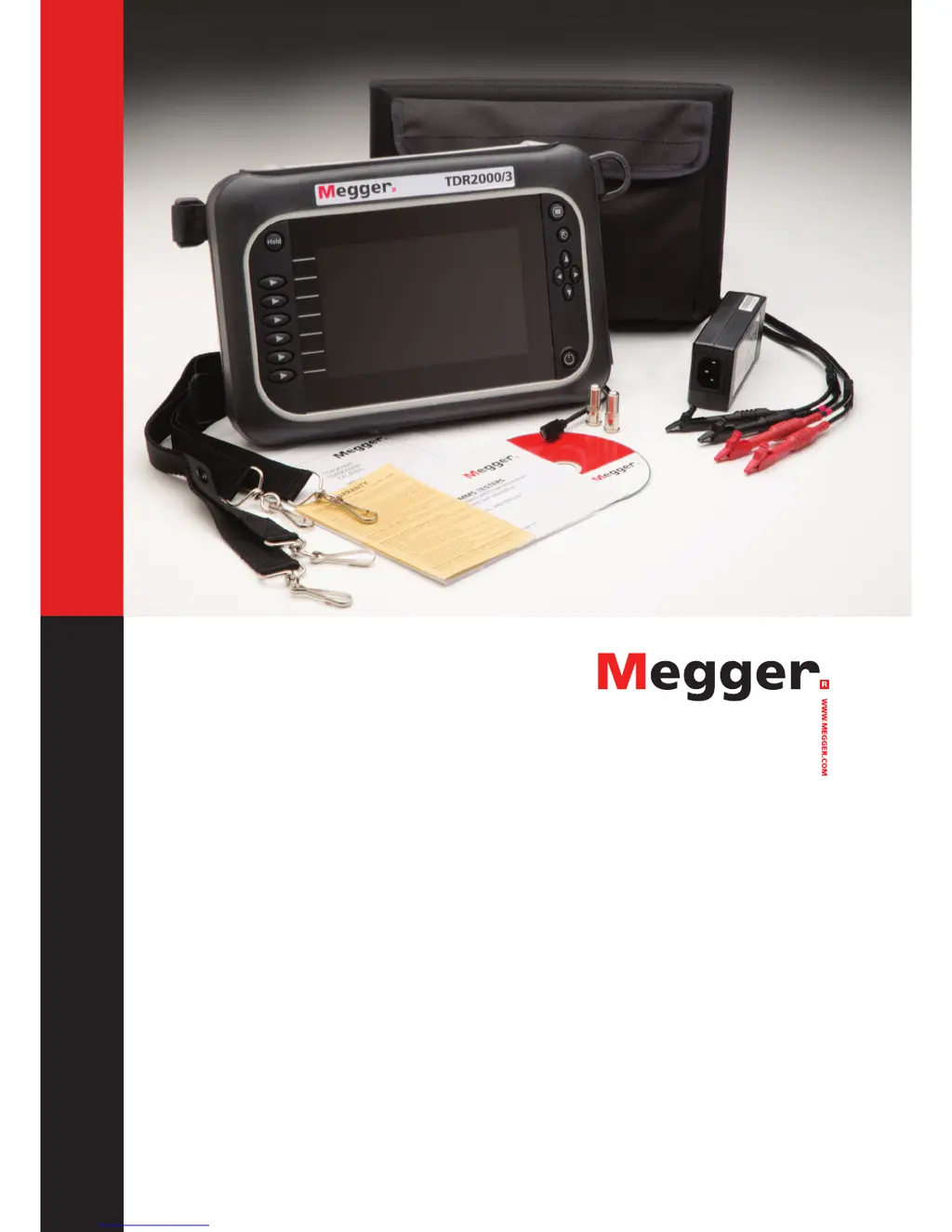
Time Domain Reflectometers
TDR2000/3 - TDR 2000/3P - CFL535G
TDR2010 - TDR2050
User Guide
For all units released after 2014. If your instrument differs significantly from this guide then please use the guide supplied
with your instrument or call technical services for advice.

Other manuals for Megger TDR2010

Questions and Answers

  • A
    Anthony SotoAug 19, 2025
    Why is the distance to fault inaccurate on my Megger TDR2010 Measuring Instruments?
    • T
      Taylor JacksonAug 19, 2025
      If the distance to fault is inaccurate on your Megger Measuring Instrument, it's likely due to an incorrectly set Velocity Factor. To resolve this, check the VF value for the cable you're testing and adjust the settings accordingly.
  • M
    Maria BlevinsAug 21, 2025
    What to do if Megger TDR2010 Measuring Instruments keeps turning itself off?
    • H
      Hayley FletcherAug 21, 2025
      If your Megger Measuring Instrument keeps turning itself off, the battery may not be sufficiently charged. Plug in the charger and charge it for 6 hours. Alternatively, the standby time might be set too low. Access the user settings and increase the standby time.
  • J
    jonesbrianAug 23, 2025
    How to see end of cable on trace with Megger Measuring Instruments?
    • J
      Jamie PattonAug 23, 2025
      If you can't see the end of the cable on the trace of your Megger Measuring Instrument, it's probably because the wrong range is selected. From the main screen, press the up navigation button to extend the range.
  • D
    Danny SimpsonAug 26, 2025
    Why are VF, Impedance, Gain, Pulse inaccessible on Megger Measuring Instruments?
    • J
      Jodi Weaver MDAug 26, 2025
      If the VF, Impedance, Gain, or Pulse are inaccessible on your Megger Measuring Instrument, it could be because the instrument is set to Automatic mode. To fix this, press the escape button and change the setting to manual.
  • L
    Lauren LeAug 27, 2025
    What to do if I can’t see a fault I know is there with Megger Measuring Instruments?
    • M
      Misty BlanchardAug 27, 2025
      If you can't see a fault you know is there on your Megger Measuring Instrument, the gain might be set too low. Switch to manual mode and use the navigation buttons to increase the gain.
  • F
    freemannancyAug 29, 2025
    Why is the trace very noisy on Megger Measuring Instruments?
    • S
      Susan OneillAug 29, 2025
      If the trace on your Megger Measuring Instrument is very noisy, it's likely that the gain is set too high. Switch to manual mode and use the navigation buttons to decrease the gain.
  • G
    gabrielbergerAug 31, 2025
    Why is my Megger TDR2010 not uploading or downloading?
    • J
      josecohenSep 1, 2025
      If your Megger Measuring Instrument is not uploading or downloading, the USB cable might be damaged or the wrong type. Make sure to use only a genuine Megger cable and check it for damage before connecting.
  • V
    Victoria HinesSep 2, 2025
    Why is the display not visible on Megger TDR2010?
    • C
      Carla ClarkSep 3, 2025
      If the display on your Megger Measuring Instrument is not visible, the color settings may be incorrect. Access the user settings and adjust the colors. Alternatively, the instrument might be in power save mode. Press the standby button to return to the display.
  • F
    Felicia GarciaSep 4, 2025
    How to set Velocity Factor on Megger TDR2010?
    • G
      garrettmendozaSep 4, 2025
      If you can't set the Velocity Factor on your Megger Measuring Instrument, it's probably because the cable's Velocity Factor is unknown. To determine it, test a known length of cable.
  • D
    Diana MitchellSep 6, 2025
    Why is there no trace even though leads connected to Megger TDR2010?
    • M
      Mark ThomasSep 6, 2025
      If there is no trace on your Megger Measuring Instrument even though the leads are connected, the leads might be plugged into the wrong channel. Ensure the test leads are connected to the correct channel.

Summary

Safety Warnings and Battery Information

Safety Warnings

Important safety instructions and warnings for instrument use.

Battery Information

Guidance on battery maintenance, charging, and lifespan for optimal performance.

Instrument Features

Mode Selection

Selecting a Mode

Explains how to navigate and select different operational modes.

Advanced Operational Modes

Setup Configuration

Accessing Setup Menu

How to enter the setup menu and select operating modes (Auto, Manual).

Velocity Factor Adjustment

How to adjust the Velocity Factor for accurate measurements.

Trace Management in Setup

Saving and Previewing Traces

How to save, preview, and manage traces in memory.

Memory Management

Instructions for saving, deleting, and managing trace data in memory locations.

Trace Tagging Functionality

AutoFind Feature

Using AutoFind for Disturbances

How AutoFind automatically detects disturbances on a trace.

FindEnd Feature

Advanced Trace Functions

Advanced Operation Modes

Manual and Automatic Operation

Overview of Manual and Automatic operating methods.

Battery Status and Charging

Results and Measurements

Cursor Usage for Analysis

How to select, swap, and move cursors to analyze traces.

Tools and Settings Management

Troubleshooting Common Issues

Instrument Power and Charging Problems

Solutions for issues like the instrument not turning on or charging.

Display and Standby Issues

Troubleshooting display visibility and unexpected power-off problems.

Measurement Accuracy Problems

Addressing issues with inaccurate distance or velocity factor settings.

Troubleshooting Advanced Issues

Connectivity and Data Transfer Problems

Solutions for instrument communication, uploading, and downloading issues.

Range and Noise Issues

Addressing problems related to range selection and noisy traces.

Common Fault Traces Identification

Open and Shorted Conductor Traces

Visual examples of traces indicating open or shorted conductors.

Technical Specifications

General Specifications

Range, accuracy, resolution, and input protection details.

Output and Signal Specifications

Details on output pulse, gain, velocity factor, and TX null.

Model Specific Specifications

Specifications for different models (TDR2000/3, TDR2010, etc.) and connectors.

Repair, Warranty, and Calibration

Repair and Safety

Guidelines for instrument repair and safety impairment.

Megger TDR2010 Specifications

General IconGeneral
Output Impedance50 Ω
DisplayLCD
Power SupplyRechargeable battery
Battery Life8 hours
Operating Temperature-10 °C to +50 °C
Storage Temperature-20 °C to +60 °C
Weight1.5 kg
InterfaceUSB
Minimum Range1 m
Resolution0.1 m
Velocity Factor0.30 to 0.99
Display TypeGraphic

Related product manuals