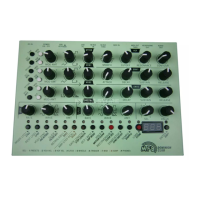
MFB Tanzbär LiteUser Interface
8 9
MFB Tanzbär Lite
User Interface
THE USER INTERFACE
As mentioned already, most of Tanzbär Lite‘ buttons cover more than one single function.
Depending on the selected mode, the function of the buttons will change.
The main purpose of the function buttons (left-hand side) is selecting the operation
mode (Play or Record), selecting patterns and banks as well as starting and stopping the
sequencer and toggling between the A/B parts of a pattern. These are dual-function keys
(except the Select key).
The Step keys (lower row) are also dual- or even triple-function keys. Depending on the
operation mode, they change their function. In Play mode, they mute tracks and control
various playback functions (e.g. shufe, pattern length, scale, and A/B toggle).
In Record mode, they are used to program the step sequencer. Apart from that, there is
an additional sound parameter hidden behind them which cannot be accessed directly via
the sound controls. The Step keys are also required when it comes to storing, clearing, and
copying patterns.
The Shift key (bottom left) accesses the „shift function“ resp. second function of the other
keys. On the front panel, the shift functions are always labelled in a darker font so make
sure you put your glasses on (or turn on the ood lights).
Depending on the dedicated function, the shift function works in two different ways:
When a shift function only has two settings (e.g. on/off), or when all available values can
directly be accessed in the next lower level, simply hit the shift key and keep it depressed.
Now hit the desired step key to toggle between the two possible settings or enter the desi-
red value. For example, the start/stop function and the selection of the four Accent levels
works just this way.
LED lights up
press Shift +
hold
press step key
(e.g. „Accent 1“)
Next, there are shift functions that access another level of possible value settings. It takes
an additional function level to access them. They include, for example, the shufe intensity,
the step number of the tracks resp. pattern length („Last Step“), and the scale function.
In this case, please select the desired function using both shift and step keys rst. Then
select the desired parameter value, again using a step key. The example below illustrates
the adjustment procedure for the shufe intensity (Step key 1).
1. Select shift function: Press and hold Shift and press Step key 1. Shift will be ashing
and the step with the current shufe intensity setting lights up.
2. Release Shift (ashes continuously) and select the desired value by hitting a step key.
The step keys now correspond to the parameter values 1 - 16.
3. To exit the shift function, simply hit Shift again – done.
press Shift +
hold
release
Shift
press step key
(e.g. „Shuffle“)
press step key
(e.g. „3“)
LED with current value lights up
(e.g. „1“ = no shuffle)
1. Select shift function
2. Select parameter value
LED flashes
LED flashes
LED with new value lights up
press Shift
3. Exit shift function
LEDs off
To determine whether the parameter setting/value of a shift function is
selected directly or requires an additional step to be selected, the shift LED
will either be ashing intermittently or not. In the rst case (direct access),
the shift LED will stay dark, in the second case (hidden function) it will be
ashing.


 To Next Page