MFB Tanzbär LitePlay Mode – Playing the Tanzbär Lite
14 15
MFB Tanzbär Lite Play Mode – Playing the Tanzbär Lite
Step Mode and Manual Mode
It is about time to try out a very interesting feature of your Tanzbär Lite: As you may have
noticed when playing back patterns, all steps of each instrument can have individual sound
settings. In other words, you can program individual sound settings for each step of the
sequencer. We will nd out later how to operate sounds for individual steps. However,
this feature also effects the Play mode – that is why we do not want to keep it secret any
longer.
Basically, trigger data (the active steps) and sound settings are stored separately in each
pattern. Using the sound controls, you can tweak the sounds at any time without overwri-
ting the stored settings or tampering with the trigger data of the pattern. This opens up two
different programming options that we call „Step mode“ and „Manual mode“.
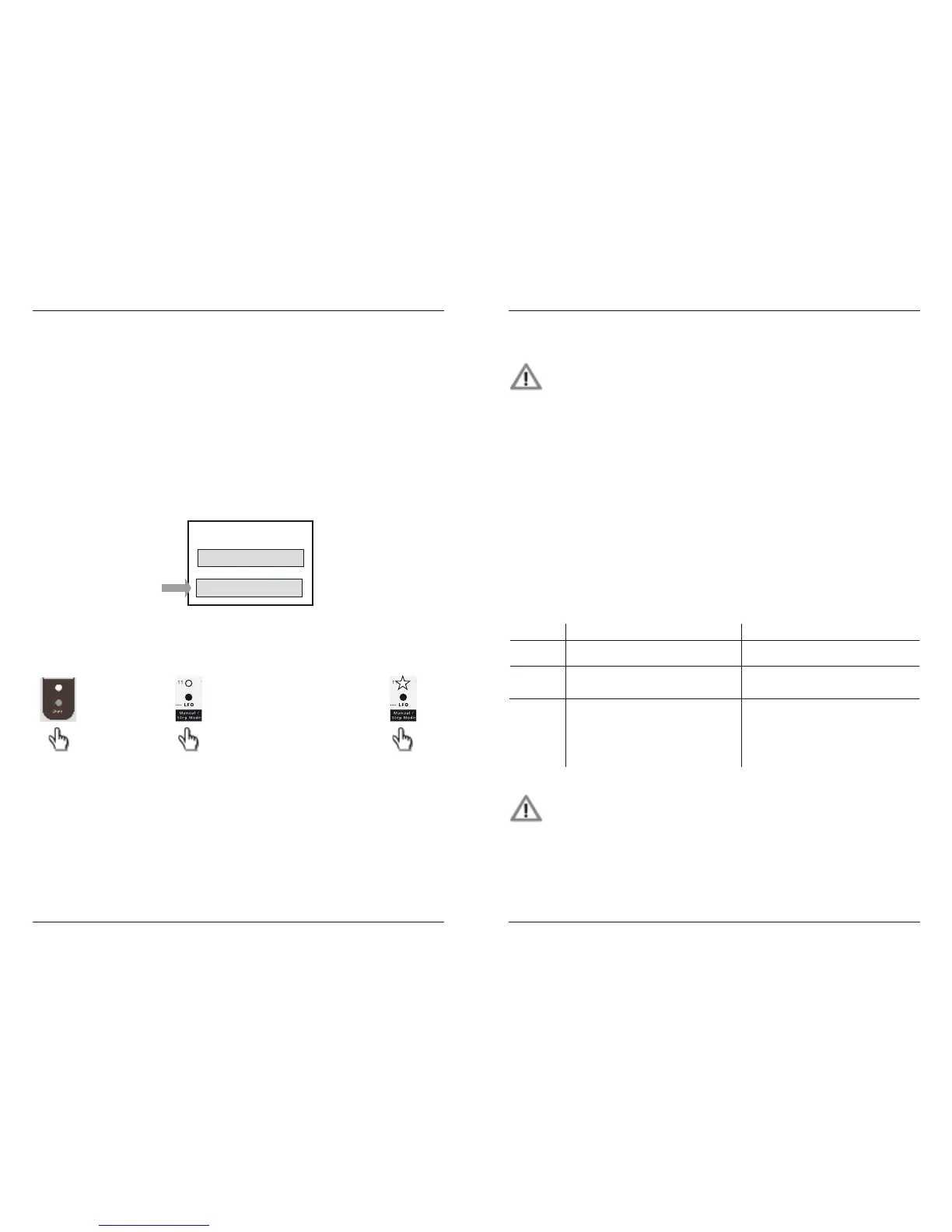
To toggle between Step mode and Manual mode, please use Shift and Step key 11. When
holding down Shift and Step key 11 lights up, Tanzbär Lite will be in Step mode. Step mode
is the default setting.
Step Mode
In Step mode, each step of a pattern can have its own individual sound setting. Step mode
is the default factory setting. When loading a pattern (page 12), you will hear its sound
settings the way they are stored in memory.
Now you can tweak the sounds any time, using the front panel controls. Of course, they will
now lose their individual sound settings per step.
• To reload the sound settings stored within the current pattern, simply press Select.
• To store the tweaked sound setting in the current pattern, hold Shift + press Select.
Attention: The sound settings previously stored in the patterns will be over-
written. There is NO UNDO! Don‘t say we didn‘t warn you.
Alternatively, you can store the entire pattern (trigger and sound settings) permanently any
time, using the Store Pattern function. Please see page 34.
Manual Mode
When loading a pattern in Manual mode, only its trigger data will be loaded. The sound
settings are matching the current settings of the front panel controls. That means, when
playing back the same pattern in Manual mode, you will not hear individual sounds per
step but the sound that matches the current front panel control settings across the entire
pattern length.
Of course you can tweak the sound settings again as you feel and store the new creation
permanently in the current pattern by using the Store Pattern function (please see
page 34).
The following chart compares the options of Manual- and Step mode:
Again: The key shortcut Shift + Select only exits the currently selected
sound-editing process and prevents unintentionally overwriting the sound
with your new sound setting.
To store the entire pattern (trigger and sound settings) permanently, you
need to use the Store Pattern function. Please see page 34.
Pattern
Trigger data
Sound
controls
Sound settings
Manual Mode
or
Step Mode
(default setting)
press Step 11
hold Shift
+


 To Next Page