Copyright © 2009-2010 Micca, LLC. All rights reserved.
VII. Movie Mode
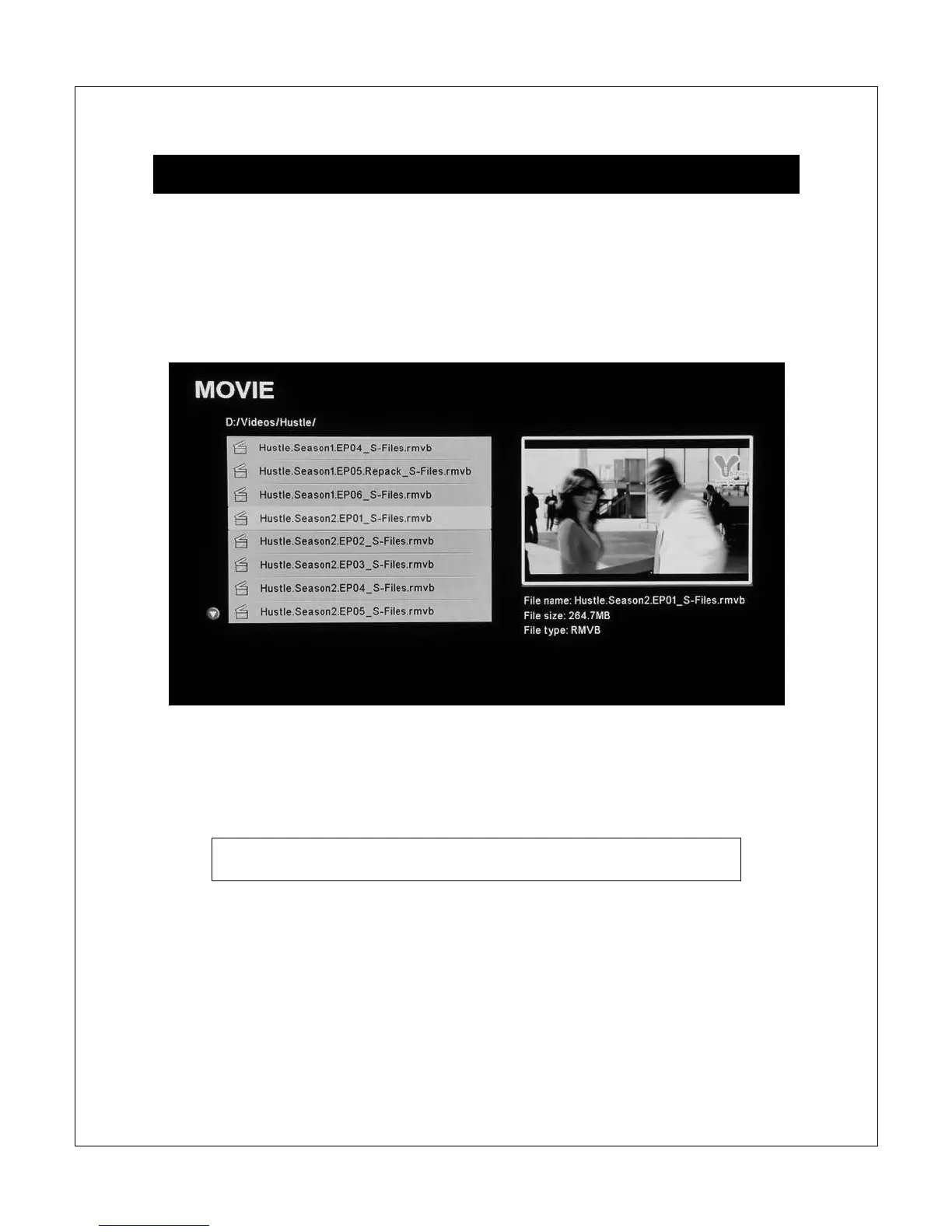
In Movie mode, the Micca Slim displays a file/folder directory on the left side of
the screen, and a preview box on the right. Navigate the files and folders to
locate video files you wish to play. Use the <
> and <
> buttons to highlight a
compatible video file and it will automatically start to play in the preview box
without sound after a short delay.
To play a video file full screen, press the <OK> button on the remote control after
highlighting it. By default, the Micca Slim will continuously and repeatedly play all
video files in a folder in alphabetical order until stopped or turned off.
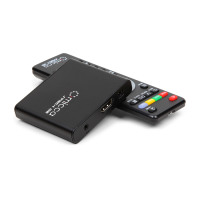
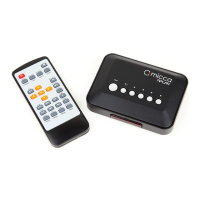
Quickly jump to movie mode by pressing the <Movie> button on
the remote control.
NOTE: Only files with compatible video file extensions AVI, MPG, MP4, MOV,
VOB, MPG, DAT, RM, RMVB, and 3GP are visible in the file/folder directory.
Video files with incompatible file extensions, such as MKV or WMV will are not
visible. Video files with compatible file extensions but incompatible codec such
as H.264 will not play in the preview box and will generate an error when full
screen playback is attempted.


 To Next Page