Copyright © 2009-2022 Micca. All rights reserved. Page | 15
6 Settings
The Settings menu allows users to personalize and configure preferences for the player. To go
into the setup menu, select the Settings icon on the main menu, or press the SETUP button on
the remote control.
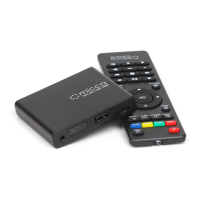
Use the directional LEFT/RIGHT and UP/DOWN buttons on the remote control to select options
and press OK/ENTER to confirm. To return to the main menu, press the RETURN button.
6.1 Settings
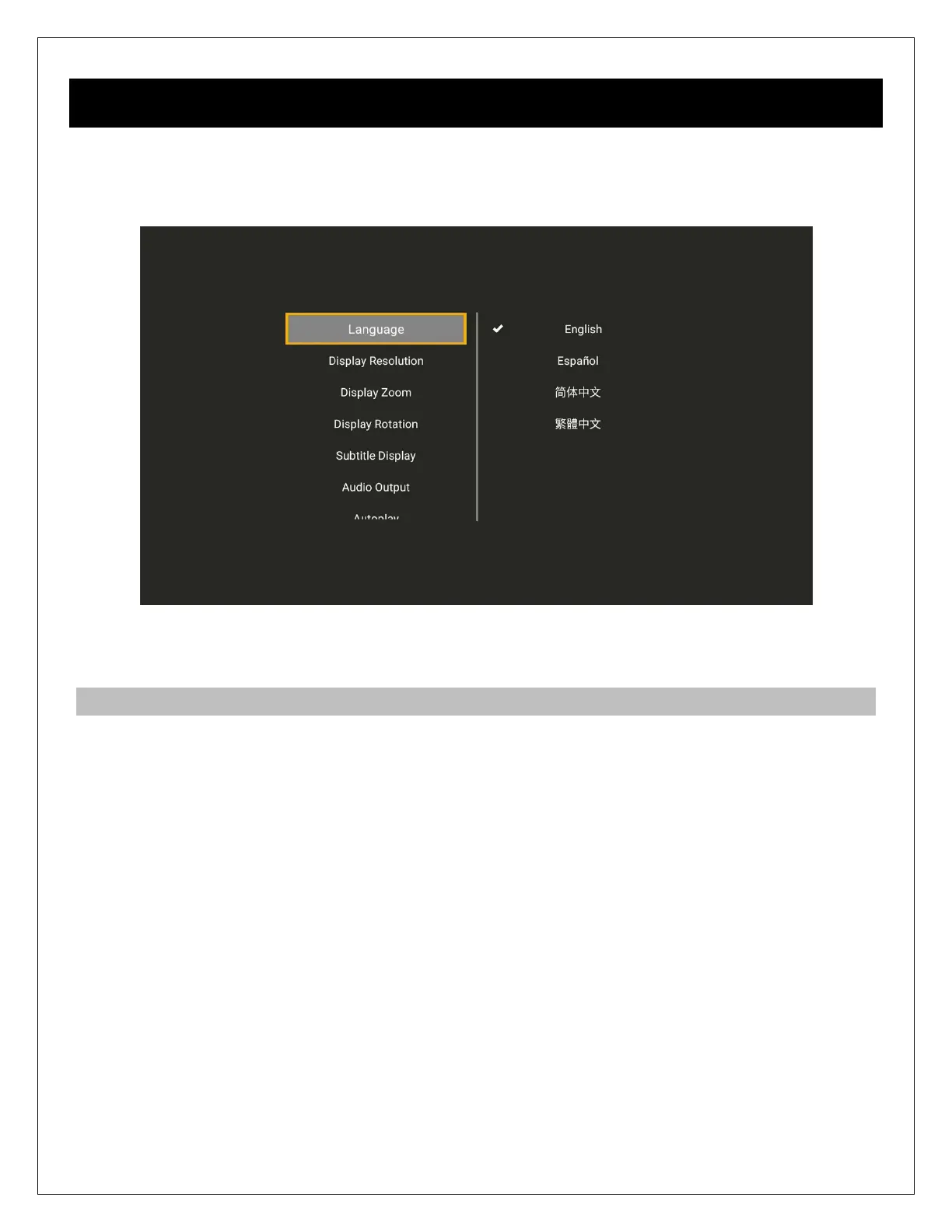
6.1.1 Language
The player’s user interface and menu system can be presented in a variety of different language
settings. Note that this setting does not affect the language of audio tracks or subtitles.
Available settings: English, Spanish, Simplified Chinese, Traditional Chinese.
6.1.2 Display Resolution
The player can output video in a wide range of resolutions over an HDMI or AV connection.
Consult the TV manual for the resolutions it supports. For best results, configure the player’s
Display Resolution to match the highest quality setting supported by the TV. “Auto” is
recommended when the player is connected using an HDMI cable.
Available settings: AUTO, 2160P, 1080P, 720P, 576P, 480P
6.1.3 Display Zoom
The player is set by default to output 100% display size over HDMI and AV connections. Some
TVs apply an over-scan that causes a portion of the display to be cut off. Consult the TV’s user
manual to find the setting to disable its over-scan feature. If the TV’s over-scan feature cannot


 To Next Page