21
TEST RESULTS
Audiometric test results can be displayed on the LCD, stored to a memory card or
transmitted to an attached PC or printer.
Displaying Results on the LCD
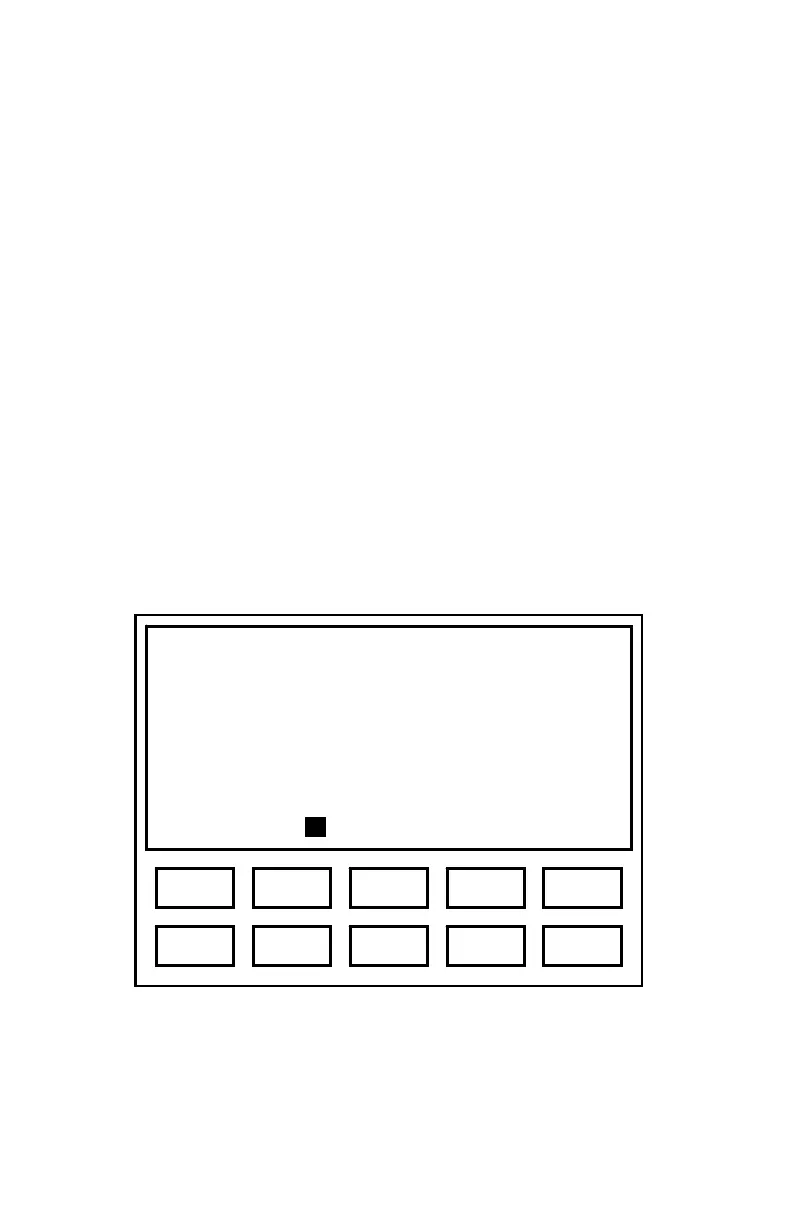
Test results are displayed via the menu sequence ⌐DISPLAY RESULTS. Thresholds
obtained via automatic testing are displayed with an ‘a’, and screening levels
obtained via automatic testing are displayed with an ‘s’. Figure 6 shows partial
results obtained in manual test mode for the Right ear (indicated by the ‘m’ next to
the threshold).
The {◄}, {►}, {▲}, or {▼} keys are used to scroll up or down through the results
list. Press {2} (L/R) to toggle between display of Left or Right ear data,
respectively. When baseline data is available (ES3 with Test Analysis option), it is
displayed in a column under the ‘Base’ heading. In this example, STS and PBI
calculations are available, so {4} would display STS calculations and {5} would
display PBI calculations. The formulae used for PBI calculations is selected via
⌐S
ETUP ⌐AUDIOMETRY SETUP ⌐IMPAIRMENT CALC. {AAO-1979 / AAO-1965/AMA-
1947 / NIOSH / CHABA / Illinois / New Jersey / Wisconsin}.
Figure 6. Audiometric Test Results Display
Right Results
Cur Base
125 20m
250 20m
500 20m
750 20m
1000 20m ↓
L/R STS PBI
3
1 5 2 4
8 6 0 7 9



 To Next Page