21
Installing the instrument software
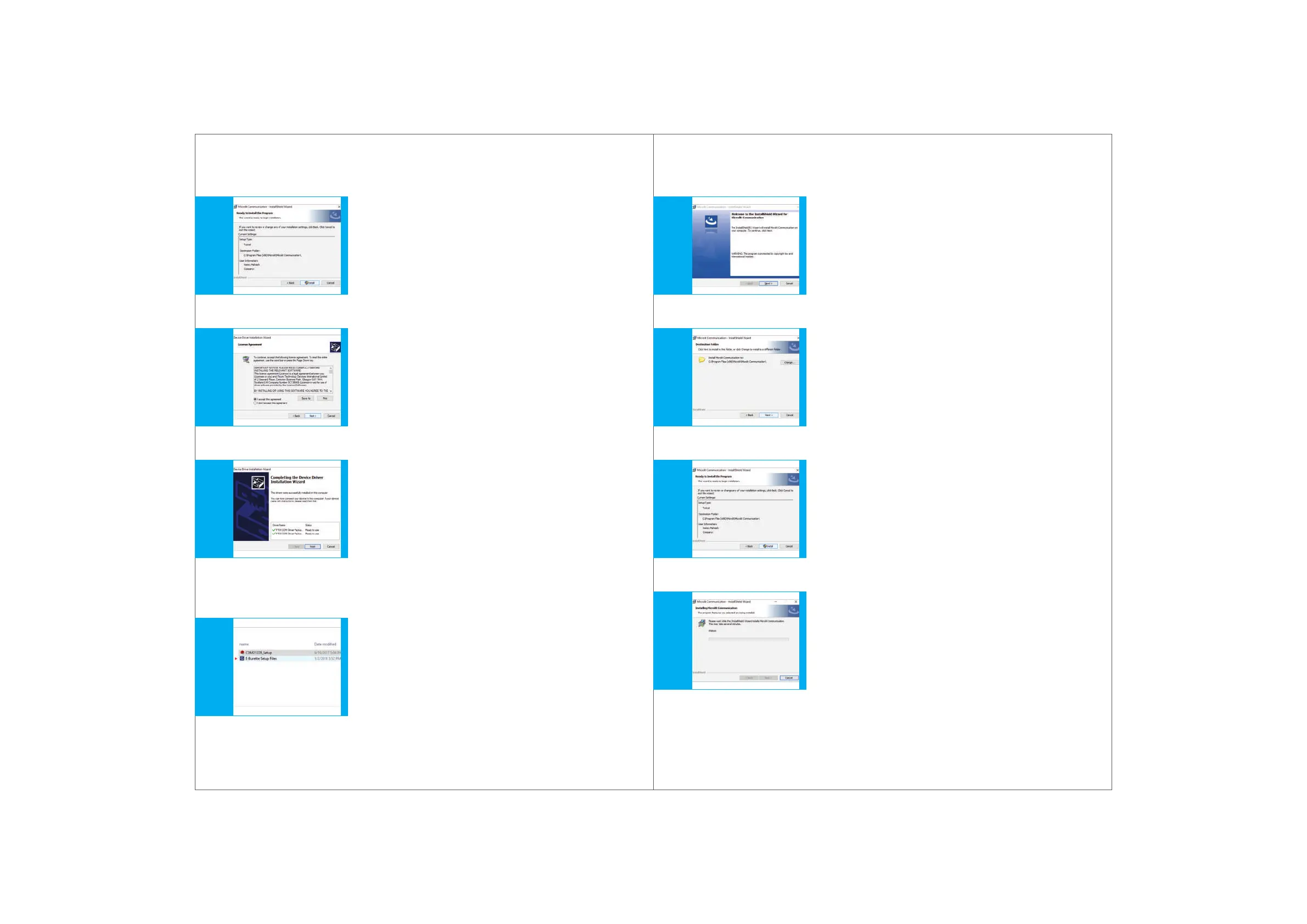
Click the Next button for installing the device driver.
(Fig. 11.3)
Click to accept the licence agreement.
(Fig. 11.4)
Then, click the Finish button on the
device driver installation wizard.
(Fig. 11.5)
Double click the E-BURETTE setup icon.
(Fig. 11.6)
III.
IV.
V.
2.
I.
Fig. 11.4Fig. 11.5Fig. 11.6 Fig. 11.3
22
Click Next to start the Install Shield Wizard for
MICROLIT Communication window.
(Fig. 11.7)
Click Next to choose the destination
folder of the software files.
(Fig. 11.8)
Click Install for the ready to install program window.
(Fig. 11.9)
Click Next for the user account control window.
(Fig. 11.10)
II.
III.
IV.
V
Fig. 11.8Fig. 11.9Fig. 11.10 Fig. 11.7


 To Next Page