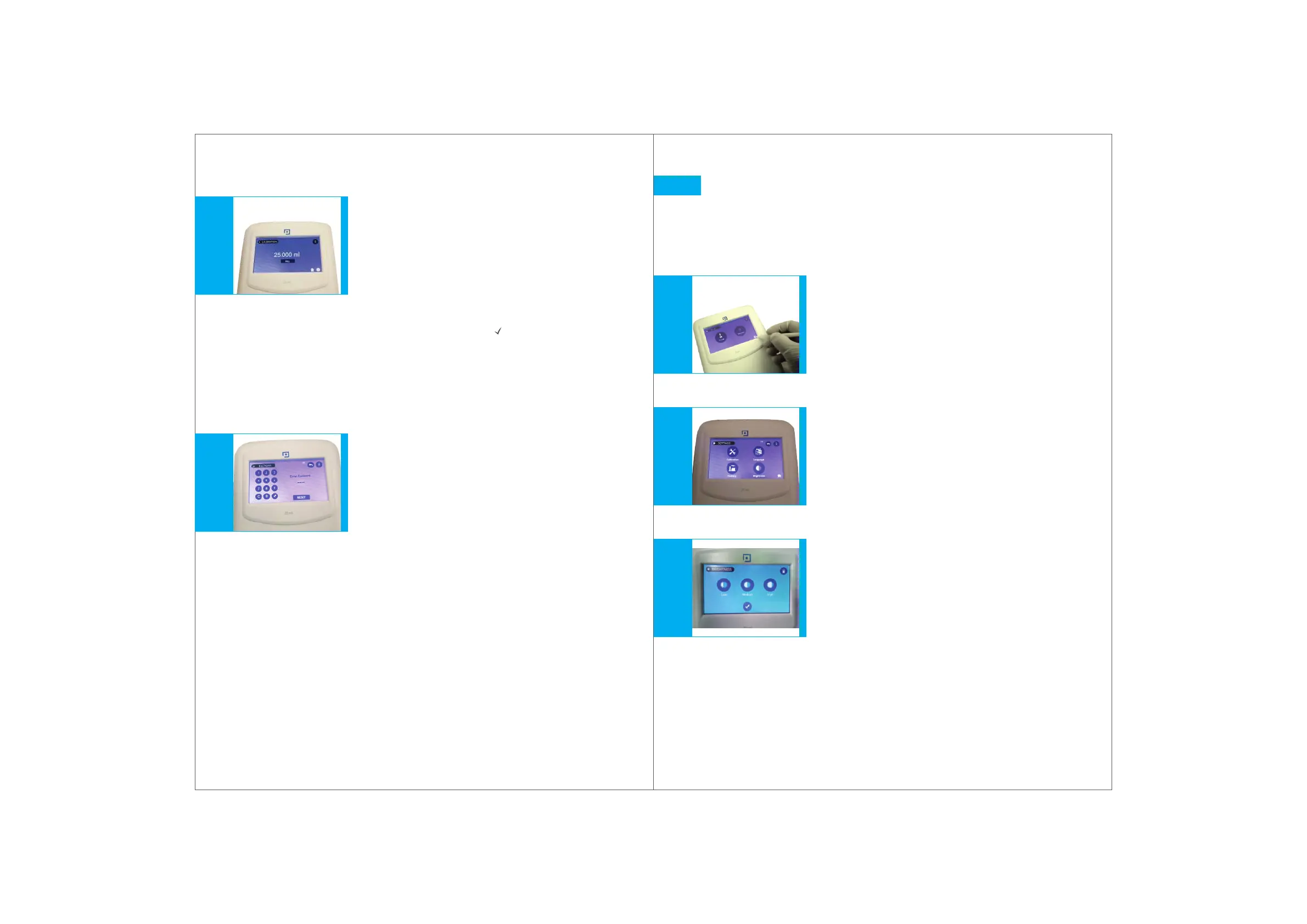
Click on the settings icon from the home screen.
(Fig. 16.1)
In the settings windows, click the BRIGHTNESS icon.
(Fig. 16.2)
From the BRIGHTNESS window, select the level of
brightness and tick mark to save it.
(Fig. 16.3)
Other Settings
Control panel brightness setting
User can change brightness from setting screen on the control panel.
16.
1.
2.
3.
Fig. 16.1Fig. 16.2Fig. 16.3
3635
Dispense the filled liquid by clicking on the
DISPENSE button on the calibration screen
of the control panel.
(Fig. 15.4)
The factory reset is for the MICROLIT factory settings
which is password protected and intended to be used
at the manufacturing facility. (Fig. 15.5)
If the reset button is pressed, the user calibrated settings
shall be reset with the default factory settings & the CAL
label will disappear from the screens.
Measure the dispensed liquid on a balance and enter the value in mg using
the provided electronic keyboard. Click the tick mark ( ) to proceed.
Note: CAL label will start appearing on top of all screens.
Repeat this procedure until the nominal volume is achieved
on the electronic balance.
Factory Reset
4.
5.
6.
Fig. 15.4Fig. 15.5


 To Next Page