DOC 6501_Release V
ATS-6501 Users Guide
175
not be lost during a software update. This command is equivalent to the show network
command and the network variables also appear on the status port (port 1900).
See Also: show, status, settings, config, save, load
Usage: network [-d MAX_DEPTH] [NODE]
MAX_DEPTH limit display to MAX_DEPTH levels of data
NODE specifies a node to display
Note: These settings are not necessarily what the system is currently using unless the
system has static IP Address assigned. If the system is using DHCP the current IP settings
being used by the system will be displayed using the status unit command.
Command Example:
ATS-6501> network
Query:
ATS-6501>network
[broadcast] 192.168.1.255
[default_gateway] 192.168.1.1
[ip] 192.168.1.50
[mode] static If = DHCP – check status unit for current settings
[netmask] 255.255.255.0
network_config:
Description: Adjust networking configuration. Network parameters are persistent as soon
as they are entered and do not require a user to save them. They also persist through a
remote software update of the system but since the network configuration data is physically
stored on the flash disk itself, the network settings will be lost if the system is updated
using a new flash disk.
The current network settings for the system can be viewed by typing network at the
command port. It is important to realize though that the IP address given by the network
command does not necessarily represent the current IP address of the system (type status
tflex:network:ip for the current IP address). The network settings actually display the IP
address the system will be set to if it is switched to static IP mode. This enables a user to
switch back and forth between DHCP mode and static IP mode without losing their
network configuration settings for the static IP mode. Likewise, the settings displayed by
the network command for broadcast, default_gateway, and netmask provide the values that
the system will be configured with only if the system is switched to static IP mode. The
current network configuration mode can be viewed by typing network mode.
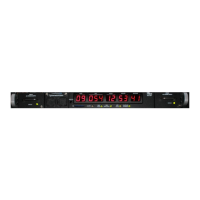
When the system is in DHCP mode the front panel button can be pressed momentarily and
the system will display its current IP address using the time display on the front panel. This
is extremely useful in determining what IP address the system was assigned without having
to log into the box. Additionally, if the front panel button is pressed and held for more than
5 seconds then the system will reset itself to the static IP address of 192.168.0.1. This
enables a user to then be able to access the box when a dhcp server is not available to
assign an IP address to the system.


 To Next Page