Solution 3: Update your controller
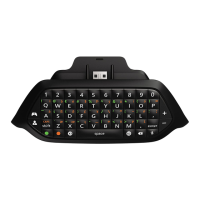
1. Plug your chatpad into the controller.
2. Press the Xbox button to open the guide.
3. Select Settings.
4. Select All Settings.
5. Select Kinect & devices.
6. Select Devices & accessories.
7. Select your controller.
8. Under DEVICE OPTIONS, select Update.
9. Follow the instructions to complete the update.
For more information, see Update your Xbox One Controller.
If the keyboard still doesn't work, try the next solution.
Solution 4: Update your console
Your console must have a November 2015 (or later) update. For more information, see Xbox
One operating system versions and system updates.
If the keyboard still doesn't work, try the next solution.
Solution 5: Power cycle your console
Select Settings, Power & startup, and then the Restart Now button to shut down and restart
your Xbox One console.
Chatpad has no audio or poor audio
Solution 1: Check that the controller is on
Check that the controller is turned on and functioning properly.
See Xbox One Wireless Controller functions improperly for help with your controller. If the
controller is on and still has poor or no audio, try the next solution.
Solution 2: Disconnect and reconnect the headset and Chatpad
1. Disconnect the headset from the Chatpad.
2. Disconnect the Chatpad from the controller.
3. Reconnect the Chatpad to the controller. It's connected if the green LED flashes once.
4. Reconnect the headset to the Chatpad.





 To Next Page