If you reconnect the headset to the Chatpad and the audio still isn't working, see Connecting a
compatible headset to Xbox One to make sure your headset is compatible. If your headset is
compatible, try the next solution.
Solution 3: Update your controller
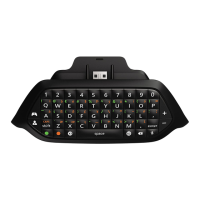
1. Plug your Chatpad into the controller.
2. Press the Xbox button to open the guide.
3. Select Settings.
4. Select All Settings.
5. Select Kinect & devices.
6. Select Devices & accessories.
7. Select your controller.
8. Under DEVICE OPTIONS, select Update.
9. Following the instructions to complete the update.
For more information, see Update your Xbox One Controller.
Solution 4: Update your console
Your console must have a November 2015 (or later) update. For more information, see Xbox
One operating system versions and system updates.
If the keyboard still doesn't work, try the next solution.
Solution 5: Power cycle your console
Select Settings, Power & startup, and then the Restart Now button to shut down and restart
your Xbox One console.
Keyboard does not work but audio does work
Solution 1: Disconnect and reconnect the chatpad to your controller
1. Disconnect the chatpad from the controller.
2. Reattach the chatpad, pressing it firmly into the controller to ensure a good connection. It
is connected if the green LED flashes once.
If the keyboard still doesn't work, try the next solution.
Solution 2: Try another game





 To Next Page