UF51 provides web-based configuration interface for management. If this is the first time you configure
the device, please use the default settings below:
IP Address: 192.168.1.1
Username: admin
Password: password
5.1 Wireless Access
A. Enable Wireless Network Connection on your computer and search for access point “Router_******” to
B. Open a Web browser on your PC (Chrome is recommended) and type in the IP address 192.168.1.1 to
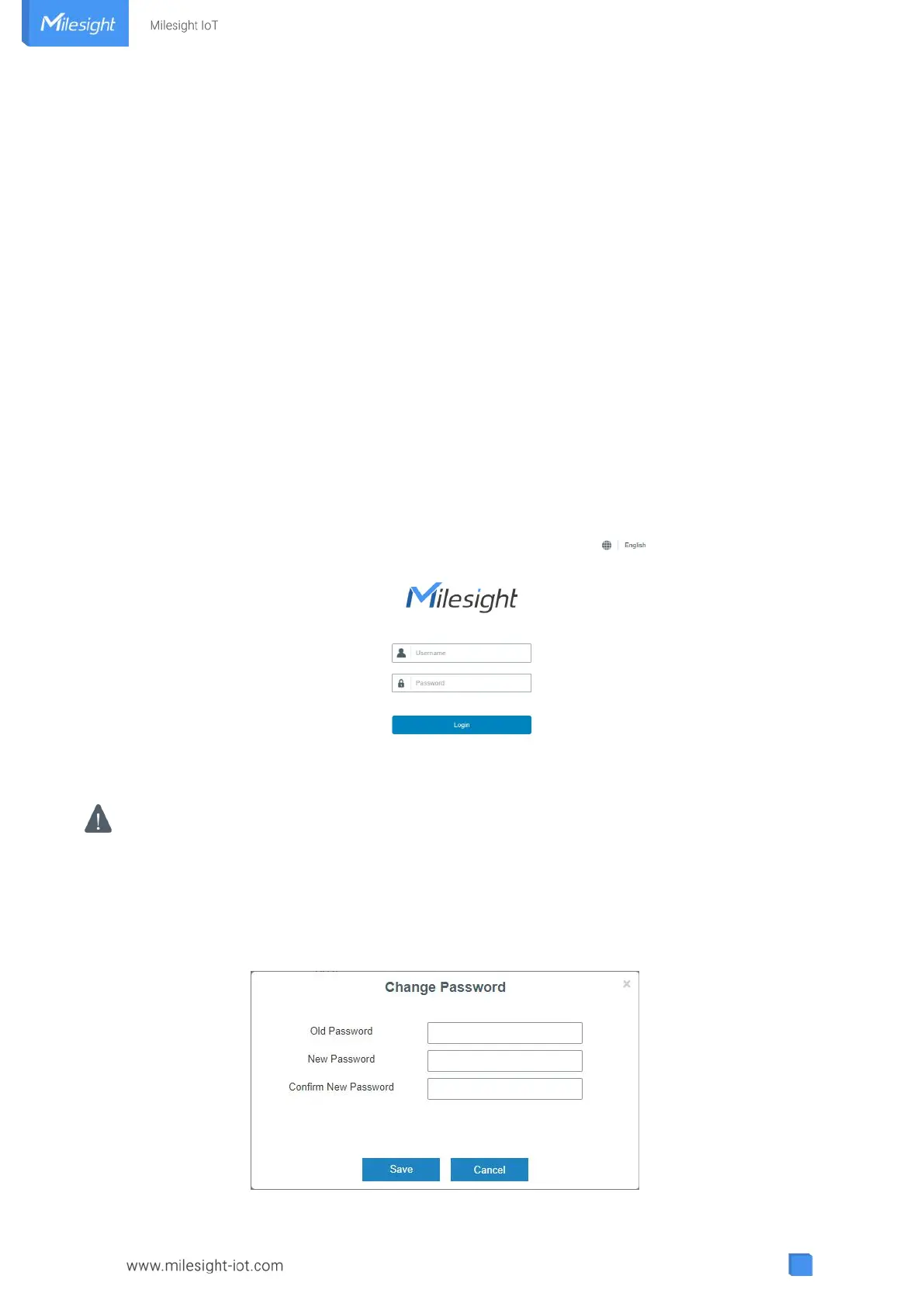
C. Enter the username and password, and click “Login”.
If you enter the username or password incorrectly more than 5 times, the login page will be locked
D. When you login with the default username and password, you will be asked to modify the password.
It’s suggested that you change the password for the sake of security. Click "Cancel" button if you want to
modify it later.



 To Next Page