This chapter explains how to connect UF51 to network via WAN connection, Wi-Fi or cellular.
6.1 Ethernet WAN Configuration
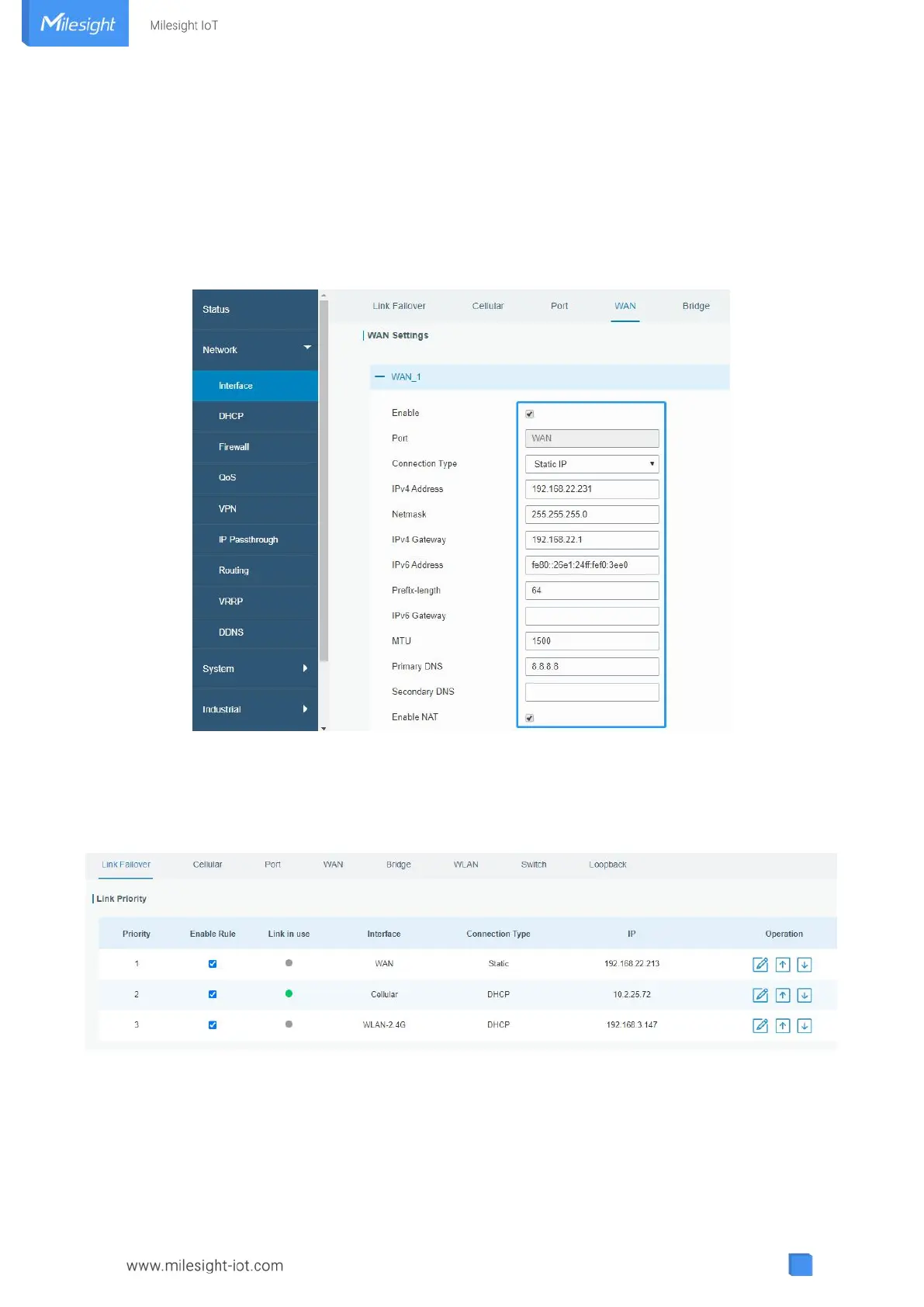
A. Go to “Network > Interface > WAN” to select connection type and configure WAN parameters, click
“Save & Apply” button to make the changes take effect.
B. Connect WAN port to another network devices like modem.
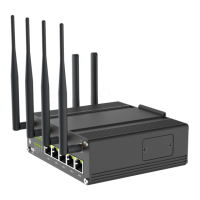
C. Go to “Network > Interface > Link Failover” to rise the WAN priority to 1.
D. Open your preferred browser on PC, then type any available web address into address bar and see if it
is able to visit Internet via UF51.
6.2 Cellular Connection Configuration
A. Go to “Network > Interface > Cellular > Cellular Setting” to configure APN, PIN code or other cellular
info, click “Save” and “Apply” to save the configuration.



 To Next Page