21
1. Use ï or ð to display the ‘User1’ setting, and press GREEN.
2. The cursor ( ▋) can be moved from line to line with ñ/ò and from left to right with ï/ð.
3. Bring the cursor to the left-hand percentage in the ‘Bishop’ line.
4. Press GREEN. The cursor is replaced by a sign.
5. The percentage can now be altered in steps of 1 by ï/ð or in steps of 10 by ñ/ò.
6. Change the percentage to 110 and press GREEN to confirm. The cursor ( ▋) reappears.
7. Move the cursor to the right and change the right-hand percentage as in steps 4-6.
8. Using the same procedure, change the left-hand percentage in the ‘Queen’ line to 120.
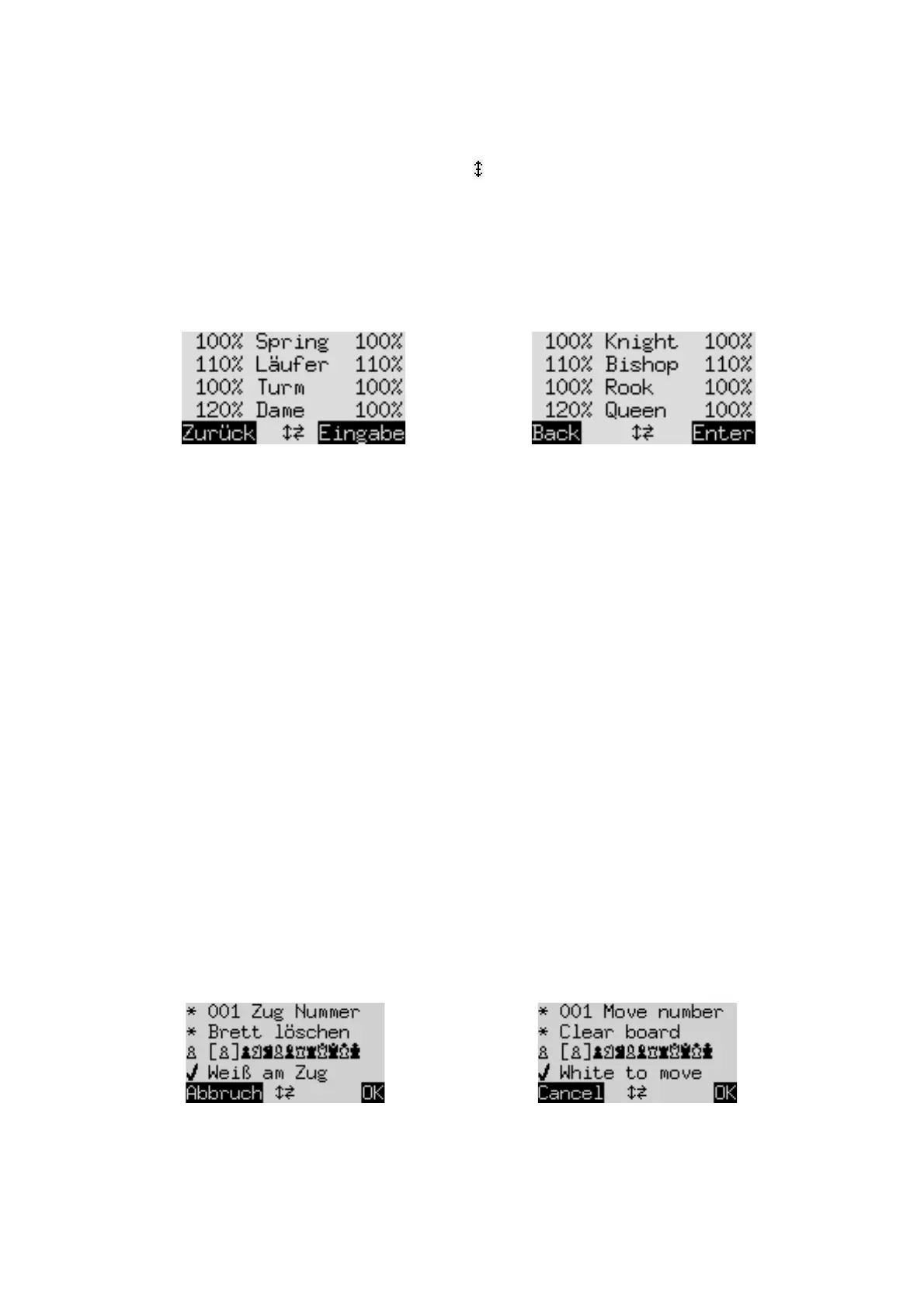
The screen now displays the following:
Press RED to return to the Options list, and RED again to resume play. Now as long as the current style
is ‘User1’, The computer will (e.g.) be more reluctant than usual to exchange bishop for knight and
more keen to exchange knight for bishop. It will also be more reluctant to part with its queen, even for
a nominal material equivalent. Since its own queen is now priced more highly than the opponent’s, it
will tend to avoid a queen exchange.
5.11.12
Opts: Sound
There are four possible volume settings for the sound signals:
• 3 (loud)
• 2 (medium)
• 1 (quiet)
• Off (mute)
5.11.13
Opts: Contrast
You have the choice of 10 different contrast settings for the LCD display.
5.11.14
Opts: Language
There is a choice of 7 different languages for the screen messages; see Section 2.2.
5.12
Menu: SetUp
To construct a special position on the computer‘s chessboard, select ‘SetUp’ from the menu. The screen then
shows (e.g.):
One of the lines contains the ‘blinking’ cursor ▋. By pressing ñ or ò you can move the cursor from line to
line. Repeated presses will bring 4 additional items onto the screen:


 To Next Page