23
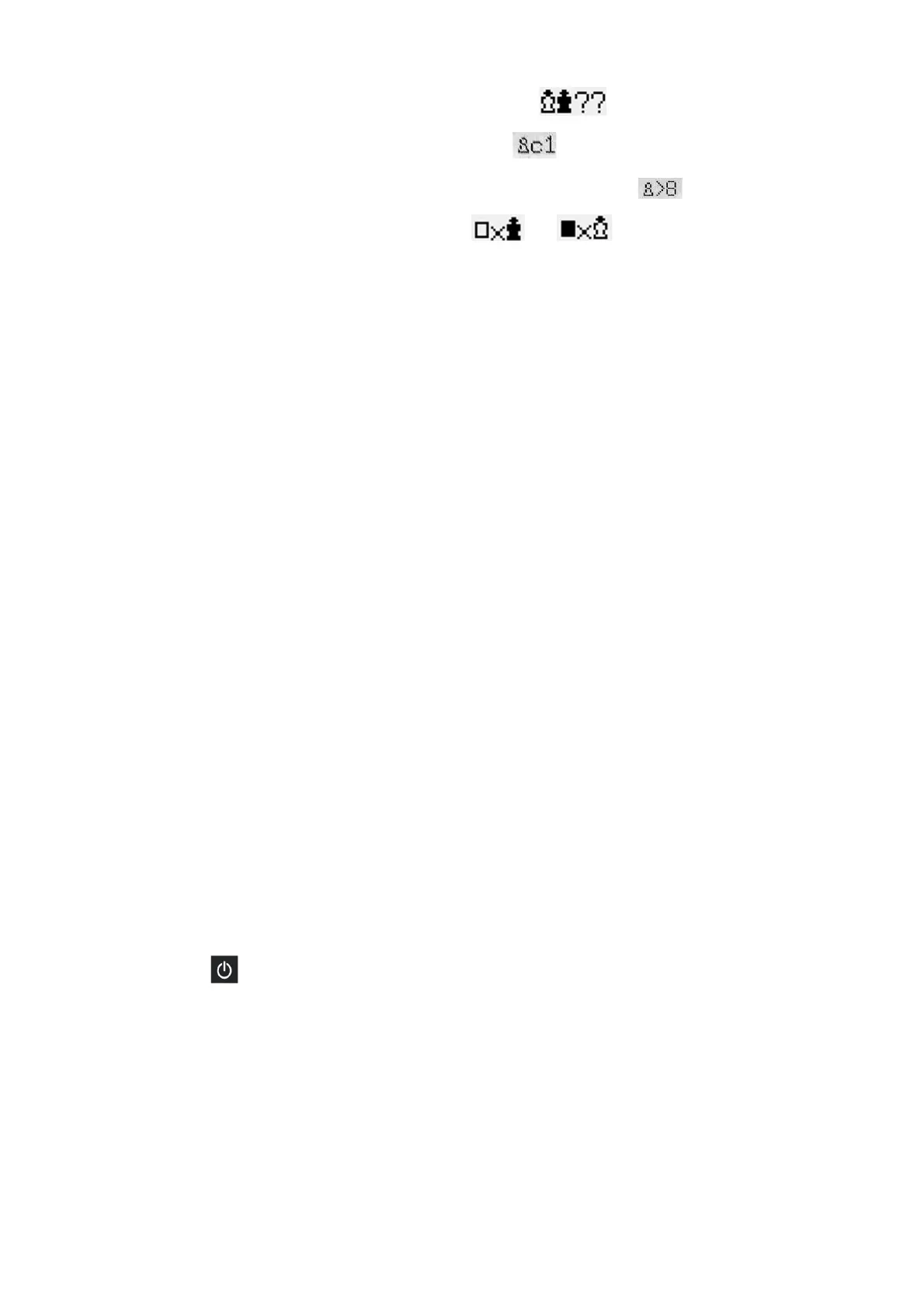
• A king is missing. This is indicated in the bottom line by
• A pawn is on the 1st or 8th rank – indicated by (e.g.)
• There are too many pieces of the same type/colour – indicated by (e.g.)
• The side to move is giving check – indicated by or
Note (2):
The first move from the position you have constructed cannot be a capture
en passant
. To create a
position where such a move is possible, set up the immediately preceding position, then carry out the move
that allows the capture.
5.13
Menu: Verfy (Verify)
The ‘Verfy’ function displays half the chessboard in diagrammatic form, with the pieces in the correct current
positions. To switch between the two halves of the board, press ñ or ò.
This function can help you adjust the pieces on the chessboard in case of confusion. To return to the ‘info’
screen, press RED.
6
USB mode – Communicating with a PC
6.1
Connecting to the PC
If you wish to use the functions described below, please register with MILLENNIUM 2000 (see
http://computerchess.com/) so that we can inform you of changes and/or software upgrades relating to your
computer.
To connect the computer unit to a PC or laptop, you will need an A to B USB cable (not included in the
delivery). This is the type that is used (e.g.) for printers. Plug the cable into the centre socket at the rear of
the computer unit and into a suitable port on your PC/laptop.
You can then:
• Install an updated chess program in your chess computer.
• Install a new openings book (see Section 5.11.5).
• Import and export games in ‘PGN’ (Portable Game Notation) format.
6.2
Saving and loading games
These operations are performed with the ‘PGN Tool’ application that can be obtained from the Millennium
website: http://www.computerchess.com/. Download it to your PC or laptop, and also download and run its
Installer program. Then:
• Open the PGN Tool.
• Press the button on the chess computer unit, to display ‘USB Mode’.
A game can now be saved or loaded.
6.2.1
Saving the current game
Click on ‘Get PGN’ at the bottom left of the PGN Tool display. The game that The King currently holds in its
memory appears in the application window. For example:


 To Next Page