8
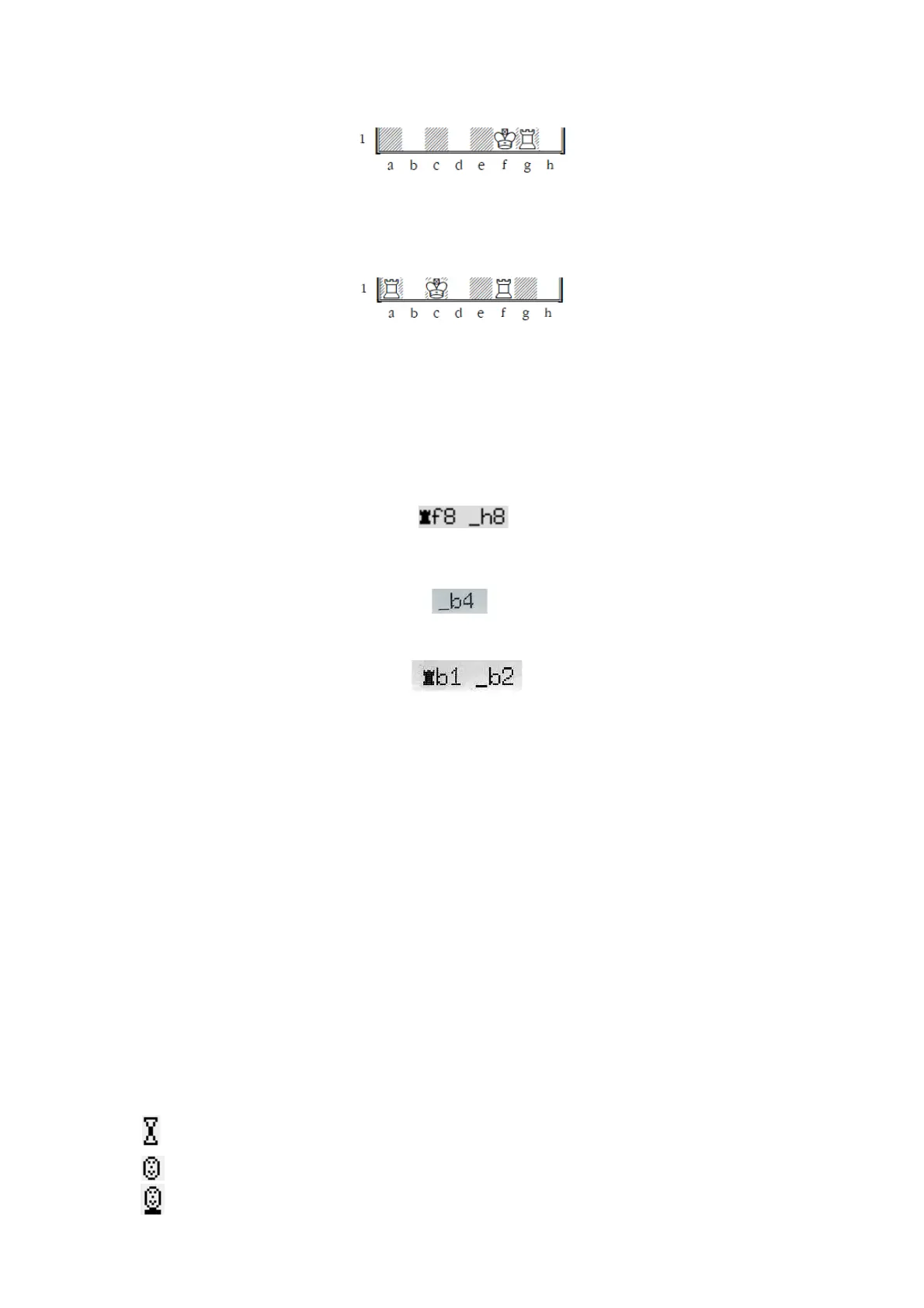
In the next example,
two
squares are pressed twice:
To castle, press f1
–
g1
–
g1
–
f1.
If the king or rook is already on its destination square, castling is effected by simply moving the other
piece:
To castle queenside, press a1 then d1. To castle kingside, press c1 then g1.
3.2
The computer’s move
The computer announces its move with a ‘beep’, and the red lights ‘blink’ to indicate the ‘from’ and ‘to’
squares alternately. Press down on the squares as you move the piece.
It may then be necessary to complete a ‘special’ move. The red lights indicate the square or squares where a
piece must be placed or removed. Note also the ‘prompts’ at the bottom left of the screen:
In this example, the square h8 must be vacated and the black rook must be placed on f8 (to complete a
castling move). Press the squares as you carry out the operation.
The square b4 must be vacated (by a pawn that has been captured
en passant
). Press the square as you
remove the pawn.
To carry out an ‘underpromotion’ of pawn to rook, press the square b2 as you remove the pawn, then press
the rook down on b1.
If the computer gives check, its move is followed by a high triple buzz.
If you prefer, you can also execute the computer’s move
without
pressing the squares: press RED (this
switches the lights off and erases the ‘prompt’), then simply move the piece(s). Note that
any
move that is
‘prompted’ in the bottom line may be carried out in this way; this includes moves that are being retracted or
replayed (see Sections 3.5 and 5.6).
3.3
Errors
If you press on a piece but then decide not to move it after all, press the square again. The lights go out, and
you can restart your move.
An illegal move is rejected by a low triple buzz. Simply complete a legal move in the normal way.
If (e.g.) pieces get knocked over and you aren’t sure where to put them back, you can use the ‘Verfy’ (=
verify) function – see Section 5.13.
3.4
Symbols displayed in the bottom line during play
• (rotating hourglass): The computer is thinking about its move.
• : You are to move with White.
• : You are to move with Black.


 To Next Page