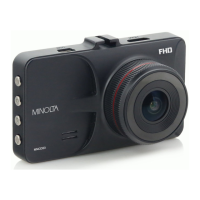
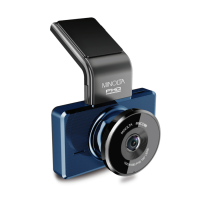
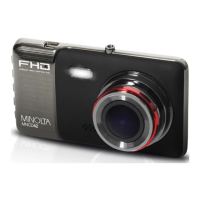
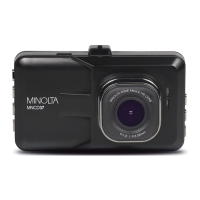
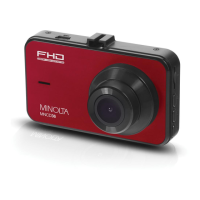
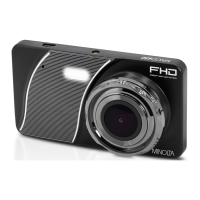
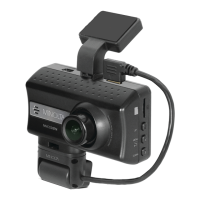
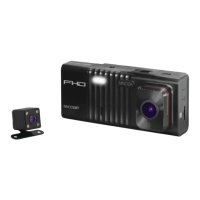
The Minolta MNCD50 Dash Cam is a car camcorder designed for in-vehicle shooting, capable of capturing 1080p HD video and sound, and storing data on an external memory card. It integrates high-performance video decoding and compression technologies, and features an HDMI interface for transferring uncompressed HD videos and audio. This device is intended for collecting evidence in driving accidents, as well as for daily life, travel, and outdoor activities.
Function Description:
The MNCD50 records video and captures photos. It automatically powers on and begins recording when connected to a car's power port, and automatically saves recordings and powers off when the auxiliary power adapter is removed. Users can manually start or stop recording, capture photos, and switch between video, photo, and playback modes.
Important Technical Specifications:
- LCD Display Screen: 3.0 inch 230k LCD Screen
- Anti-Shake Technology: Electronic Image Stabilization
- Field of View: Super wide angle; 150 Degrees
- Video Resolution: 1080FHD (1920x1080 30fps), 720P (1280x720 30fps)
- Photo Resolutions: 12 Mega Pixels, 10 Mega Pixels, 8 Mega Pixels, 5 Mega Pixels, 3 Mega Pixels, 2 Mega Pixels, 1.3 Mega Pixels, VGA
- File Format: Picture: JPEG, Video: MOV
- Wide Dynamic Range (WDR): Support
- Seamless Record: Support
- G-Sensor Auto Recording: Support
- Motion Detecting Recording: Support
- Time/Date: Support
- External Storage: MicroSDHC Card (32GB max.)
- Languages: English, French, Spanish, Portuguese, German, Italian, Cantonese, Mandarin, Russian, Japanese, Korean, Arabic
- HDMI Interface: Built-in
- USB function: Built-in
- Microphone and Speaker: Built-in
- Built-in Battery: 300mAh - for use as a backup power source during power outage
Usage Features:
Getting Started:
- MicroSD Card Insertion/Removal: Insert a MicroSD card (gold pins facing the display screen) into the slot until it clicks. To remove, push the card in, and it will bounce out. Ensure the camera is powered off before insertion.
- Power (In-Car Use): Connect the auxiliary USB power adapter to the car's power port and the camera's USB port. Charging begins immediately. The internal battery has limited capacity for emergency use only.
- Power (USB Cord Use): Connect the included USB cable to a computer's USB port and the camera's USB interface. The battery can charge whether the camcorder is on or off. A red indicator LED illuminates during charging and turns off when complete.
- Quick Use: Insert MicroSD card, connect auxiliary power adapter. The camcorder powers on and records automatically. Remove the adapter to save recording and power off. Press the RECORD button to start/stop recording manually.
Camcorder Operation:
- Power On/Off: Press the POWER button to turn on. The camcorder automatically records if a MicroSD card is inserted and motion detection or G-sensor sensitivity is enabled. Press the power button for 5 seconds to manually power off.
- Modes: Press the MODE button to switch between VIDEO, PHOTO, and PLAYBACK modes. Mode icons are displayed in the upper left corner of the screen.
- Video Capture: Enter VIDEO Mode and press the RECORD button.
- Photo Capture: Enter PHOTO Mode and press the RECORD button.
Playback Mode:
- Access: Press the MODE button until PLAYBACK mode is entered.
- Navigation: Use UP and DOWN buttons to cycle through files.
- Play/Stop: Press the RECORD button.
- Fast Forward/Rewind: Press DOWN for fast forward, UP for rewind, while video is playing.
- Exit: Press the MODE button again.
- The menu interface is available in all 3 modes (VIDEO, PHOTO, PLAYBACK), with options varying by mode.
- Access VIDEO/PHOTO Mode Settings: In VIDEO or PHOTO mode, press the MENU button. Use UP/DOWN to navigate, RECORD to select/confirm, and MENU twice to save/exit.
- Access SETUP/MAIN Settings: In any mode, press the MENU button twice. Use UP/DOWN to navigate, RECORD to select/confirm, and MENU again to save/exit.
- Dash-cam responsiveness: The dash-cam prioritizes video recording. Menu and other modes can only be operated when the dash-cam is in standby (not recording).
- Accessing menu while recording (blinking red dot):
- Place dash-cam on a flat surface. Press RECORD to stop blinking red dot. Then press MENU.
- Alternatively, remove the MicroSD card by pushing it in. Then press MENU or MODE. If entering PLAYBACK mode, reinsert the MicroSD card to view files.
- Resolution: Sets video size (1080FHD is highest).
- Loop Recording: Sets maximum duration for video clips.
- WDR (Wide Dynamic Range): Balances lighting in scenes with both dark and bright areas.
- Exposure: Adjusts image brightness.
- Motion Detection: Automatically records if movement is detected. Stops recording after 10 seconds of no movement.
- Record Audio: Enables/disables audio recording.
- Date Stamp: Adds date and time to video.
- G-Sensor: Sets sensitivity for automatic recording upon collision. Files are locked and protected from deletion.
- Resolution: Sets photo size (12M is highest).
- Sequence: Captures 5 consecutive images, 2 seconds apart.
- Quality: Sets photo quality level (Fine is highest).
- Sharpness: Adjusts image brilliance.
- White Balance: Corrects white color.
- ISO: Adjusts image sensor sensitivity.
- Exposure: Adjusts image brightness.
- Anti-Shaking: Enables digital image stabilization.
- Date Stamp: Adds date and time to photo.
Setup / Main Menu Options:
- Park Mode: Automatically powers on and records video if a collision is detected while parked and powered off. Sensitivity can be set.
- Date/Time: Sets date and time for display.
- Auto Power Off: Sets delay time for automatic power off when power is disconnected.
- Screen Saver: Sets duration for screen to power off during recording. Selecting OFF disables it.
- Beep Sound: Enables/disables button press sound.
- Language: Sets menu and interface language.
- Frequency: Sets 50Hz or 60Hz (region-dependent).
- Car Plate: Allows adding a license plate or car ID number to recorded media.
- To imprint: In PHOTO or VIDEO mode, press MENU twice. Navigate to "Car Plate" with UP/DOWN, press RECORD. Use UP/DOWN to cycle characters in 8 spaces. Press RECORD to confirm each character. Press MENU again to save/exit.
- Format: Deletes all contents of the MicroSD card (cannot be undone).
- Default Setting: Resets all settings to factory defaults.
- Version: Displays current firmware version.
- Connecting to a Computer: Connect via USB cable. Select "Mass Storage" and press RECORD. The camera acts as a card-reader, and media is stored in a folder on the removable disk.
- Connecting to a TV: Connect via HDMI cable (not included) to play and browse HD videos and photos.
Maintenance Features:
- Reset: If the camcorder freezes or becomes unresponsive, insert a pointy object into the reset hole to fully reset and power cycle the device.
Safety and Handling Precautions:
- Do not disassemble or attempt to service the camera.
- Avoid moisture or extreme temperatures.
- Allow the camera to warm up when moving from cold to warm environments.
- Do not touch or put pressure on the camera lens.
- Do not expose the lens to direct sunlight for extended periods.
- Do not use abrasive chemicals, cleaning solvents, or strong detergents. Wipe with a slightly damp soft cloth.
- It is normal for the camera body to feel warm during extended use.
- Do not subject the LCD monitor to impact.
- To prevent fire or electric shock, do not expose the appliance to rain or moisture.
Troubleshooting:
- For difficulties or further assistance, call the toll-free technical support hotline at 800-441-1100. Have the camera handy when calling.

 Need help?
 General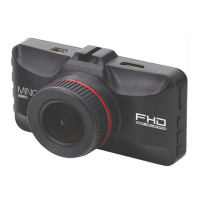

 To Next Page