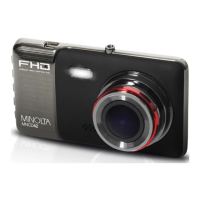
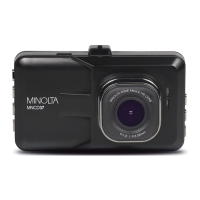
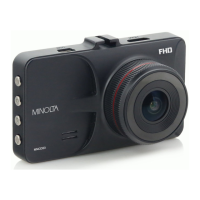
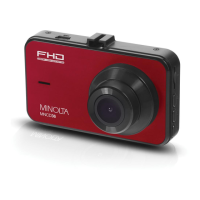
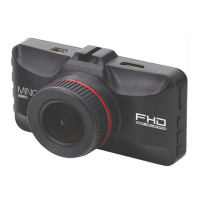
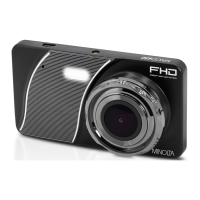
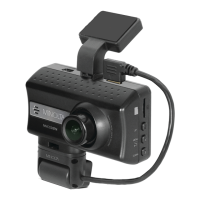
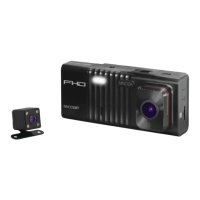
The Minolta MNCD60 is a car camcorder designed for in-vehicle video and photo capture, offering a compact form factor and high-performance video decoding technology for excellent video quality. It serves as a tool for collecting evidence in driving accidents, documenting daily life, travel, and outdoor activities. The device is mounted to a car's windshield, providing a wide, large-angle recording perspective.
Function Description:
The MNCD60 integrates multi-functions including 1080p HD video capture and high-resolution photo capture. It automatically powers on and begins recording when connected to a power source. Users can manually power the camcorder on or off by pressing the POWER button for 3 seconds. The device supports two main operation modes: Capture Mode for continuous recording and Menu Mode for adjusting settings. Playback of recorded video and photo files is also supported directly on the device.
Important Technical Specifications:
- Model Number: MNCD60
- LCD Display Screen: 3.0 Inch LCD Screen
- Field of View: Super wide angle; 140 Degrees
- Video Resolution: 1920x1080@30fps, 1280x720@30fps
- Photo Resolution: 2.0 Mega Pixels
- File Format: Picture: JPEG, Video: MOV (H.264)
- Loop Recording: Supported
- GPS Logging: Supported (windshield mount required for use)
- Collision Auto Recording: Supported
- Speed Limit Alert: Supported
- Lane Departure Guide: Supported
- Front Car Move Detection: Supported
- Forward Collision Alert: Supported
- Parking Mode: Supported
- Time & Date Stamp: Supported
- External Storage: MicroSD, MicroSDHC, MicroSDXC Card (64GB max.) – Class 10 Recommended
- Languages: English
- USB Function: USB 2.0 Built-in
- Microphone and Speaker: Built-in
- Built-in Battery: 4.2v 300mAh - for use as a backup power source during power outage. Note: The internal battery has a very limited capacity and is only intended for emergency use situations.
Usage Features:
- Memory Card Insertion and Removal: Supports MicroSD cards. Ensure the camcorder is powered off before inserting or removing the card. Insert with gold pins facing the display screen until it clicks. To remove, push the card in, and it will bounce out.
- Swivel Lens: The front lens can swivel to adjust the point of view. It should be adjusted after the dashcam and mount are firmly fixed to the windshield.
- Windshield Mount: The device attaches to the windshield via a suction cup mount with a sticky pad. The mount's USB plug connects to the dashcam's USB port. It is recommended to clean the windshield before application. An extra sticky sheet is included for re-application.
- Powering On/Off: Automatically powers on when connected to a car's power port via the auxiliary DC power adaptor. Can be manually powered on/off by pressing the POWER button for 3 seconds.
- Charging: Charges when connected to the car's auxiliary power or a computer via USB.
- Quick Use: Simply insert the memory card, connect the auxiliary power adaptor, and the camcorder will automatically power on and begin recording.
- Operation Modes:
- Capture Mode: Default mode, automatically starts recording video. Press the MODE button to stop recording and enter Menu Mode. Press MODE again to revert to Capture Mode and resume recording.
- Menu Mode: Accessed by pressing the MODE button. Allows adjustment of various settings.
- Playback: Review video and photo files. Short press the POWER/MODE button until a captured file is shown. Use UP/DOWN buttons to cycle through files. Press OK to play/pause video. Press MENU to delete or protect files.
- On-Screen Icons:
- Menu: Stops recording, enters Menu Mode.
- Photo Mode: Enters Photo Capture Mode.
- Photo Capture: Captures a photo in Photo Mode.
- Power: Turns LCD display on/off. Hold for 3 seconds to power off.
- Microphone: Enables/disables audio recording.
- Quick Lock: Locks/unlocks the current video recording.
- Menu Settings:
- Playback Files: Allows viewing of Videos, Locked Videos, and Photos.
- Delete Files: Enables deletion of single files ("Delete One") or all files ("Delete All").
- Speaker Volume: Adjusts the dashcam's speaker volume.
- Video Resolution: Selects video quality (1080p for highest, 720p for medium).
- Video Clip Duration: Sets the maximum length for each video clip (1, 2, or 3 Minutes).
- Exposure: Adjusts video brightness levels (-2 to +2).
- Front Move Alert (FCMD): Alerts the driver to move forward if a vehicle in front has moved and the car is stationary.
- Lane Departure Guide: Adds a yellow guide to the screen and alerts if drifting out of lane above 40 MPH. (Not printed on recorded video).
- Front Collision Warning: Alerts if too close to the vehicle in front.
- Speed Limit Alert: Alerts if the vehicle exceeds a set speed (requires GPS Logging).
- Audio Recording: Enables/disables audio capture for video files. Can be quickly toggled using the Down/Next button during recording.
- GPS Status: Displays current GPS coordinates (requires windshield mount and GPS enabled).
- Collision Sensitivity: Sets sensitivity for automatic recording and locking upon collision. Locked videos are saved to the "Locked Videos" folder.
- Parking Sensitivity: Activates automatic recording and locking upon collision while parked and powered off (requires sufficient battery power).
- Speed Unit: Sets speed rating unit (km/h or mph).
- Date & Time Stamp: Enables/disables date and time imprint on videos and photos.
- Date & Time Setup: Sets the date (MM/DD/YYYY) and time (HH:MM:SS, 24-hour format).
- Time Zone Setup: Adjusts the time zone (-12:00 to +14:00).
- GPS Logging: Enables/disables GPS geotagging for video files, creating a log file for playback with compatible software.
- Screen Auto Shut Off: Sets the time before the LCD screen automatically turns off (Off, 1 Minute, 3 Minutes).
- Beep Sound: Enables/disables button press "beep" sounds.
- Language: Sets the dashcam menu language.
- Frequency: Sets power frequency (50 Hz or 60 Hz, 60Hz for North America).
- Reset Settings: Resets all menu settings to factory defaults without deleting media.
- Format Memory Card: Erases all video and photo files on the memory card. Caution: Formatted media cannot be recovered.
- FW Version: Displays the current firmware version.
Maintenance Features:
- Cleaning: Do not use abrasive chemicals, cleaning solvents, or strong detergents. Wipe the product with a slightly damp soft cloth.
- Storage: Keep the quick guide properly stored away for reference.
- Troubleshooting: If experiencing difficulties, contact the toll-free technical support hotline. Have the camera handy when calling.
- Connecting to a Computer: Connect the dashcam directly to a computer using the included USB cable (not via the mount).
- MSDC (Mass Storage Mode): Allows access to video and photo files on the memory card. Files are stored in "Videos," "Photos," and "Locked Videos" folders on a removable disk.
- PCam (PC Camera Mode): Uses the dashcam as a PC camera.
- DV (Dashcam Mode): Standard dashcam operation.
- GPS Log Playback: Special software from www.minoltadigital.com is required to play back video files with GPS logs. For playback without GPS logs, VLC Player (www.videolan.org) is recommended.

 Need help?
 General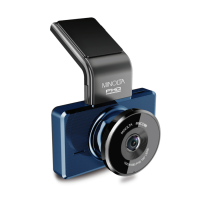

 To Next Page