2 0 0 9
P a g e | 14
How to record and playback a 3D video
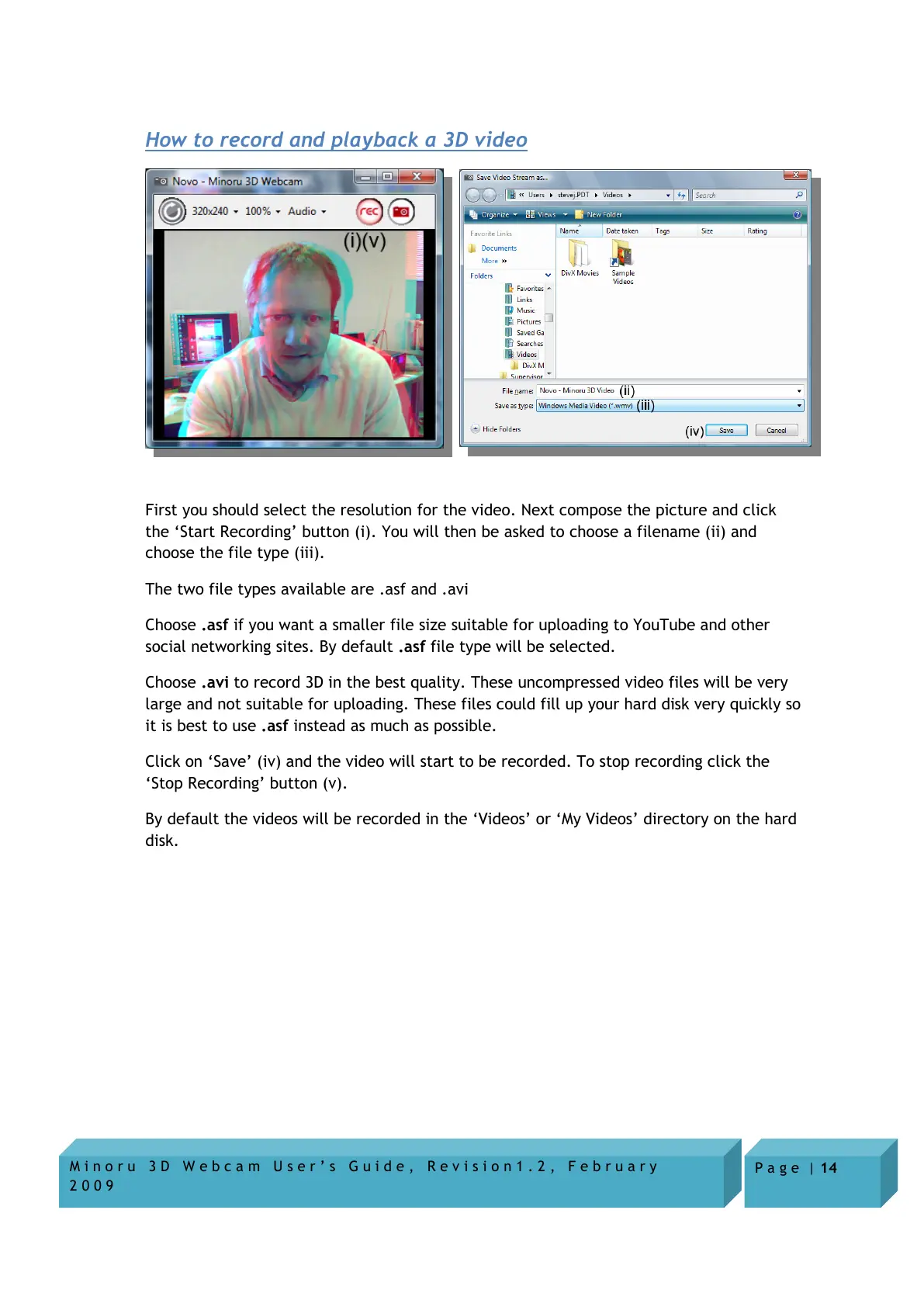
First you should select the resolution for the video. Next compose the picture and click
the ‘Start Recording’ button (i). You will then be asked to choose a filename (ii) and
choose the file type (iii).
The two file types available are .asf and .avi
Choose .asf if you want a smaller file size suitable for uploading to YouTube and other
social networking sites. By default .asf file type will be selected.
Choose .avi to record 3D in the best quality. These uncompressed video files will be very
large and not suitable for uploading. These files could fill up your hard disk very quickly so
it is best to use .asf instead as much as possible.
Click on ‘Save’ (iv) and the video will start to be recorded. To stop recording click the
‘Stop Recording’ button (v).
By default the videos will be recorded in the ‘Videos’ or ‘My Videos’ directory on the hard
disk.


 To Next Page