2 0 0 9
P a g e | 4
Introduction
Meet Minoru, meaning “Reality” in Japanese, the World’s first 3D webcam.
Connect Minoru to your PC and he will come alive, his eyes will light up and he will be
looking at you in 3D.
Your friends and family will now be able to see you in 3D over your favourite messaging
program like Windows Live Messenger, Skype, AOL instant messenger, OoVoo and many
others.
You will also be able to take 3D photos or even shoot 3D videos and upload them to
YouTube.
Installation
Hardware Installation
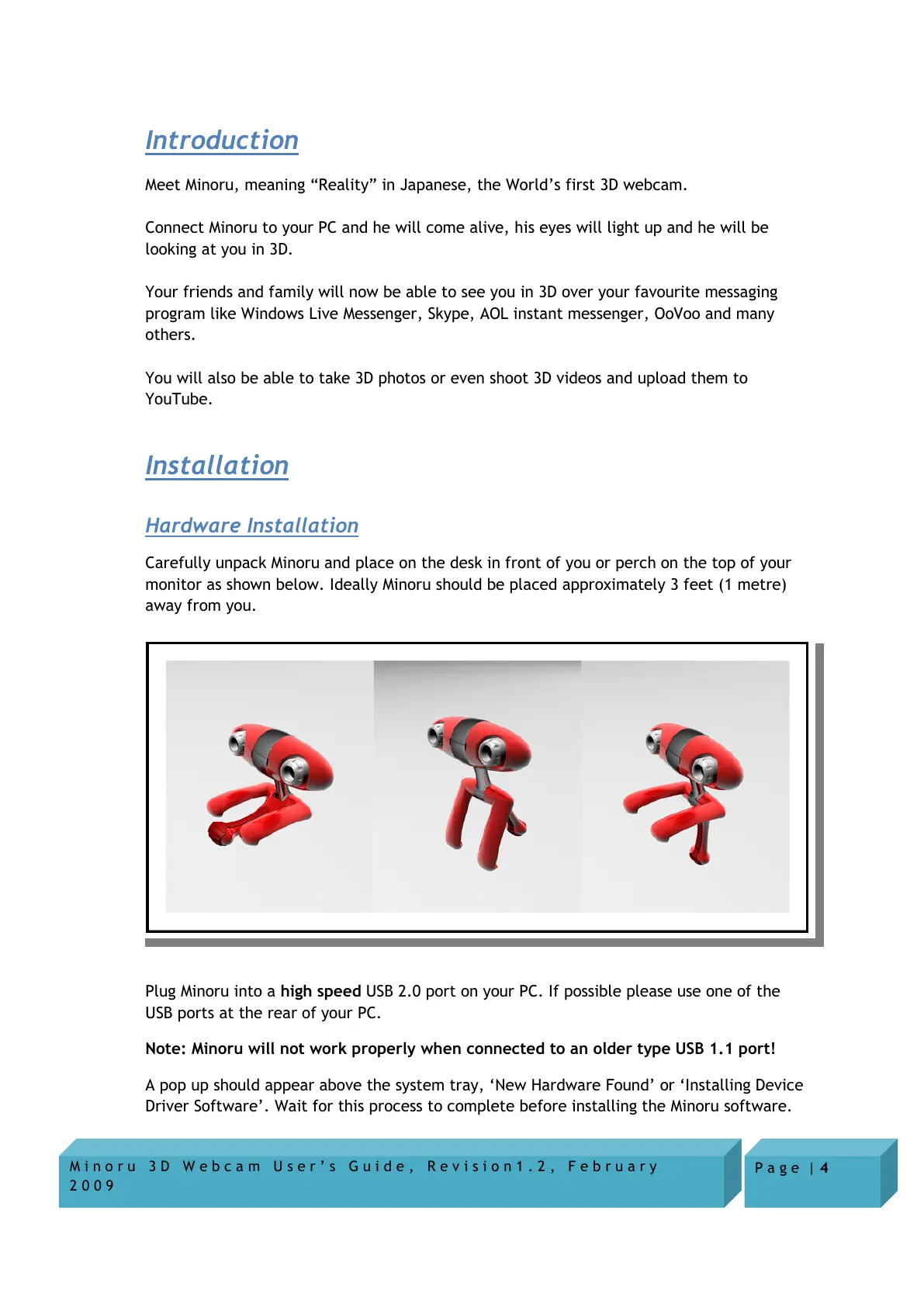
Carefully unpack Minoru and place on the desk in front of you or perch on the top of your
monitor as shown below. Ideally Minoru should be placed approximately 3 feet (1 metre)
away from you.
Plug Minoru into a high speed USB 2.0 port on your PC. If possible please use one of the
USB ports at the rear of your PC.
Note: Minoru will not work properly when connected to an older type USB 1.1 port!
A pop up should appear above the system tray, ‘New Hardware Found’ or ‘Installing Device
Driver Software’. Wait for this process to complete before installing the Minoru software.


 To Next Page